EasyManua.ls Logo

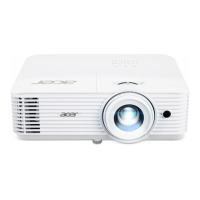
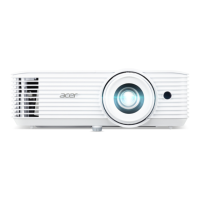
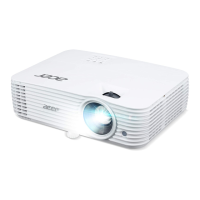
Acer H6805BD - User Manual

Acer H6805BD
51 pages
Print Icon
To Next Page IconTo Next Page
Loading...
Acer DLP Projector
H6805BD/E8605/HE-4K11/
GM830/VH-731/A4K1810/
H6810BD/E8610P/HE-
4K13P/GM832P/VH-733P/
H6810+/A4K1809
Series User's Guide
Copyright © 2019. Acer Incorporated.
All Rights Reserved.
Acer Projector User's Guide
Original Issue: 06/2019

Questions and Answers

  • C
    Catherine RiveraSep 13, 2025
    Why is Acer Projector image stretched when displaying a "widescreen" DVD title?
    • D
      Devon GarrettSep 13, 2025
      When you play a DVD encoded in anamorphic or 16:9 aspect ratio on your Acer Projector, you may need to adjust the following settings: If you play a 4:3 format DVD title, please change the format to 4:3 with the projector OSD. If the image is still stretched, you will also need to adjust the aspect ratio. Set up the display format to 16:9 (wide) aspect ratio on your DVD player.
  • D
    Danny MilesSep 15, 2025
    What happens if Acer H6805BD lamp burns out or makes a popping sound?
    • D
      Danielle StephensonSep 15, 2025
      When the lamp in your Acer Projector reaches the end of its useful life, it will burn out and may make a loud popping sound. If this happens, the projector will not turn on until the lamp module has been replaced.
  • P
    perezpeterNov 27, 2025
    What to do if Acer H6805BD Projector image is partial, scrolling or incorrectly displayed (For PC)?
    • Y
      ysandersNov 27, 2025
      If you're seeing a partial, scrolling, or incorrectly displayed image from your Acer Projector when using a PC, follow these steps: First, open "My Computer > Control Panel," and double-click the "Display" icon. Select the "Settings" tab. Make sure your display resolution setting is lower than or equal to 1600 x 1200 or 1920 x 1080. Click the "Advanced Properties" button. If the issue persists, change the monitor display you are using and follow these steps: Verify that the resolution setting is lower than or equal to 1600 x 1200 or 1920 x 1080. Click the "Change" button under the "Monitor" tab. Click "Show all devices > Standard monitor types" under the SP box, and choose the resolution mode you need under the "Models" box. Verify that the resolution setting of the monitor display is lowe...

Acer H6805BD Specifications

General IconGeneral
BrandAcer
ModelH6805BD
CategoryProjector
LanguageEnglish

Related product manuals