This document is a Quick Start Guide (QSG) for the Acer LCD monitor PM1 Series-PM141Q. It provides essential information for setting up, using, and maintaining the monitor, along with important safety and regulatory notices.
Function Description
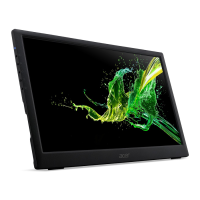
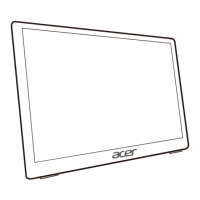
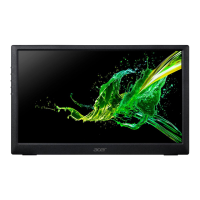
The Acer PM1 Series-PM141Q is an LCD monitor designed for video and visual display of information obtained from electronic devices. It is a portable monitor, as suggested by its compact design and the inclusion of various signal cables suitable for connecting to computers and mobile phones. The monitor can extend or mirror a display, offering flexibility for various use cases such as productivity or entertainment on the go. Its stand allows for adjustable viewing angles, enhancing user comfort.
Important Technical Specifications
While specific detailed technical specifications like resolution, refresh rate, or panel type are not explicitly listed in this QSG, several key aspects can be inferred:
- Model Series: PM1 Series-PM141Q.
- Connectivity:
- Signal Input: Mini HDMI, Type-C (Thunderbolt 3 / USB-C with DisplayPort Alt Mode functionality).
- Power Input: Micro-USB (for external power supply if the connected device has insufficient power output). The monitor is designed to be supplied by a USB port that complies with LPS (Limited Power Source).
- Power Requirement: When connected to a computer via a Thunderbolt 3 (USB-C) cable, no external power supply is required, as the single signal transmission line handles both data and power. However, some mobile phones with insufficient power supply may require an external power supply via Micro-USB.
- Operating Temperature Range: -20° to 60°C (-4° to 140°F) for storage. The optimal operating temperature is not explicitly stated but is typically within a narrower range.
- Display Type: LCD monitor.
Usage Features
The monitor is designed for ease of use and portability:
- Portable Design: The inclusion of a rear bracket allows for easy setup and adjustment of the viewing angle (up to 20°), making it suitable for various workspaces.
- Flexible Connectivity:
- Computer Connection: Connects to a computer using a Thunderbolt 3 (USB-C) cable to the monitor's Type-C port and the computer's Type-C output. This single cable solution simplifies setup by providing both signal and power.
- Phone Connection: Connects to a mobile phone using a Thunderbolt 3 (USB-C) cable to the monitor's Type-C port and the mobile phone's Type-C output.
- Video Output: Extending or mirroring the display via the Type-C port requires DisplayPort Alt Mode functionality.
- On-Screen Display (OSD) Controls: The monitor features intuitive OSD controls for adjusting various settings:
- Power Button (1 & 2): Turns the monitor on/off. A blue LED indicates power on, while amber indicates standby/power saving mode.
- OSD Button (3): Press to view the OSD. When the OSD is active, this button acts as the exit key.
- Audio Menu Button (4): Press to adjust the picture mode.
- Up/Right Button (4): Selects the desired item in the OSD menu.
- Down/Left Button (5): Selects the desired item in the OSD menu.
- Confirm Button (6): Confirms the OSD selection when the OSD menu is displayed.
- Package Contents: The monitor comes with essential accessories for immediate use, including a Mini HDMI cable, Type-C cable, Micro-USB cable, a cover, and a Quick Start Guide.
Maintenance Features
The guide provides clear instructions for basic maintenance and safety:
- Cleaning the LCD Monitor Screen:
- Turn off the monitor and unplug the power cord.
- Spray a non-solvent cleaning solution onto a rag (not directly onto the screen) and gently clean the screen.
- Safety Precautions:
- Do not place the monitor near a window to avoid exposure to rain, moisture, or sunlight, which can cause severe damage.
- Do not apply excessive pressure to the LCD screen to prevent permanent damage.
- Do not remove the cover or attempt to service the unit yourself; servicing should only be performed by an authorized technician.
- Store the monitor within the specified temperature range (-20° to 60°C) to prevent permanent damage.
- Immediately unplug the monitor and call an authorized technician if:
- The monitor-to-PC signal cable is frayed or damaged.
- Liquid spills onto the monitor.
- The monitor is exposed to rain.
- The monitor or its case is damaged.
- Regulatory Compliance: The device complies with FCC Class B limits, CE declaration of conformity (EMC Directive 2014/30/EU, Low Voltage Directive 2014/35/EU, RoHS Directive 2011/65/EU, and Ecodesign Directive 2009/125/EC), and CAN ICES-3(B)/NMB-3(B) for Canadian users.
- Shielded Cables: All connections to other computing devices must use shielded cables to maintain compliance with EMC regulations.
- Disposal Information: The product features a "crossed-out wheeled bin" symbol, indicating that it should not be disposed of with general household waste in the European Union. Instead, it must be handed over to a designated collection point for the recycling of waste electrical and electronic equipment to protect human health and the environment.

 Need help?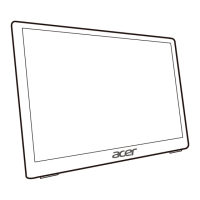

 To Next Page
 General