The assigned name will be displayed in place of Timezone N whenever the timezone is displayed
or being selected from a list. In addition, there is a built in timezone “24 Hours” which is always
active. There are 256 timezones available on the ACT3000.
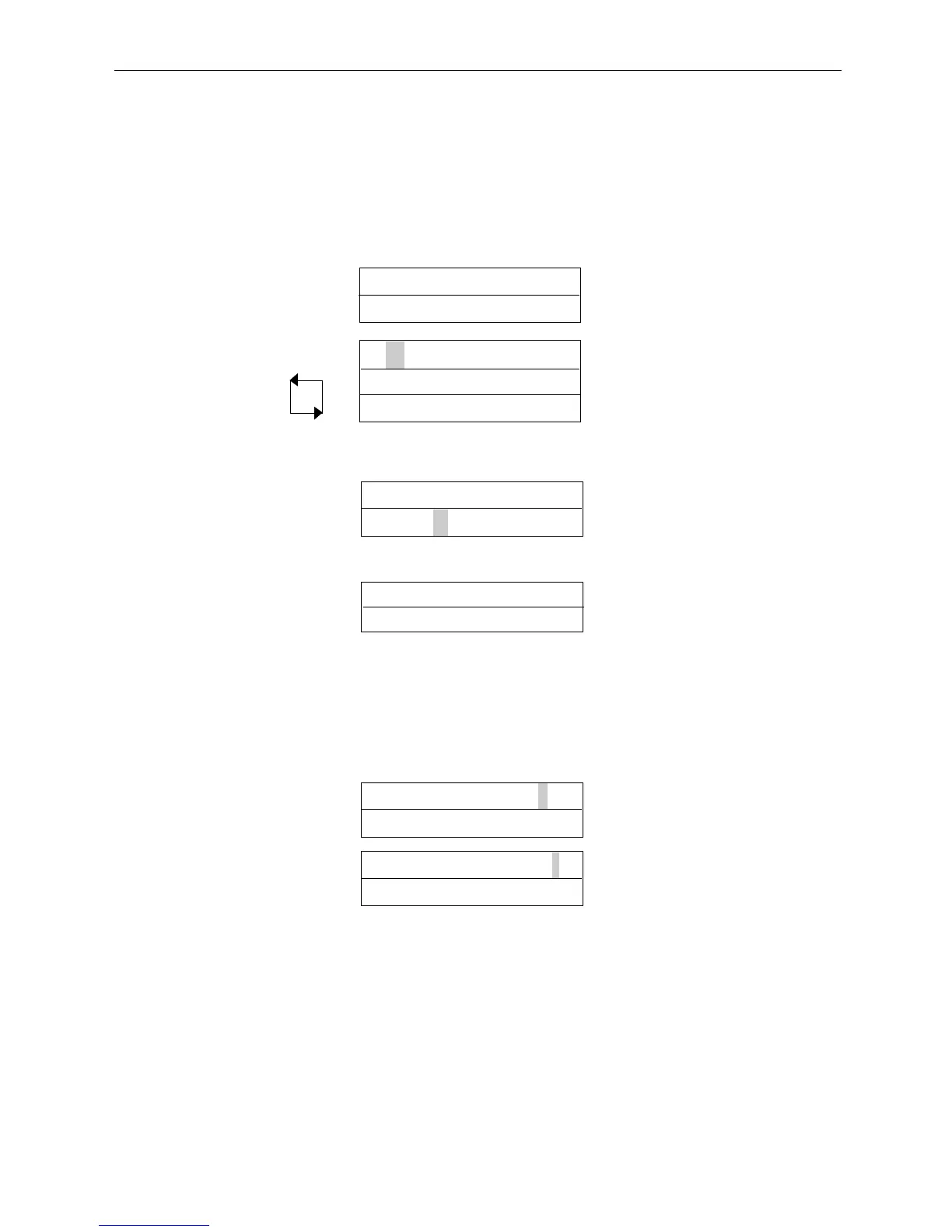
6) Clearing a timezone A B C D E F G H * - ✔ to clear timezone
Clear?
5) Assigning timezone name A B C D E F G H * - ✔ to assign name
Assign name?
1) Select Timezone Timezone 3 0 for next timezone
Not programmed
✔ to edit timezone
2) Select period A B C D E F G H + - 0 for next period
Week Days ✔ to edit period
08:30 -> 17:00
A
CTpro 3000 Operating Instructions Firmware Version 1.24
11
3) Changing days/holidays Wednesday 0 for next day/holiday
[TWTF—1—4]
✔ to select/deselect
✘ when done
4) Changing time period Period 0-9 to set time
08:30 -> 17:00 ✔ for next minute/hour
✘ when done
▼
▼
In addition, the timezone may be assigned a name or all time periods cleared quickly by
highlighting and selecting the * or - symbols respectively:
timezone may be selected using the 0 key or directly by entering the timezone number. The lower
line on the display will indicate if that timezone is active or inactive. Pressing the ✔ key allows
the timezone to be edited. In edit mode, the top line of the display shows the available periods in
the form ABCDEFGH * -. The 0 key allows one of the eight periods to be selected and pressing
✔ allows the period to be set.
Note: Timezones are also used by Timed Actions, which are part of Door Settings.


 To Next Page