LINK
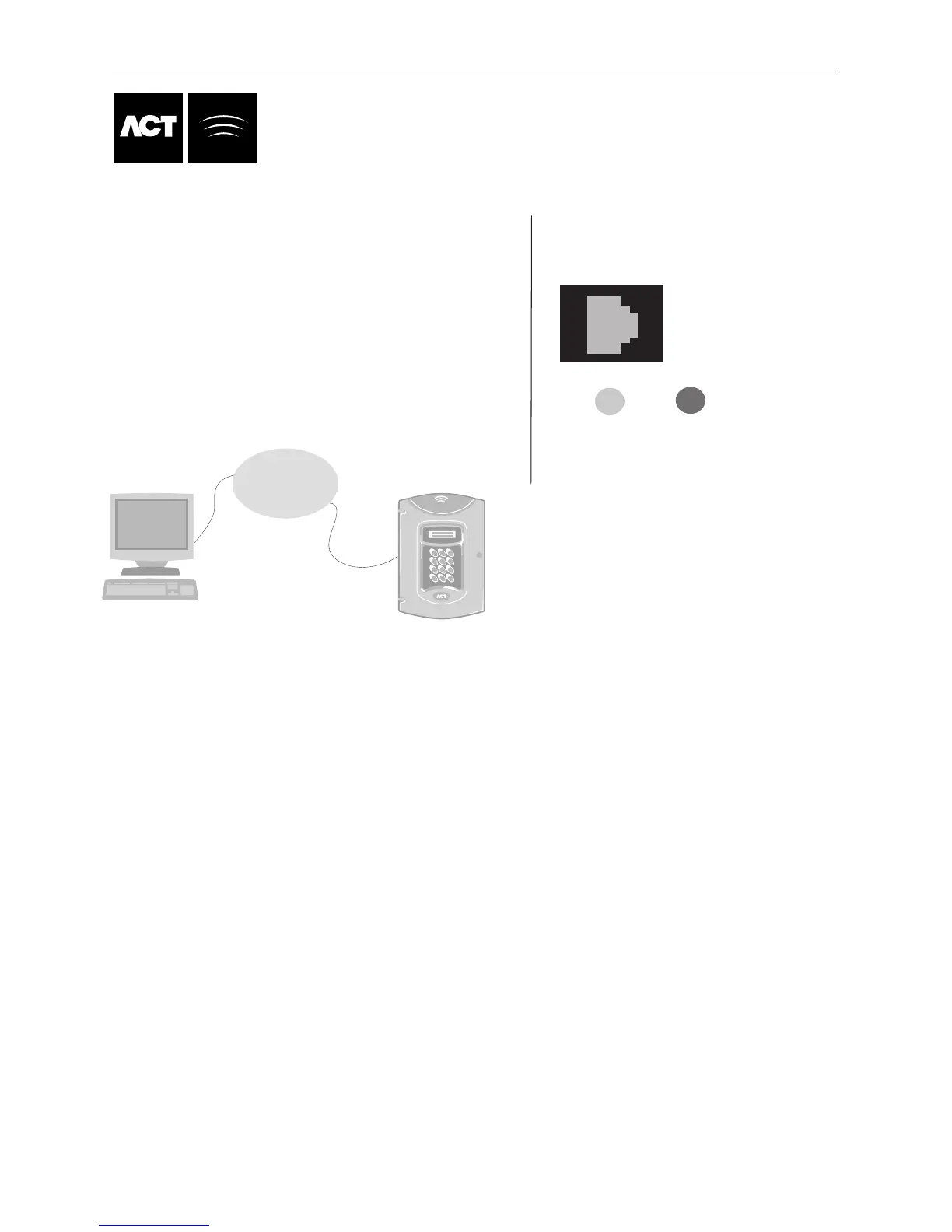
TX/RX
LEDS:
LINK Lights Solid Green to indicate RJ45 Network port is
connected to the Network.
TX/RX Blinks red to indicate packet transmission and
reception, also blinks to indicate network collisions.
RJ45
ACTpro 3000 supports TCP/IP networking over a LAN using
t
wisted pair Ethenet (10Base-T and standard RJ45 connector).
1. Ask the network administrator to supply you with a Static IP Network address and
the Network Mask.
2. If the ACTpro 3000 and the PC running ACTWinPro are on different subnetworks then you should request
the IP address of the Default Gateway (also know as the Default Route) from the Network Administrator.
3. Again If the ACTpro 3000 and the PC running ACTWinPro are on different subnetworks, You should confirm
with the Network Administrator that You want to use TCP Port Number 10001.
4. Once the LAN Administrator has supplied the information needed, enter this data via the ACTpro 3000 keypad.
Installer Menu->TCP/IP Settings (see page 22).
5. Connect the ACTpro 3000 to the Local Area Network, the LINK Led should illuminate green.
6. From ACTWinPro, enter the IP address of the ACTpro 3000 and the TCP Port Number into the
location manager for the Site.
7. You can now connect to the ACTpro 3000
TCP/IP Configuration
4 Pieces of information Your
Network Administrator should Provide.
1. Static IP Address
2. Network Mask
3. Default Gateway*
4. TCP Port Number*
*Only required if ACTpro 3000 and ACTWin pro are not
on the same subnet. i.e they communication via one
or more routers.
LAN/WAN
ACTpro 3000
ACTWin pro PC
ACTpro 3000



 To Next Page