710-00002.5
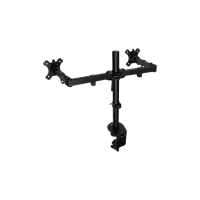
8. Enter the Battery Capacity. When the charger is setup for multi-voltage operation, there will
be a battery capacity associated with every Voltage. The other fields will have Default
Values. Click on Save after all of the information is updated, then click on Back.
NOTE:
Charging Type (Conventional, Opportunity, or Fast) will
be applied for all voltages. Based on the Charging
Type the software will load the Default Charging
Profile.
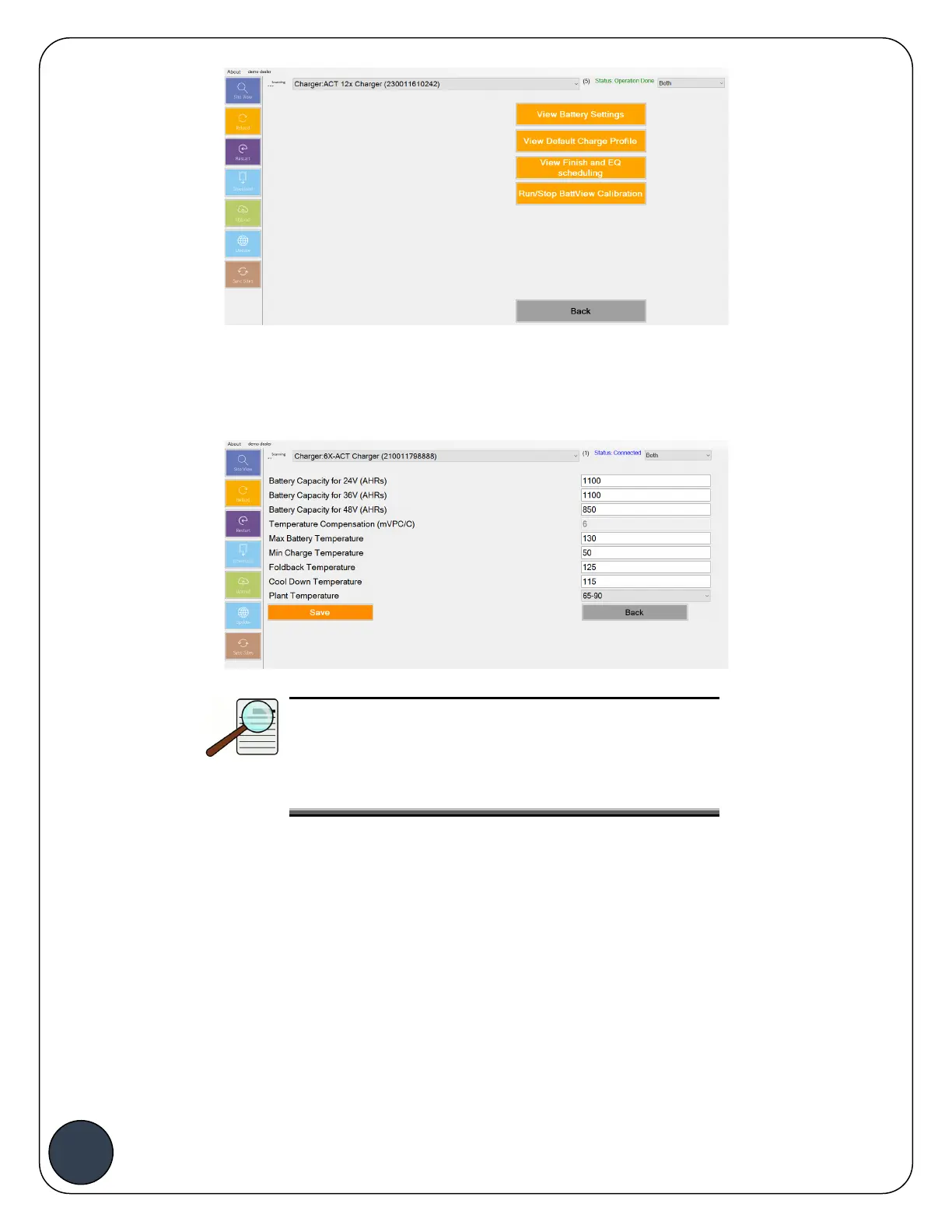
9. To view the Default Charging Profile, click on View Default Charge Profile. The default
charging profile follows the recommended settings by East Penn. Click on Back to go back
to the Battery Info Menu.
10. Click on View Finish and EQ Scheduling. Setup the Finish and Equalize Cycle windows by
entering the Start Time, Window Duration, and selecting the Days. The default for
Conventional chargers will be to finish always (daily), while the default value for Opportunity
and Fast charging will be Custom Finish Schedules. Click
Save
once the values are
updated, then click Back.


 To Next Page