19
Problem Possible Solution
Cannot access data
online or on the
AcuRite mobile app
• Verify under Status that data was received from the
indoor display. The timestamp should update every
18-36 seconds.
• Verify that you created an account or logged into an
existing account at www.MyAcuRite.com or in the
AcuRite app, and that you input the display’s
DEVICE ID as a part of the account setup.
• Verify the PC that the display is connected to is
always powered ON.
• Verify the PC that the display is connected to is
always connected to the internet.
• Verify that the display’s DEVICE ID is entered
correctly in the PC Connect software on your PC.
• Verify that “Sharing” is enabled in the PC Connect
software on your PC.
• Verify that the display’s DEVICE ID is correct in your
www.MyAcuRite.com and/or AcuRite mobile app account.
• Follow on-screen troubleshooting steps in the PC
Connect software.
No data received from
indoor display
• Verify that the USB cable is securely connected to the
display AND to the PC.
• Verify the display is powered ON.
• Restart the PC Connect software.
• Unplug the USB cable from the PC for 1 minute,
then plug the cable back in again.
• USB port may be malfunctioning, try using a different
USB port.
Add-on Sensor
not recognized
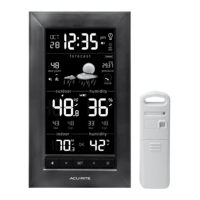
If the display is being used with add-on Temperature &
Humidity Sensors (models 06002 or 06044), the A-B-C
channels must differ between each add-on sensor.
1. Bring the display and wireless sensors together and
position them side-by-side.
2. Unplug cord & remove the batteries from the display.
3. Verify that each sensor has a different A-B-C
channel selected.
• Model 06002 - Locate the A-B-C switch inside the
battery compartment to adjust channel setting.
• Model 06044 - Locate the A-B-C button on the back
of the sensor to adjust channel setting (indicated on
sensor display).
4. Re-install sensor batteries (if applicable).
5. Plug in & re-install display batteries.
NOTE: It may take a few minutes for the display and
sensor(s) to synchronized after batteries are replaced.
Troubleshooting


 To Next Page