EasyManua.ls Logo

ACU-RITE 01022 - User Manual

ACU-RITE 01022
28 pages
Print Icon
To Next Page IconTo Next Page
Loading...
Instruction Manual
CONTENTS
Unpacking Instructions ............... 2
Package Contents ...................... 2
Product Registration ................... 2
Features & Benets: Lightning Sensor .. 3
Features & Benets: 5-in1 ........... 4
Features & Benets: Display ........ 5
Setup ........................................ 9
Lightning Sensor Setup ............... 9
5-in-1 Sensor Setup ...................10
Display Setup ...........................11
Set the Time, Date & Units .........12
Backlight Settings ......................12
Placement Guidelines ................13
5-in-1 Sensor Installation ............15
Using the Weather Center .........16
Rainfall Tracking .......................18
Weather Ticker .........................19
Programmable Alarms .............. 20
Troubleshooting ....................... 22
Care & Maintenance ................ 24
Calibration .............................. 24
Specications ........................... 26
FCC Information ...................... 26
Customer Support .................... 27
Warranty................................. 27
Weather Station with Lightning Detector
models 01022, 02080, 06046
SAVE THIS MANUAL FOR FUTURE REFERENCE.
Questions? Contact Customer Support at
(877) 221-1252 or visit www.AcuRite.com.

Questions and Answers

  • E
    elizabethreevesAug 14, 2025
    Why is the outdoor temperature flashing or showing dashes on my ACU-RITE 01022 Weather Station?
    • D
      Dominique SwansonAug 14, 2025
      The outdoor temperature might be flashing or showing dashes on your ACU-RITE Weather Station due to wireless interference. To resolve this, check that the A-B-C switch in the battery compartments of the display and both sensors are set to the same letter (A, B, or C). Changing to a different channel sometimes helps.
  • A
    Angela DunnAug 17, 2025
    Why are my ACU-RITE 01022 Weather Station temperature and humidity readings inaccurate?
    • V
      veronica83Aug 18, 2025
      Inaccurate temperature or humidity readings on your ACU-RITE Weather Station can occur if the display and 5-in-1 sensor are near heat or moisture sources. Ensure both are placed away from such sources. Also, the 5-in-1 sensor should be mounted at least 1.5 m (5 ft) off the ground. You can also calibrate the indoor and outdoor temperature and humidity.
  • A
    Audrey TuckerAug 21, 2025
    What to do if my ACU-RITE 01022 Weather Station is not measuring rainfall?
    • C
      Carolyn YoungAug 21, 2025
      If your ACU-RITE Weather Station isn't measuring rainfall, first check that the rain gauge stabilizer (plastic tab) has been removed from the bottom of the sensor. Also, clear any debris, such as leaves, from the rain collector funnel and debris screen. Finally, calibrate the Rain Gauge.
  • F
    frankpaulaAug 25, 2025
    Why are the wind readings on my ACU-RITE Weather Station inaccurate?
    • B
      Barbara MoralesAug 26, 2025
      Inaccurate wind readings on your ACU-RITE Weather Station can be influenced by several factors. Consider what the wind reading is being compared to; professional weather stations are typically mounted at 30 ft (9 m) or higher, so compare data with a sensor at a similar height. Check the sensor's location to ensure it's mounted at least 5 ft (1.5 m) in the air with no obstructions nearby. Also, make sure the wind cups are spinning freely; if they hesitate, try lubricating them with graphite powder or spray lubricant.
  • T
    Tina GoldenSep 4, 2025
    What to do if my ACU-RITE 01022 display screen is not working?
    • H
      harrisonalexandraSep 4, 2025
      If your ACU-RITE Weather Station display screen isn't working, ensure the power adapter is correctly plugged into both the display and a working electrical outlet. If it still doesn't work, reset the display by pressing and releasing the RESET button located in the battery compartment. Note that after a reset, you will need to re-enter the time and date.
  • J
    John ThompsonSep 7, 2025
    Why is my ACU-RITE 01022 Weather Station forecast inaccurate?
    • A
      adrianhicksSep 7, 2025
      An inaccurate forecast on your ACU-RITE Weather Station might be due to several reasons. The weather forecast icon predicts conditions for the next 12 to 24 hours, not current conditions. Also, check if the Learning Mode icon has disappeared from the display, as Learning Mode must complete before the forecast and pressure will be accurate. Allow the unit to run continuously for 33 days, as battery removal or resetting the display will restart Learning Mode. After 14 days, the forecast should be fairly accurate, but Learning Mode calibrates for a total of 33 days.
  • B
    Brittany MitchellSep 10, 2025
    What does it mean when the Interference Indicator is flashing on my ACU-RITE Weather Station?
    • J
      James CampbellSep 12, 2025
      If the Interference Indicator is flashing on your ACU-RITE Weather Station, try relocating the lightning sensor. Also, ensure the lightning sensor is at least 3 feet (.9 m) away from electronics that may cause interference.
  • J
    Justin Myers DDSNov 26, 2025
    What to do if my ACU-RITE 01022 add-on sensor is not recognized?
    • S
      Sherri StaffordNov 27, 2025
      If your ACU-RITE Weather Station isn't recognizing an add-on Temperature & Humidity Sensor (models 06002 or 06044), ensure the A-B-C channels differ between each add-on sensor. To do this, bring the display and wireless sensors together, position them side-by-side, unplug the cord and remove the batteries from the display, verify that each sensor has a different A-B-C channel selected (Model 06002: locate the A-B-C switch inside the battery compartment to adjust the channel setting; Model 06044: locate the A-B-C button on the back of the sensor to adjust the channel setting, indicated on the sensor display), re-install sensor batteries (if applicable), plug in and re-install display batteries. It may take a few minutes for the display and sensor(s) to synchronize after batteries are replac...
  • G
    George JosephDec 1, 2025
    Why is my ACU-RITE 01022 not receiving the 5-in-1 sensor signal?
    • P
      ptownsendDec 1, 2025
      If your ACU-RITE Weather Station isn't receiving the 5-in-1 sensor signal, try these steps: * Relocate the display and/or the sensor, ensuring they are within 330 ft (100 m) of each other. * Keep all units at least 3 feet (.9 m) away from electronics that may interfere with wireless communication, such as TVs, microwaves, and computers. * Use standard alkaline batteries (or lithium batteries in the sensor when the temperature is below -20ºC/-4ºF). Avoid using heavy-duty or rechargeable batteries. Note that it may take a few minutes for the display and sensors to synchronize after batteries are replaced. * Synchronize the units by bringing both sensors and the display indoors, removing power adapters/batteries from all, reinstalling batteries in the outdoor sensors, reinstalling t...

Summary

Getting Started: Unpacking and Registration

Unpacking the Weather Station

Instructions for removing protective film from the LCD screen before first use.

Included Package Contents

A detailed list of all components included in the product packaging.

Product Registration and Warranty

Information on how to register the product online for warranty service.

Lightning Sensor Components and Functions

Integrated Hanger for Placement

Describes the integrated hanger for convenient placement of the lightning sensor.

Wireless Signal Transmission Indicator

Indicates when the sensor is actively transmitting data to the companion unit.

Interference Detection Indicator

Alerts the user when wireless interference affects the sensor's operation.

A-B-C Synchronization Switch

Allows synchronization by matching the sensor's ID code with the display.

Lightning Strike Detection Indicator

Visually indicates when a lightning strike has occurred within a 25-mile radius.

Lightning Sensor Battery Compartment

Location for installing batteries to power the lightning sensor.

5-in-1 Sensor Components and Functions

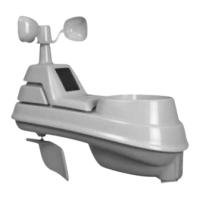
5-in-1 Sensor Rainfall Collector Funnel

The component designed to collect and channel rainwater for measurement.

5-in-1 Sensor Solar Cell Panel

Converts sunlight into power to operate the internal aspirating fan.

5-in-1 Sensor Internal Aspirating Fan

Circulates ambient air to reduce solar radiation heating for better temperature readings.

5-in-1 Sensor A-B-C Synchronization Switch

Used to match the sensor's ID code with the display for unit synchronization.

5-in-1 Sensor Battery Compartment

The section where batteries are inserted to power the 5-in-1 sensor.

5-in-1 Sensor Temp & Humidity Sensors

Internal sensors responsible for measuring ambient temperature and humidity.

5-in-1 Sensor Wind Speed Anemometer

The component that measures the speed of the wind.

5-in-1 Sensor Wind Direction Vane

The part that points into the wind to indicate wind direction.

5-in-1 Sensor Mounting Bracket

The bracket used to secure the 5-in-1 sensor to a mounting surface.

5-in-1 Sensor Rain Gauge Debris Filter

A filter pre-installed to prevent debris from entering the rain gauge.

Display Unit Interface and Controls

Display Unit Navigation Buttons

Buttons like '>', 'select', '^', 'v', 'options', 'alarms', 'records', 'clear' for interacting with the display.

Display Unit SET;enter Button

Used for confirming selections and navigating through setup preferences.

Display Unit LIGHT Button

Adjusts the display's backlight brightness or activates it momentarily.

Display Unit Back Panel Features

Display Integrated Wall Mounting Hole

A built-in hole designed for mounting the display unit on a wall.

Display A-B-C Synchronization Switch

Ensures proper synchronization between the display and outdoor sensors.

Display Unit RESET Button

Resets the unit to its original factory settings.

Display Unit Backlight;Dimmer Control

Controls display brightness when powered by adapter or backlight when on battery.

Lightning Sensor Initial Setup

Lightning Sensor A-B-C Switch Setup

Guides on setting the A-B-C switch for sensor and display synchronization.

Lightning Sensor Battery Installation

Instructions for installing batteries, recommending alkaline or lithium types.

5-in-1 Sensor Initial Setup

5-in-1 Sensor A-B-C Switch Setup

Setting the A-B-C switch to match the display and lightning sensor for synchronization.

5-in-1 Sensor Battery Installation

Instructions for installing batteries, recommending alkaline or lithium types for best performance.

5-in-1 Sensor Rain Gauge Stabilizer Removal

Removing the plastic tab to enable the rain gauge functionality.

Display Unit Setup and Power

Display Unit A-B-C Switch Setup

Guides on setting the A-B-C switch to match outdoor sensors for proper unit synchronization.

Connecting the Power Adapter

Instructions for connecting the power adapter for primary operation.

Installing Optional Backup Batteries

Details on installing optional backup batteries to preserve data during power loss.

Setting Time, Date, and Units

Configuring Time, Date, and Measurement Units

Step-by-step guide to setting the clock, date, and measurement units.

Adjusting Display Backlight Brightness

Information on adjusting backlight brightness levels and auto-dim mode.

Optimal Placement for Accuracy

Display Unit Placement Recommendations

Recommendations for placing the display in a dry, dust-free area away from direct sunlight.

5-in-1 Sensor Outdoor Placement

Guidance on positioning the 5-in-1 sensor outdoors for accurate measurements.

Lightning Sensor Outdoor Placement

Best practices for placing the lightning sensor outdoors for optimal performance.

Placement Guidelines for Range and Interference

Key guidelines to maximize wireless range and prevent interference.

Lightning Sensor Installation Considerations

Lightning Sensor False Detection Issues

Explains how to identify and resolve false lightning detection due to interference.

Identifying Lightning Sensor Interference Sources

Lists common electronic devices that can cause interference with the sensor.

5-in-1 Sensor Mounting and Installation

5-in-1 Sensor Height and Mounting Options

Details on optimal installation height and mounting options for the 5-in-1 sensor.

5-in-1 Sensor Solar Cell Orientation

Instructions for orienting the solar cell to face south for maximum sun exposure.

Operating the Weather Center

Weather Center Learning Mode Explained

Explains the learning mode for determining altitude and calibrating forecasts.

Understanding Weather Forecasts

Details AcuRite's self-calibrating forecasting and its accuracy.

Using Weather Select Features

How to manually change displayed readings like wind chill, dew point, and heat index.

Viewing Wind Speed Data

Explains how current, average, and peak wind speeds are displayed and calculated.

Advanced Weather Data and System Expansion

Barometric Pressure Monitoring

Describes how barometric pressure and trending indicators are displayed.

Lightning Detection and Reporting

Details lightning strike detection, reporting, and associated icons.

Expanding System with Additional Sensors

Information on expanding the system with optional temperature and humidity sensors.

Viewing Indoor and Add-On Sensor Readings

How to view readings from indoor and add-on sensors.

Rainfall Tracking and Weather Ticker

Tracking Historical Rainfall Data

Explains how to track and view historical rainfall accumulation data.

Using the Weather Ticker

Describes the ticker that displays real-time weather information and alerts.

Records and Programmable Alarms

Viewing High and Low Weather Records

Details on viewing daily, weekly, and monthly high/low temperature and humidity records.

Setting Up Programmable Weather Alarms

Information on setting custom alarms for various weather categories.

Alarm Management Procedures

Setting a New Weather Alarm

Step-by-step instructions for setting up new weather alarms with low and high thresholds.

Disabling Weather Alarms

Procedures for disabling individual alarms or all alarms at once.

Troubleshooting: Sensor and Forecast Issues

Troubleshooting Sensor Reception Problems

Solutions for when the 5-in-1 or lightning sensor is not received by the display.

Troubleshooting Outdoor Temperature Display

Addressing issues where outdoor temperature is flashing or showing dashes.

Troubleshooting Inaccurate Forecasts

Troubleshooting steps for improving the accuracy of the weather forecast.

Troubleshooting Temp;Humidity Inaccuracies

Steps to resolve inaccuracies in indoor and outdoor temperature and humidity readings.

Troubleshooting: Other Device Issues

Troubleshooting No Rainfall Measurement

Solutions for when the rain gauge is not recording rainfall accurately.

Troubleshooting Inaccurate Wind Readings

Tips for troubleshooting and improving the accuracy of wind speed and direction readings.

Troubleshooting Display Screen Malfunctions

Steps to take if the display screen fails to operate or shows errors.

Troubleshooting Add-On Sensor Recognition

Solutions for when add-on sensors are not recognized by the display unit.

Troubleshooting Interference Indicator Flashing

Guidance on addressing the flashing interference indicator on the sensor.

Device Care, Maintenance, and Calibration

Display Unit Care and Cleaning

Instructions for cleaning the display unit safely and effectively.

5-in-1 Sensor Care and Maintenance Guide

Guidance on cleaning and maintaining the 5-in-1 sensor, including insect prevention.

Lightning Sensor Care and Cleaning

Recommended cleaning procedures for the lightning sensor.

Calibrating Display Temperature and Humidity

How to calibrate indoor/outdoor temperature, humidity, and barometric pressure readings.

Calibrating the Rain Gauge

Rain Gauge Calibration Procedure Steps

Step-by-step guide to calibrate the rain gauge for accurate rainfall measurement.

Adjusting Rain Gauge Calibration Screws

Methods for adjusting the rain gauge calibration screws for precise readings.

Specifications and Regulatory Information

Product Technical Specifications

Lists the technical specifications for temperature, humidity, wind speed, and more.

FCC Compliance Information

Information regarding FCC compliance and potential interference.

Customer Support and Warranty Details

Contacting Customer Support

Contact methods and information for obtaining customer support for the product.

Understanding the 1-Year Limited Warranty

Details the terms, conditions, and limitations of the product's one-year warranty.

ACU-RITE 01022 Specifications

General IconGeneral
Display TypeLCD
Humidity Range1% to 99%
Power SourceBattery-powered
Wireless Range330 feet (100 meters)
FeaturesAtomic Clock

Related product manuals