Acuity Brands | One Lithonia Way Conyers, GA 30012 | Phone: 800.535.2465 | www.acuitycontrols.com | © 2019 Acuity Brands Lighting, Inc. | All rights reserved. | Rev. 11/14/2019
Viewing a Scene
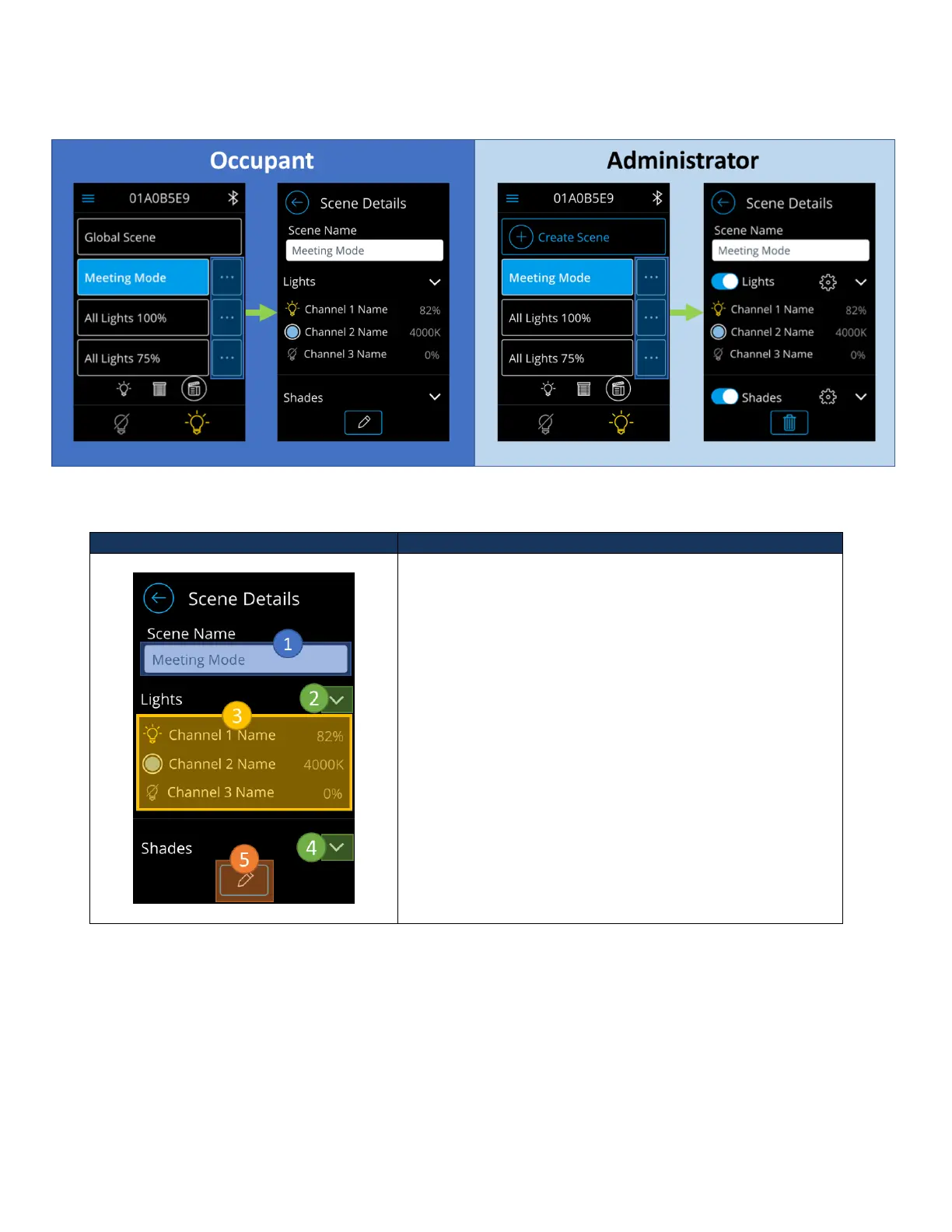
Details of a local preset scene can be viewed by clicking on the buttons highlighted in blue. This action should transition
users to the scene detail screen. Note: Details of global scenes cannot be viewed on the nLight UNITOUCH.
The detail view of a scene displays light and shade channels
that have been assigned to the scene and their designated
states.
1. Scene Name – Section designated to display the
name of the current scene.
2. Light channel expand/collapse button – Used to
expand and collapse the list of light and CCT channels
configured to be controlled in this scene.
3. Configured light/CCT channel list – Displays light/CCT
channels assigned to this scene and the state
activating the scene will set the lights to.
4. Shade channel expand/collapse button – Used to
expand and collapse the list of shade channels
configured to this scene.
5. Scene Edit button – Button to initiate editing of
current scene. Upon tapping, users will be prompted
to login and edit the scene as administrators.
Editing a Scene
To edit a scene, one must be logged in as an administrator. Refer to the section labeled “Logging in as
Administrator” for login information. From the screen edit screen, Figure 13, administrators can modify the name of a



 To Next Page