Acuity Brands | One Lithonia Way Conyers, GA 30012 | Phone: 800.535.2465 | www.acuitycontrols.com | © 2019 Acuity Brands Lighting, Inc. | All rights reserved. | Rev. 11/14/2019
Manage PINs
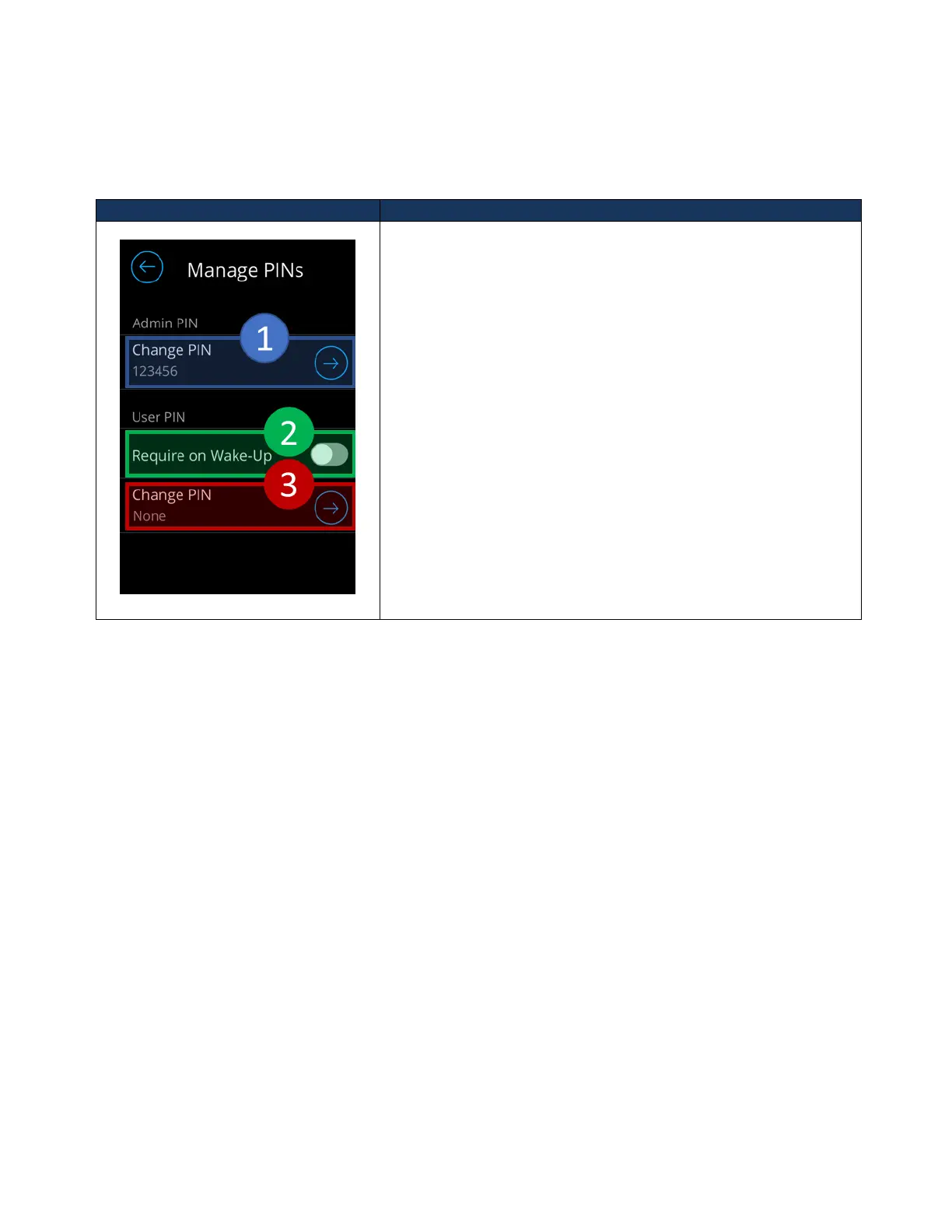
The Manage PINs section is accessible through the Settings screen to allow for configuration of PINs and
enabling/disabling on screen lockout.
The following element blocks allow configuration of the PIN and
screen lock out.
1. Change Admin PIN – Initiating this control kicks-off the
Administrator PIN changing process.
2. Require on wake-up – Enables and disables the lockout
PIN entry requirement. By enabling screen lockout, users
will be prompted to enter the PIN to access any of the
dashboards after the device enters screensaver, or screen
off, modes.
3. Change User PIN – Initiates the process of changing the
current lockout PIN.
Changing the PIN is a multi-step process. Figure 23 illustrates the process in detail. From the Manage PINs screen,
“Change PIN” must be selected. Administrators will be prompted to enter the new PIN. Upon confirmation of the new



 To Next Page