Acuity Brands | One Lithonia Way Conyers, GA 30012 | Phone: 800.535.2465 | www.acuitycontrols.com | © 2019 Acuity Brands Lighting, Inc. | All rights reserved. | Rev. 11/14/2019
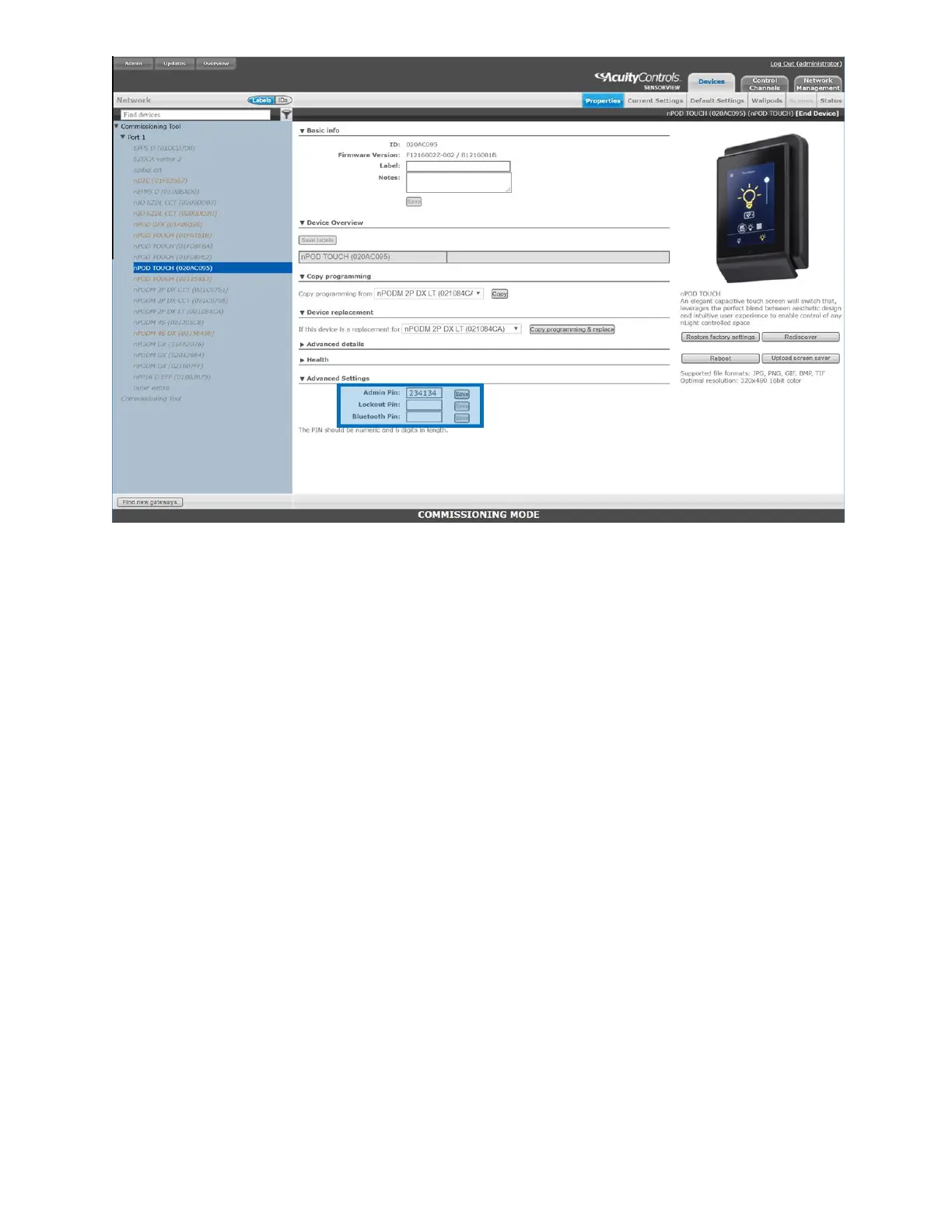
Figure 30 - Managing PINs from the Properties tab
Uploading a custom screen saver
The nLight UNITOUCH is equipped with a custom screen saver feature that allows users the ability to upload an
image to display when the screen saver timeout has been met.
Selected screen saver image must comply with the following requirements:
• Must be a supported file format: JPG, PNG, GIF, BMP, TIF
• Must be maintain a resolution of 320x480 pixels
Custom image upload process is as follows:
1. Open the SensorView application
a. Login to the application
2. Select the Devices tab
3. Select the nPOD TOUCH device in the left-hand column
4. Press the “Upload screen saver” button (Figure 31)
5. Select the image to be uploaded
a. Preview the selected image under the “Upload screen saver” button
6. Press the “Send to device” button to send the custom screen saver to the UNITOUCH
a. If interested in selecting another image, press the “Cancel” button and restart operation



 To Next Page