Acuity Brands | One Lithonia Way Conyers, GA 30012 | Phone: 800.535.2465 | www.acuitycontrols.com | © 2019 Acuity Brands Lighting, Inc. | All rights reserved. | Rev. 11/14/2019
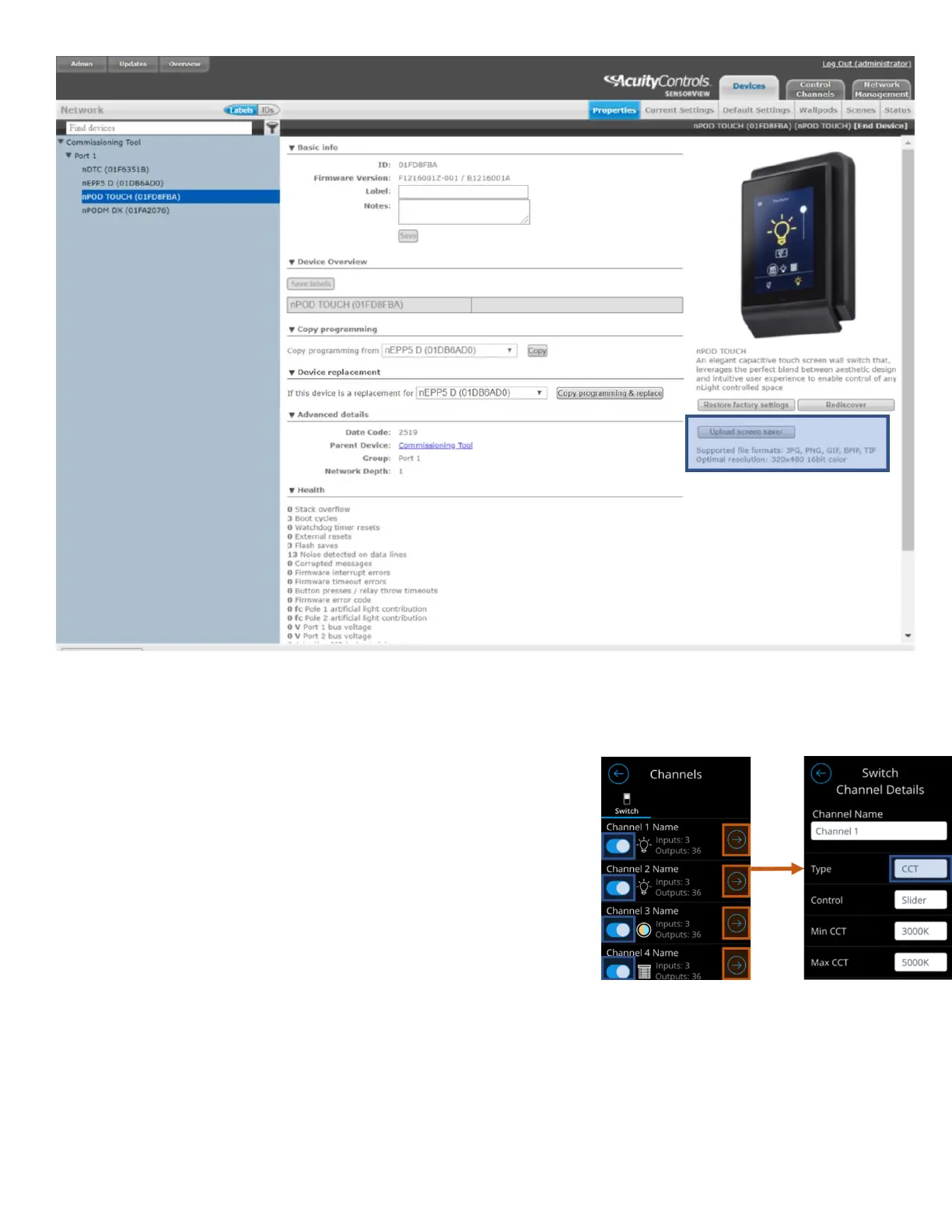
Figure 31- SensorView nPOD TOUCH screensaver upload screen
Enabling a channel
The nLight UNITOUCH allows the ability to enable a channel from showing in the main dashboard through
Technician Mode, as well as SensorView. Workflow for enabling a channel on-screen of an nLight UNITOUCH is provided
in the Technician Mode section under the “Channels”.
One must navigate to the Channels screen to toggle the channel they would
like to have enabled, while ensuring that the channel’s type is not set to
“None”. The process is as follows:
1. Navigate to the “Channels” screen
2. Enable the relevant channel(s)
3. Navigate to the relevant channel(s)
4. Ensure that the channel’s “Type” is not set to “None”
Enabling channels on SensorView is a multi-step process that requires toggling the “Visible/Hidden” button on the
WallPod in the Current Settings tab and ensuring that the “Enabled” checkbox is activated in the Wallpods tab. It is
important to note that SensorView refers to channels as “Wallpods”.
The following steps should be followed to enable a wallpod through SensorView:
1. Open the SensorView application
a. Login to the application
2. Select the “Devices” section
3. Select the nPOD TOUCH device in the left-hand column



 To Next Page