Acuity Brands | One Lithonia Way Conyers, GA 30012 | Phone: 800.535.2465 | www.acuitycontrols.com | © 2019 Acuity Brands Lighting, Inc. | All rights reserved. | Rev. 11/14/2019
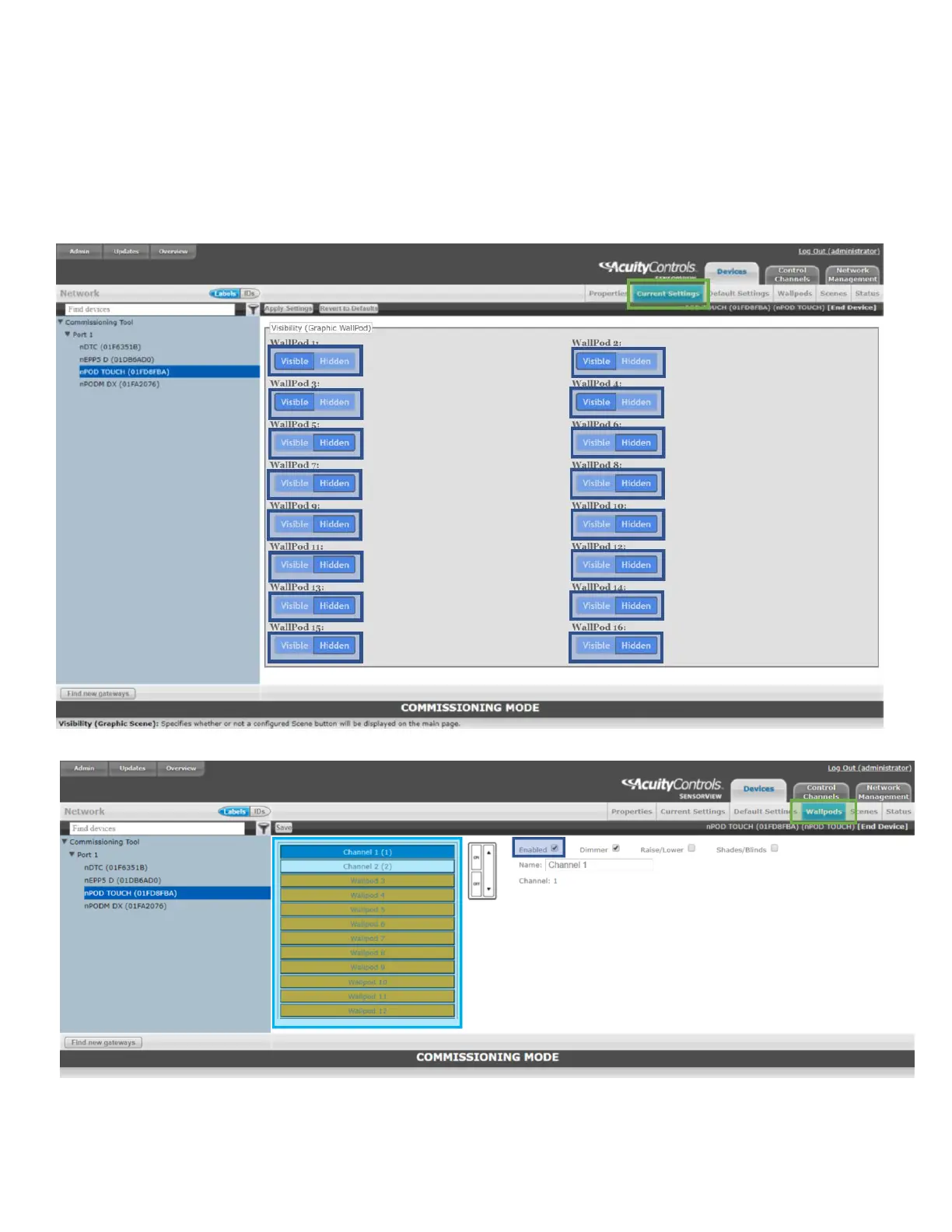
4. Set the wallpod(s) as “Visible” in the “Current Settings” tab
a. Navigate to the “Current Settings” tab (See Figure 32)
b. Press the “Visible” button under the relevant WallPod(s)
c. Press the “Apply Settings” button to save changes
5. Ensure that the wallpods are enabled in in the “Wallpods” tab
a. Navigate to the “Wallpods” tab (See Figure 33)
b. Select the relevant wallpod(s)
c. Ensure that the “Enabled” property is checked
Figure 32 - Enable WallPods through SensorView - Current Settings Tab



 To Previous Page