Acuity Brands | One Lithonia Way Conyers, GA 30012 | Phone: 800.535.2465 | www.acuitycontrols.com | © 2019 Acuity Brands Lighting, Inc. | All rights reserved. | Rev. 11/14/2019
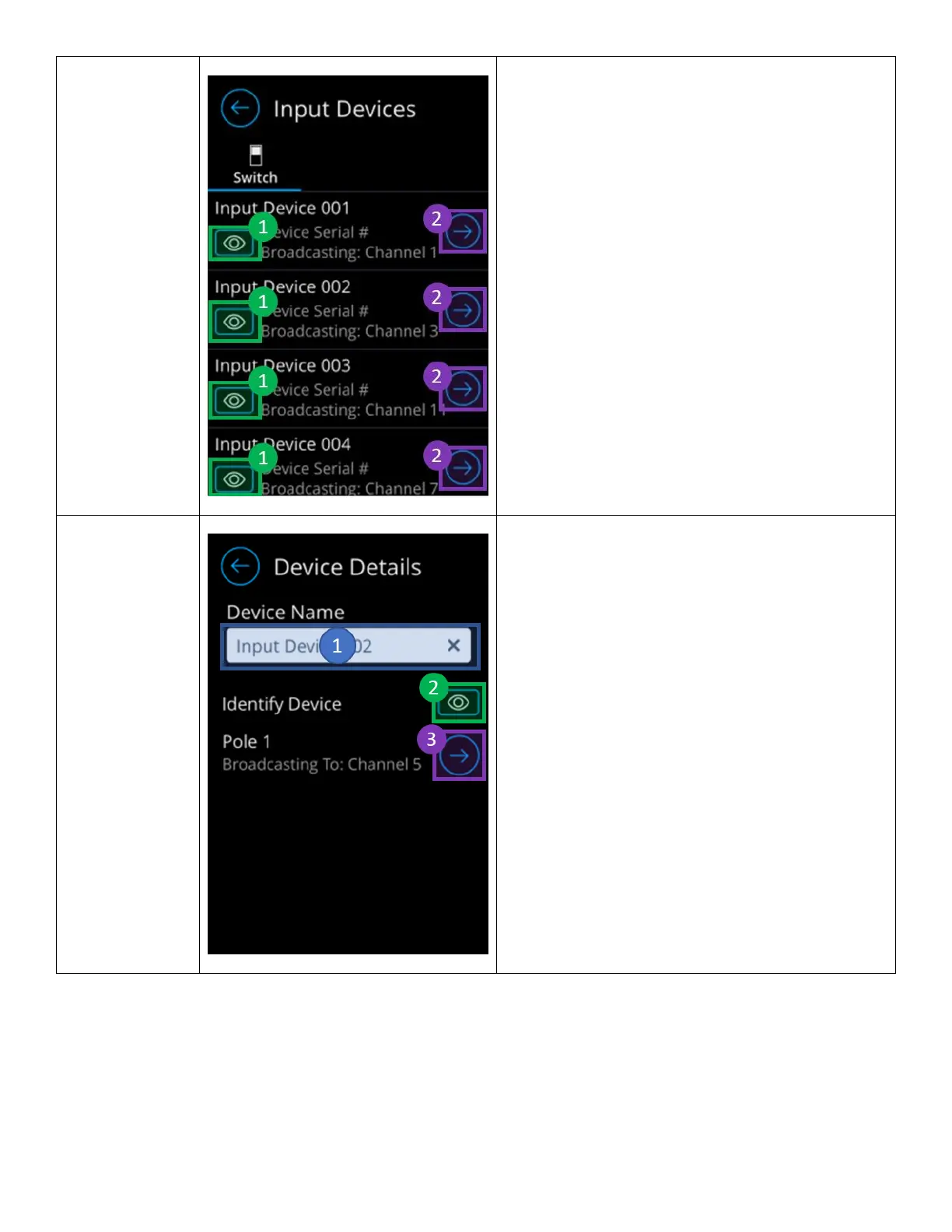
From the Switch Inputs screen, administrators have
access to going into detail views of input switch, while
also triggering the curtsy of all the devices in the
lighting control zone.
1. Curtsy/Identify button – Signals the device to
enter curtsy/identify mode.
2. Device Detail button – Transitions the to the
device detail screen.
From the Device Detail screen, users can configure an
individual device to the extent below:
1. Name Field - Used to modify the name of the
device.
o Changes to this channel shall be
reflected on SensorView.
2. Curtsy/Identify button – Signals the device to
enter curtsy/identify mode.
3. Broadcasting Channels – Allows selection of
channel to broadcast to.
o Input devices can only broadcast to
one channel.
o If device is multiple, this will only do
configuration of the first pole.
SensorView must be used to
configure other poles.



 To Next Page