16 D3V MANUAL [ENGLISH] 17D3V MANUAL [ENGLISH]
2) Source device-based:
a. Turn down the volume of the D3V to its minimum setting (anticlockwise)
b. Turn up the output volume of the source device to its maximum setting
c. Start to play a loud piece of material with plenty of low-frequency content
d. Slowly turn up the volume of the D3V (clockwise), while listening, until
the ADAM Audio logo on the front panel starts to flash red (limiter active)
e. Stop the playback immediately to prevent damage to your hearing
f. You can now control the volume of your audio with the full range of the
source volume control, provided you do not readjust the D3V's volume level
b) Secondary functions
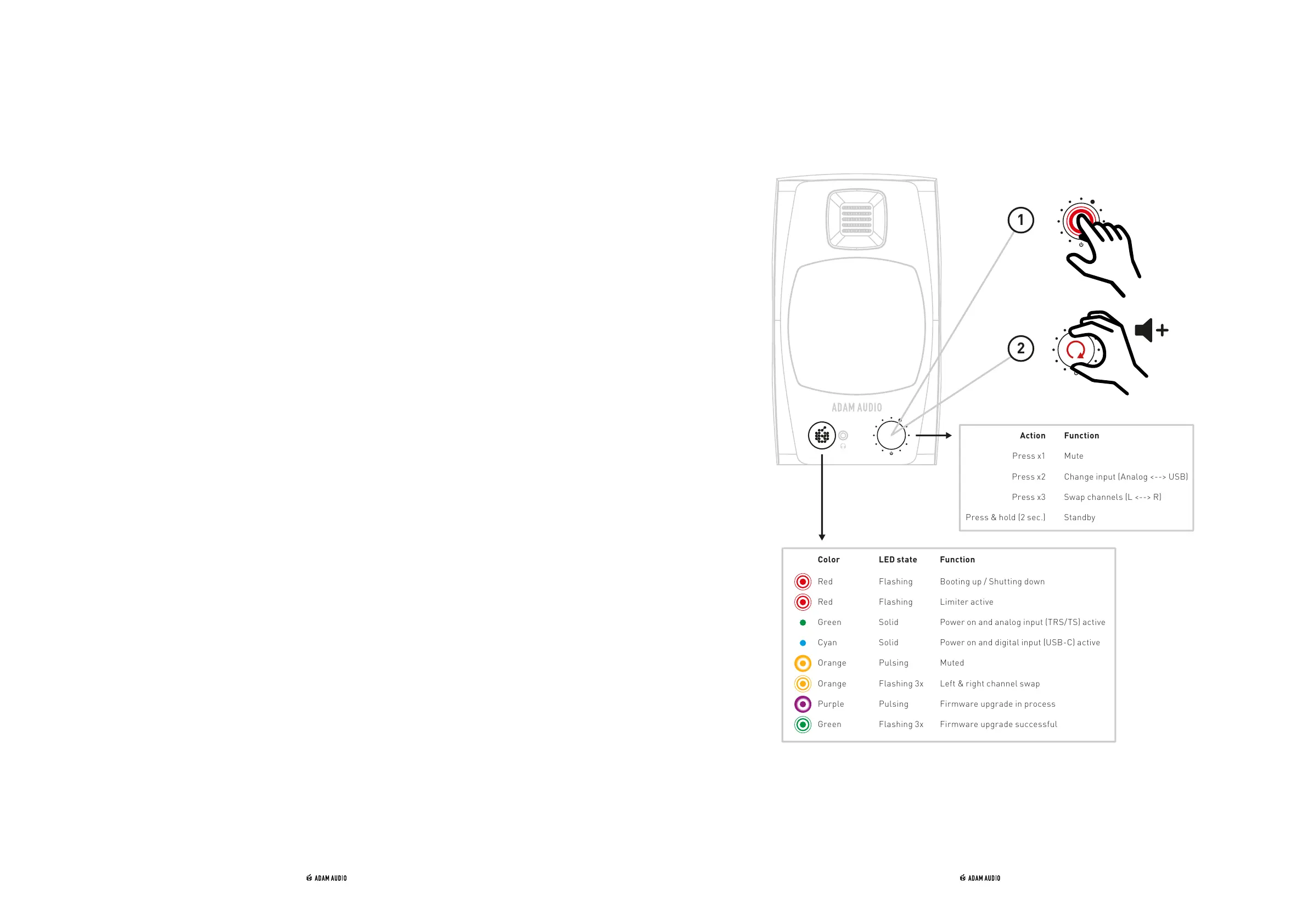
→ By pushing the front panel knob, various functions can be triggered:
1) Press once to mute the loudspeaker - press again to unmute
2) Press twice to toggle between “Analog” and “Digital” inputs
3) Press three times to reverse* the left and the right channels, thereby
swapping the reproduced audio of the loudspeakers. This function
allows the placement of the D3V cabinets to be reversed, e.g. when
you prefer the volume knob, and/or headphone output to be on the
right, and/or the audio connections are on the right side of your desk
*(To determine which L/R channel the left loudspeaker is configured to output,
connect one analog input to the left input socket. Similarly, only output the
left channel on the USB-C cable to check in case of digital connection)
4) The backplate of the right loudspeaker has a table detailing these functions
→ Standby Mode:
Press and hold the volume knob for two seconds to manually enter Standby
mode. Press again to reawaken the D3V and return to normal operation.
The D3V will automatically enter standby mode after not receiving
an input signal for 20 minutes. To wake, press the front panel volume knob
once. Failure to enter standby mode means the unit could be receiving an
inaudible low/high frequency signal. Try disconnecting the source cable.
c) LED states
→ The ADAM Audio logo on the front of the left loudspeaker is illuminated to indicate
different states of the D3V:
1) Solid red: the speaker is either booting up or shutting down
2) Flashing red: the limiter of one of the loudspeakers is active which means it
has reached the maximum possible volume and protects itself from potential
damage. Reduce the volume of the D3V, either at the source device or via the
volume knob on the front panel.
3) Solid green: D3V is powered on and can reproduce audio from the analog
inputs via the TRS or TS cable connections
4) Solid cyan: D3V is powered on and can reproduce audio from the digital
input via a USB-C connection
5) Pulsing orange: the speaker is muted
6) Three times flashing orange: left and right channels swapping
7) Pulsing purple: D3V firmware upgrade is in process (see chapter 7)
8) Three times flashing green: Firmware upgrade was successful
→ (see chapter 7 “Firmware upgrade”)
Red Flashing Booting up / Shutting down
Red Flashing Limiter active
Green Solid Power on and analog input (TRS/TS) active
Cyan Solid Power on and digital input (USB-C) active
Orange Pulsing Muted
Orange Flashing 3x Left & right channel swap
Purple Pulsing Firmware upgrade in process
Green Flashing 3x Firmware upgrade successful
Color LED state Function
Function
Mute
Change input (Analog <--> USB)
Swap channels (L <--> R)
Standby
Action
Press x1
Press x2
Press x3
Press & hold (2 sec.)
1
2


 To Next Page