33
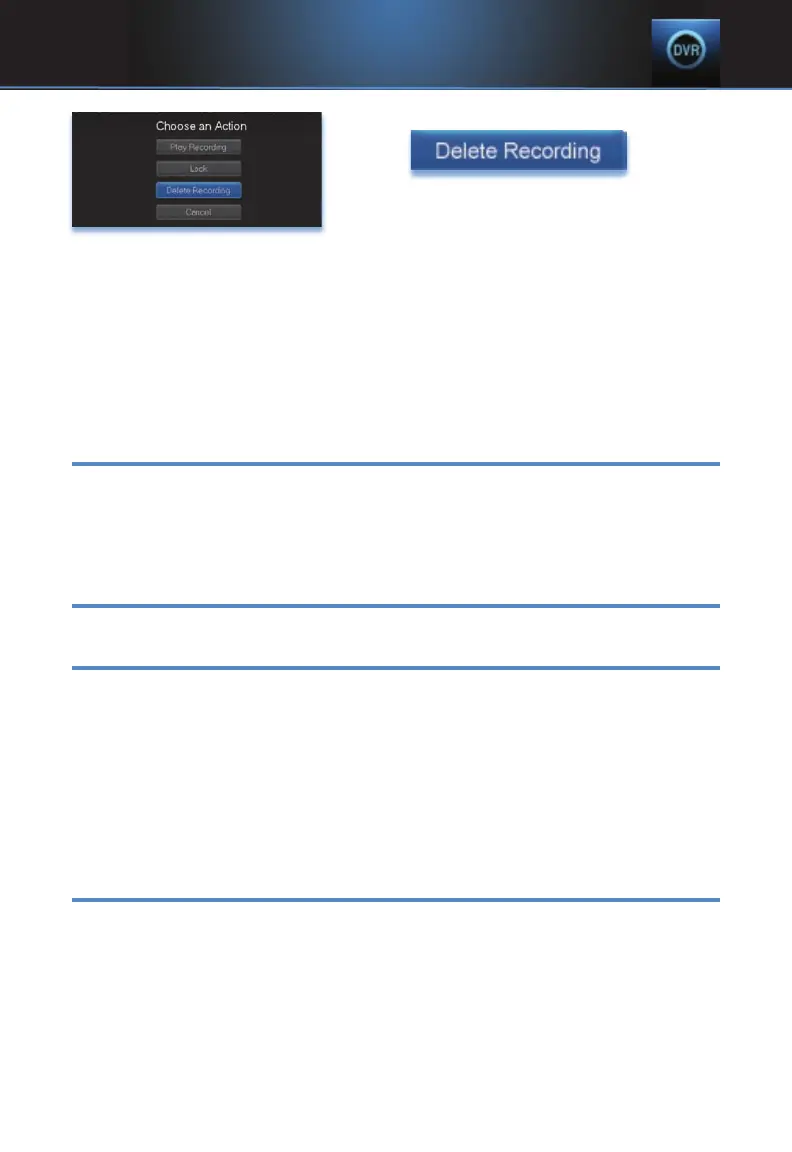
Step 2: Delete The Recording
Highlight
and
press OK.
Step 3: Confirm Delete
Highlight Yes and press OK to confirm, or No if you change your mind.
Step 4: Recording Deleted
Once you confirm the deletion, the entry for that recording is removed from
the list.
Note: Once a recording has been deleted, there is no way to get it
back. Please take care when deleting recordings.
Stop a Program Currently Recording
Step 1: Pick a Recording
Highlight the recording event you want to stop and press OK.
Step 2: Stop the Recording
Highlight Stop Recording and press OK.
Review Programs To Record
You can easily review and cancel programs to be recorded.
Go To- To Record
Highlight To Record and press OK.
A list of your scheduled future recordings will appear to the right.
The list of programs to be recorded can be sorted by title, date to be
recorded, channel airing the program to be recorded, or recordings to be
skipped or not.
For more information on sorting items in this list, see Sort Recordings
earlier in this section.
Cancel A Future Scheduled Recording
Step 1: Pick A Future Scheduled Recording
Highlight the recording event you want to cancel and press OK.
Step 2: Cancel The Recording Event
Highlight Cancel Recording and press OK.
Step 3: Recording Canceled
Once you have canceled the recording event, the entry for that recording
event is removed from the list.
7 DVR



 To Next Page