Insert CD into CD ROM drive of your PC. The installation will starta)
automatically. If not, click on SETUP.EXE.
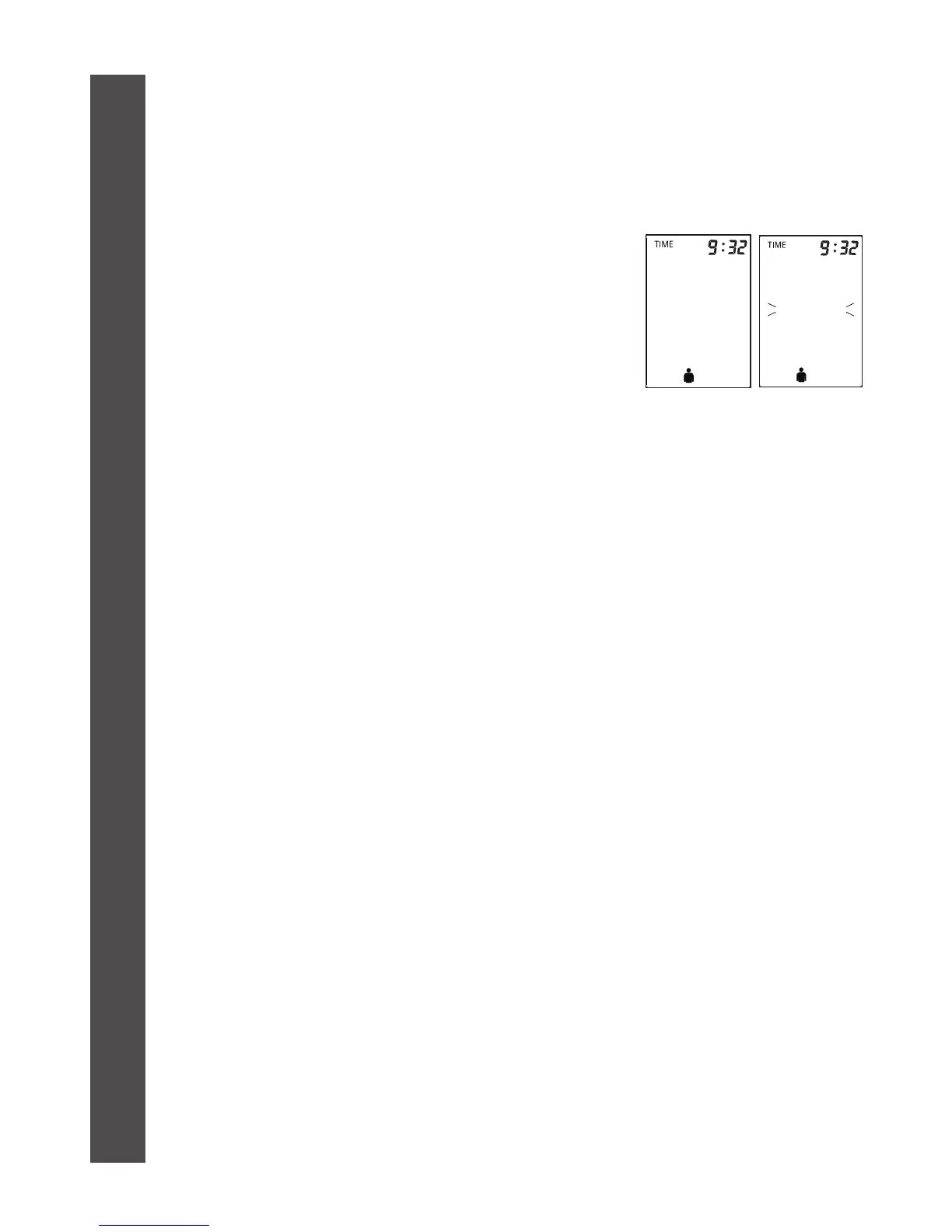
Connect the monitor via USB cable with the PC. Three horizontal barsb)
will appear on the display and last for 3 seconds.
The bars will then flash to indicate that thec)
connection between computer and device is
successfully made. As long as the cable is
plugged, the bars will keep flashing and the
buttons are disabled. During the connection,
the device is completely controlled by the
computer. Refer to the ‘Help’ file in the software for detailed
instructions.
7.2 Installing and Using Microsoft
®
Healthvault
™
on your
ADC
®
Advantage
™
Blood Pressure Monitor
The Advantage
™
Ultra digital blood pressure monitors are compatible
with the Microsoft
®
HealthVault
™
software application. HealthVault
™
allows you to easily store, use, and share your health information online
and on your mobile devices.
To use HealthVault
™
with your unit, follow the steps below:
Create a user account at www.healthvault.com.a)
Once logged in, click on “Apps & Devices.”b)
Download the “HealthVault
™
Connection Center” app and follow thec)
prompts on screen to guide you through installation.
Once installed, select “Select a Task -> Add Device” from withind)
the HealthVault application.
Plug in your ADC
®
BP monitor to your computer using the supplied USBe)
cable. HealthVault
™
will automatically install the device drivers and
associate your device to the HealthVault
™
software.
At this point, you can start taking readings with your device. Once
you have collected a reading, you can now upload the data using
the “HealthVault
™
Connection Center” app.
22
6
0
2
2
N
6
0
2
3
N
M
o
d
e
l
s
O
n
l
y



 To Next Page