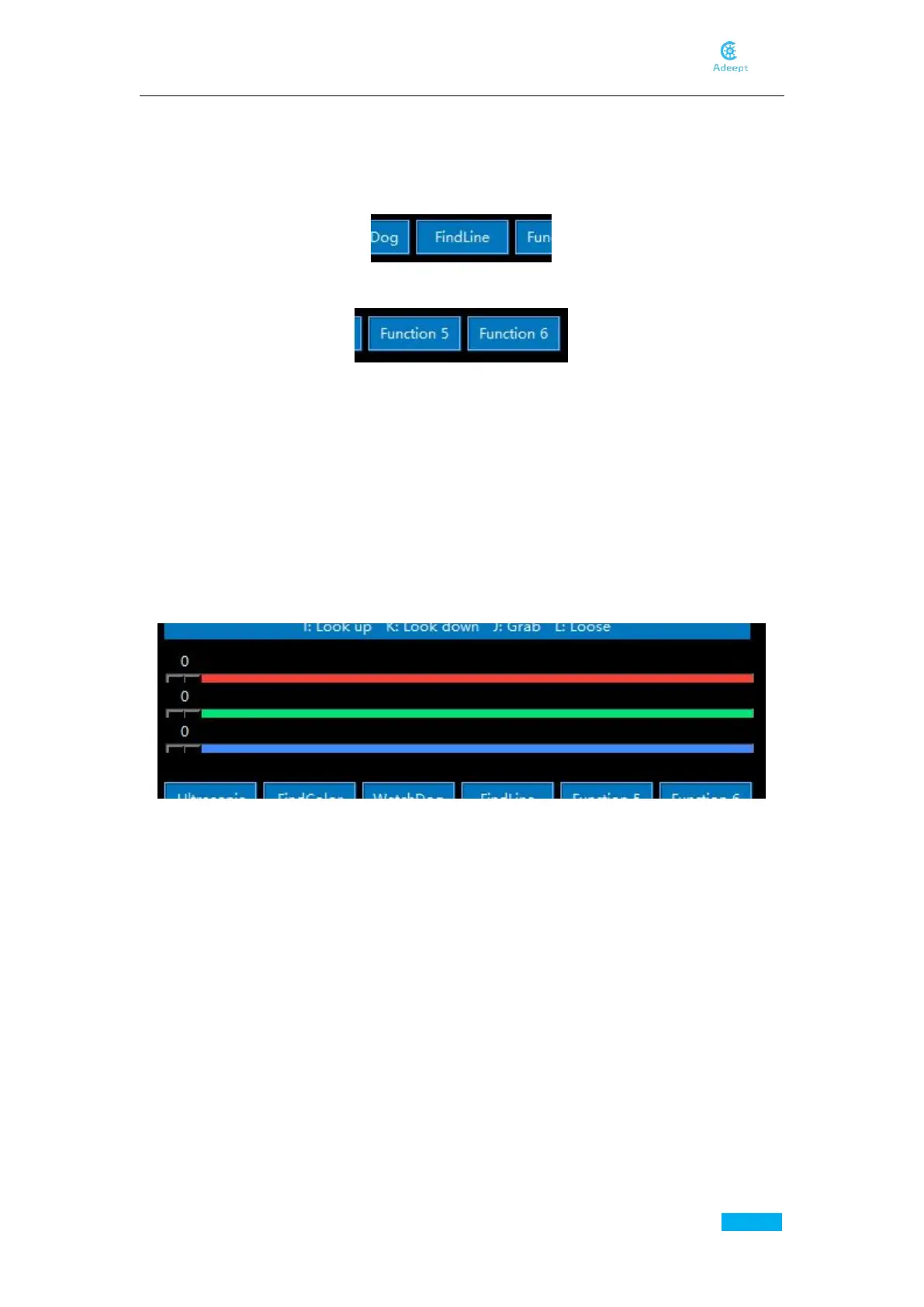
Line Following Mode
The robot can track lines and follow them, proceeding along a preset path that can be
altered by moving the lines, and this part of Python program is easy to understand. You
can open findline.py and learn to write it yourself.
Add More Functions
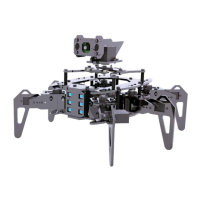
Function 5 and Function 6 buttons are placeholders for other functions you want to add.
This robot is based on raspberry pi so there are a lot more functions you can play with, but
some other libraries are required.
We intend to simplify the installation steps as much as possible to lower the barriers for
more people. Hence, for example, voice recognition, which requires a large number of lib
raries to be installed, will not be provided in the standard program. If you are interested in
this, you can try to expand more. We will offer the installation and application methods of
other functions in the follow-up tutorials. Please subscribe our Youtube channel for more.
Change LED Color
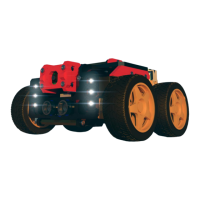
You can control the colors of the LEDs on the robot in real time by dragging these three
sliders. These three sliders correspond to the brightness of the three channels of RGB. In
theory, you can create 16,777,216 (256^ 3) kinds of colors through these three sliders.
Safe Shutdown
You may notice there's no such thing as a power button for the Raspberry Pi as for PC.
Most people would directly unplug the power cable for the Raspberry Pi, which may cause
damage to the Raspberry Pi and SD card, data loss, etc. To avoid such issues, you need a
safe shutdown for the Raspberry Pi.
If you just use the Raspberry Pi independently, you may shut it down with the following
command:
sudo shutdown –h now
When the green light stops blinking on the Raspberry Pi, you may unplug the power cable.
If you're applying the Raspberry Pi smart car, you may tab the Exit button in the app of this
product. When the green light stops blinking on the Raspberry Pi, switch to OFF for the
Power switch on Shield and you can shut down the Raspberry Pi then.


 To Next Page