SEND FRAMES:
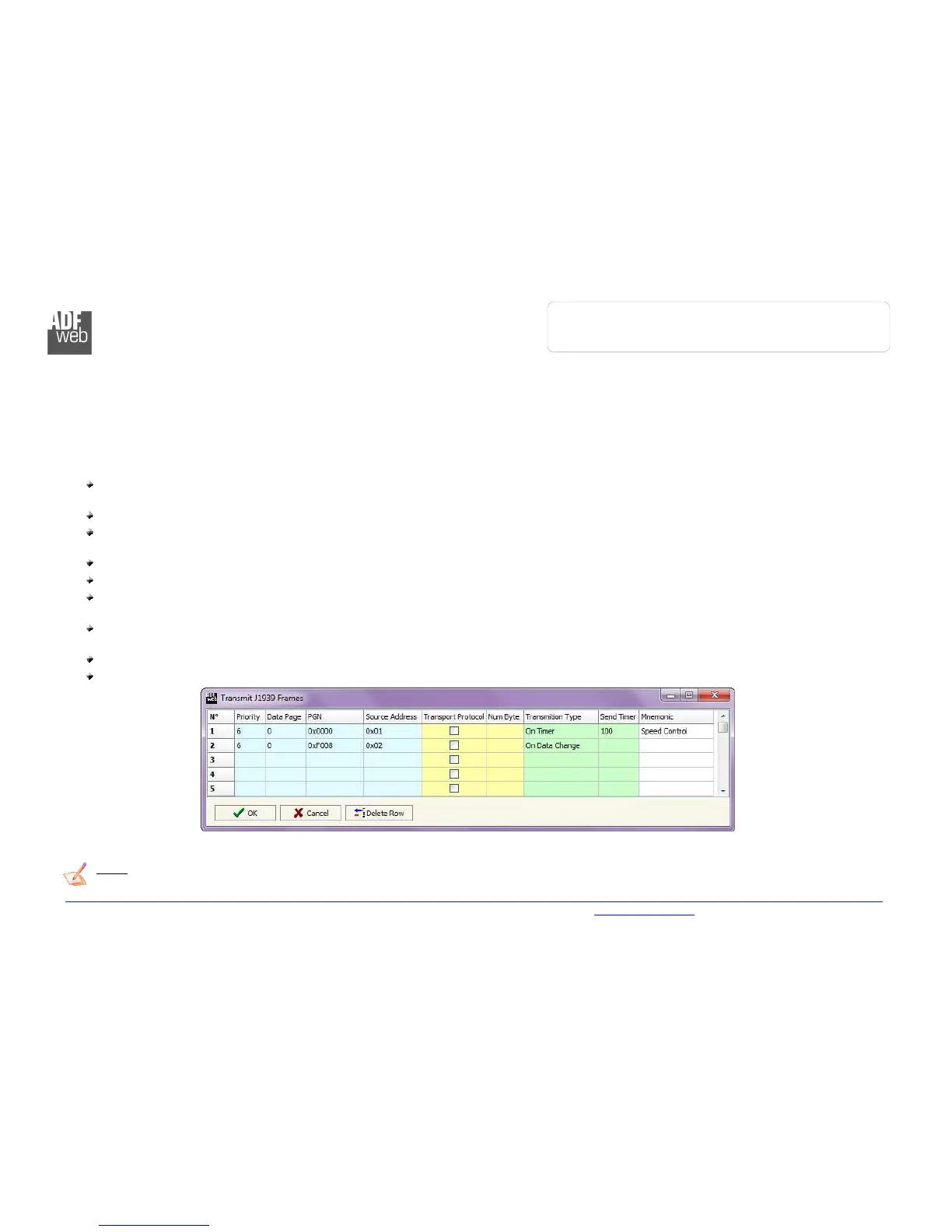
By pressing the “Send Frames” button from the main window for SW67610 (Fig. 2) the “Send J1939 frames” window appears (Fig. 5).
The J1939 frames inserted in this table contains the Input data of PROFINET. These frames are sent by the gateway.
The data of the columns have the following meanings:
In the field “Priority” insert the priority of the Frame: in J1939 protocol it is a number among 0,1,2,3,4,5,6,7. The number “0” is the
highest priority and “7” is the lowest;
In the field “Data Page” insert the data page, the value is 0 or 1 (usually is 0);
In the field “PGN” insert the PGN of the data you would like to write from PROFINET to J1939 (in J1939 protocol the PGN is an
identifier);
In the field “Source Address” insert the address of the device that sends the frame;
If the field “Transport Protocol” is checked the frame use transport protocol functions;
In the field “Num Byte” the number of byte of the frame is defined, this field is enable only when the field Transport Protocol is
checked;
In the field “Transmission Type” is possible to select when send the J1939 frame. There are two options: the first is “On Data
Change”, the frame is sent when the data changes; the second is “On Timer” and the frame is send cyclically;
In the field “Send Timer” insert the interval used for the “Send Frame Type On Timer”. The time is in milliseconds;
In the field “Mnemonic” it is possible to insert a brief description.
Note:
It is possible to configure a maximum of 62 frames in the “Send Frames” section.



 To Next Page