13
GENERAL OPERATION
OPERATING MODES:
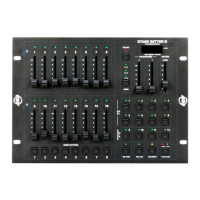
The Stage Setter 8 has three different operating modes: 2x8, 8x8, and 1x16. These modes are se-
lected with the Mode Button (3), and the currently selected mode is indicated by the Mode LED (3).
• In 2x8 mode, Crossfader X (5) controls the channels 1-8, and Crossfader Y (6) controls channels
9-16.
• In 8x8 mode, the Scene Y (11) channels (9-16) become a set of Masters Scenes. Each Master
Scene channel (9-16) will control the level of the scenes or chases created. The Scene X (2)
channels (1-8) operate as normal dimmer sliders.
• In 1x16 mode, X Crossfader (5) controls the intensities of channels 1-16, and Y Crossfader con-
trols the Fade Time. Fade Time is the amount of time it takes one scene to end and fade in to the
next. Fade Time varies from 1/10 of second (instant) to 10 minutes.
MASTER SCENES:
Master Scenes can only be used while in the 8x8 operating mode. When in the 8x8 mode, the Bump
Buttons (10) and the Scene Y (11) sliders can be used to store a Master Scene, which consists of
channels 1-8.
To create a Master Scene:
1. First, use the sliders in the Scene X (2) section to create a scene.
2. After you have set your scene, tap the Record Button to enter the record mode.
3. Tap the Bump Button that corresponds to a Scene Y (11) slider that will be used to store the
scene. The scene will now be stored as a Master Scene into the Scene Y slider and will be ready
for immediate use.
Example: We will program a scene into the fth Master Scene. The scene will consist of channels 1
and 6 at full, channel 7 at 50% and the remaining channels fully off.
1. Move X and Y Crossfaders to maximum. (X Crossfader fully up and Y Crossfader fully down)
2. Lower all Scene X sliders to minimum.
3. Raise Scene X slider 1 and 6 to maximum.
4. Raise Scene X slider 7 to 50%.
5. Tap the Record Button. The Record LED should be lit.
6. Tap Bump Button 5.



 To Next Page