112
USING ADOBE AUDITION
Mixing multitrack sessions
Last updated 2/16/2012
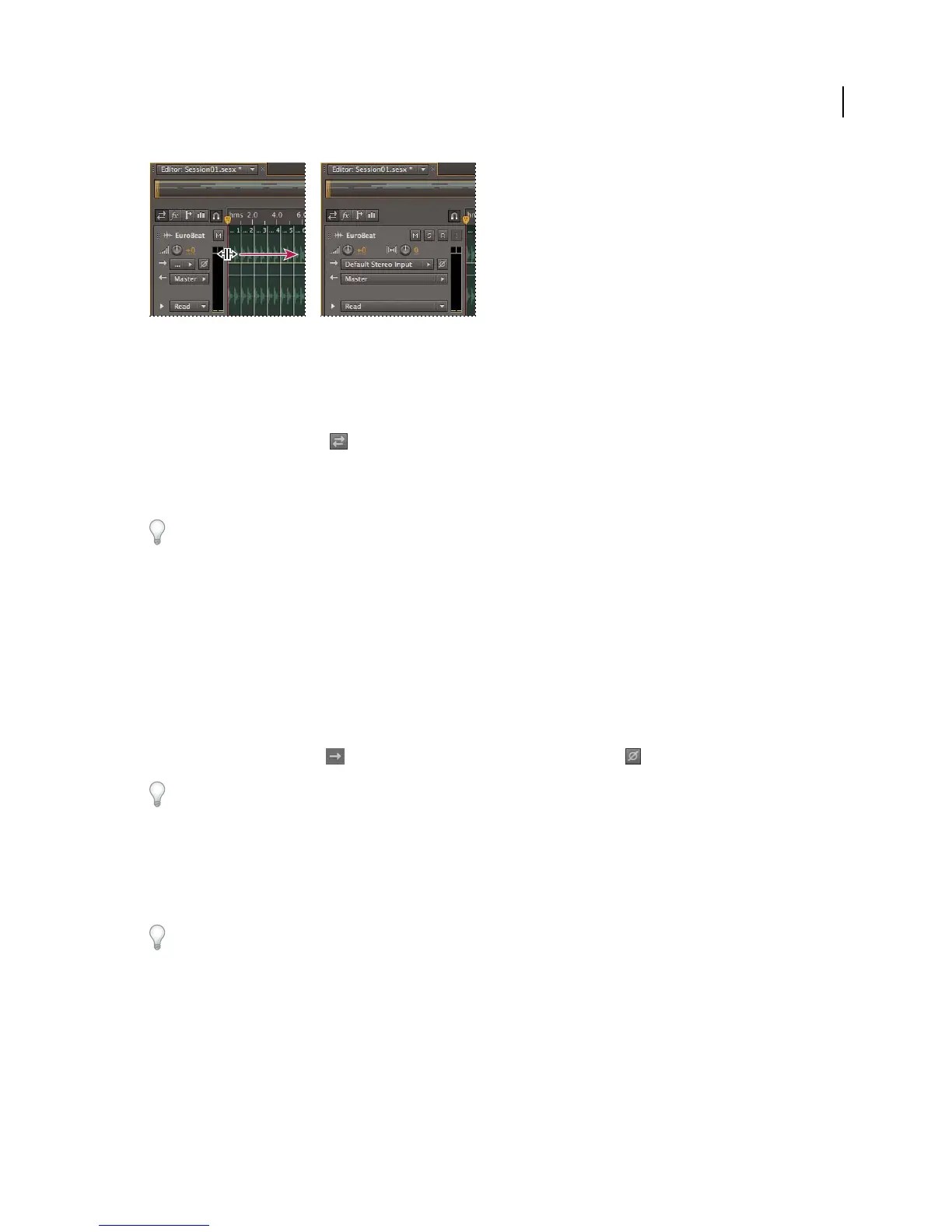
Dragging the right border of the track controls to reveal more or less detail
For more information, see “Vertically zoom tracks” on page 109.
Assign audio inputs and outputs to tracks
❖ In the Inputs/Outputs area of the Editor panel or Mixer, do the following:
• From the Input menu, choose a hardware input.
• From the Output menu, choose a bus, the Master track, or a hardware output.
The list of available hardware ports is determined by settings in the Audio Hardware preferences. (See “Configure
audio inputs and outputs” on page 18.)
For more information, see the following:
• “Record audio clips in the Multitrack Editor” on page 30
• “Set track output volume” on page 110
Invert the polarity of an input
If a pair of stereo inputs such as overhead drum microphones are out-of-phase, you’ll hear duller sound and a narrower
stereo image. To correct the problem, invert the polarity of one the inputs.
❖ In the Input Controls area of the Mixer, click the Polarity Reverse button .
To understand audio phase, see “How sound waves interact” on page 4.
Routing audio to buses, sends, and the Master track
Buses, sends, and the Master track let you route multiple track outputs to one set of controls. With these combined
controls, you can efficiently organize and mix a session.
To save the output of an audio, bus, or Master track to a file, see “Export multitrack mixdown files” on page 136.



 To Next Page