120
USING ADOBE AUDITION
Mixing multitrack sessions
Last updated 2/16/2012
Snap to loop beats
To better synchronize a loop-based session, use the Bars And Beats time format and enable snapping. Then add loops
to create a rhythmic foundation, which you can build upon by recording new audio clips. (You can also add existing
audio clips, but only their start or end points will align with loop beats.)
1 Choose View > Time Display > Bars And Beats. (This ruler format makes it easier to visually align loops with
musical beats.)
2 From the Edit > Snapping submenu, choose any of the following:
Snap To Ruler (Coarse) Snaps to beats within bars. Use this option if you work with 1/4 or 1/2 bar loop files.
Snap To Clips Snaps to the start and end of audio clips.
Snap To Loops Snaps to the start and end of loops within clips.
More Help topics
“Snap to markers, rulers, frames, and zero crossings” on page 42
“Snap to clip endpoints” on page 116
“Change the time display format” on page 29
Enable a looped clip and change its length
1 In the Multitrack Editor, right-click an audio clip, and select Loop from the context menu.
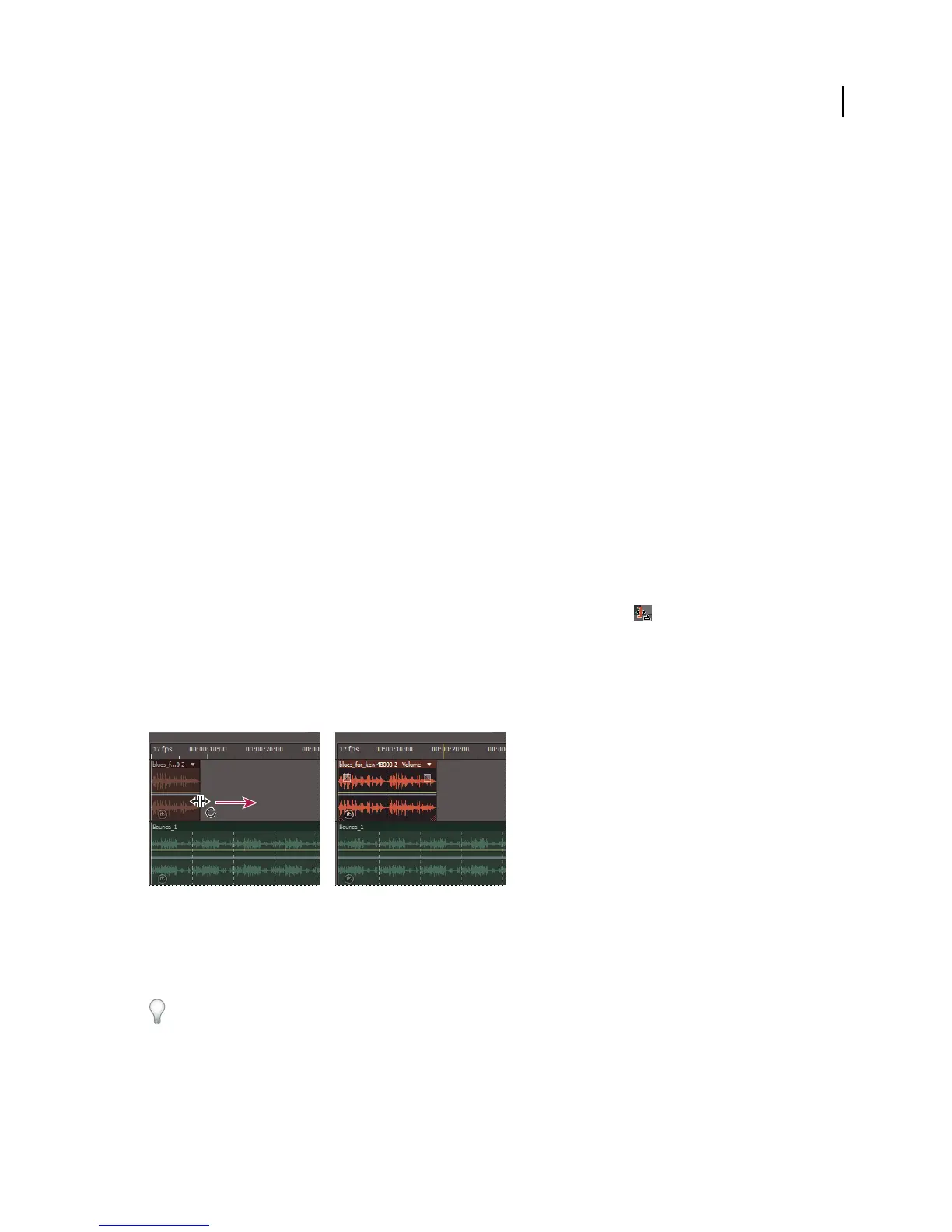
2 Position the pointer over the left or right edge of the clip; the loop editing icon appears.
3 Drag to extend or shorten the loop.
Depending on how far you drag, you can make the loop repeat fully or partially. For example, you might drag a loop
that is one bar long so that it extends 3-1/2 bars, ending on a beat within the loop. As you cross each bar, a white vertical
line appears in the clip. This is the snap-to line, indicating perfect alignment to beats in other tracks.
Extending a loop
Clip volume matching, fading, and mixing
To fade individual audio files, see “Visually fading and changing amplitude” on page 43. (The topics below address
multitrack clips.)



 To Next Page