131
USING ADOBE AUDITION
Video and surround sound
Last updated 2/16/2012
Snap to frames in a video clip
To synchronize a multitrack session with video, snap audio clips and the current-time indicator to frames.
1 Choose View > Time Display, and select the SMPTE time format that corresponds to the frame rate of the clip.
2 Choose Edit > Snapping > Snap To Frames.
More Help topics
“Snap to markers, rulers, frames, and zero crossings” on page 42
“Snap to clip endpoints” on page 116
“Zoom audio in the Editor panel” on page 9
Customize the Video panel
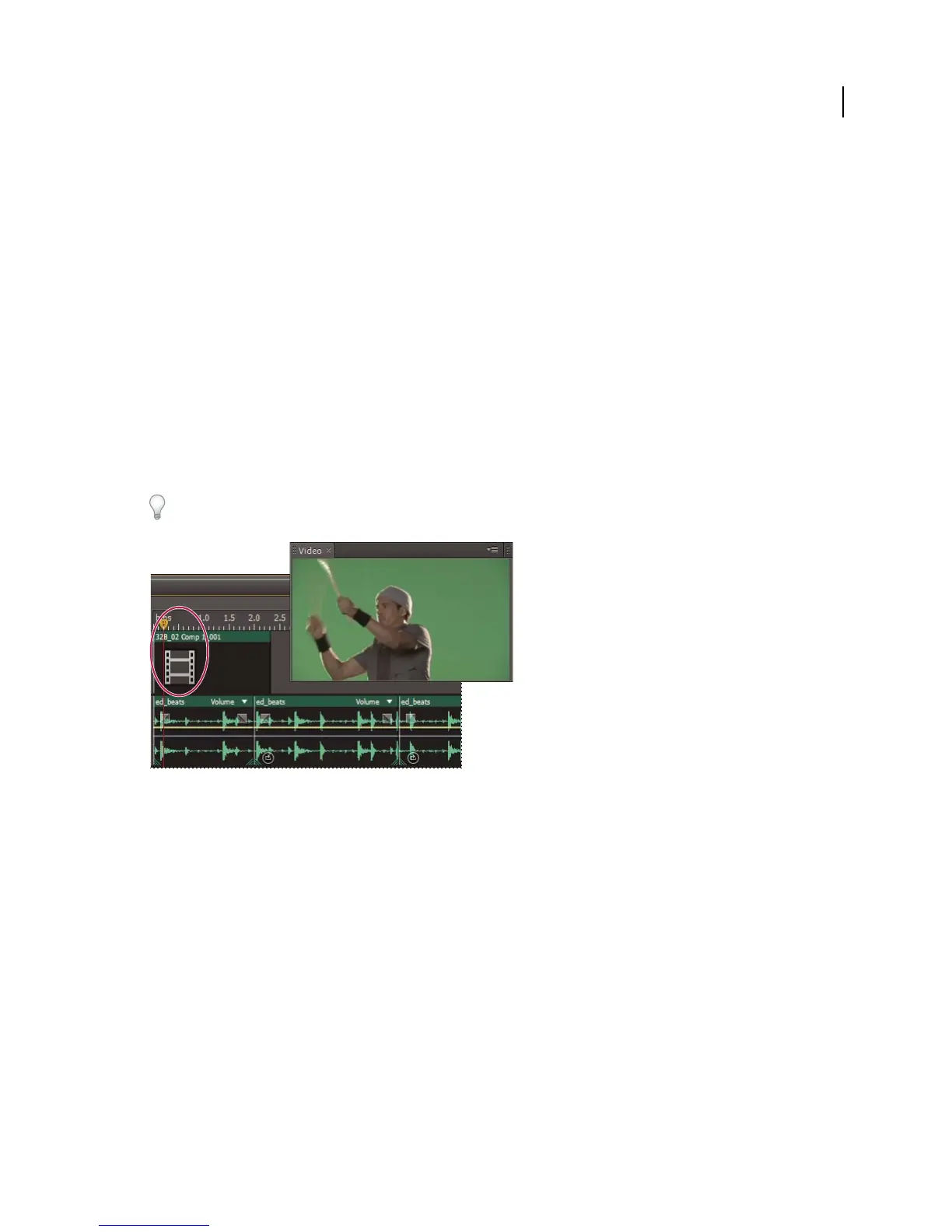
In the Video panel, you can preview video clips as a multitrack session plays to precisely synchronize a soundtrack with
specific video events such as scene changes, title sequences, or special effects.
To hide or show the Video panel, choose Window > Video.
Video panel and related clip in Editor panel
To customize the Video panel, right-click it, and select either of the following options:
A zoom percentage Zooms in or out.
Best Fit Fits previews to the panel.
5.1 surround sound
Monitoring 5.1 surround sound
Adobe Audition supports 5.1 surround sound, which requires five speakers, plus one low frequency subwoofer (LFE).
To properly monitor 5.1 surround sound , your computer must have a sound card with at least six outputs, and those
outputs must be mapped to the correct channels in Audition.
1 Choose Edit > Preferences > Audio Channel Mapping (Windows) or Audition > Preferences > Audio Channel
Mapping (Mac OS).



 To Next Page