111
USING ADOBE AUDITION
Mixing multitrack sessions
Last updated 2/16/2012
More Help topics
“Automating track settings” on page 124
“Pan tracks in a 5.1 surround mix” on page 132
Duplicate tracks
To perfectly copy all clips, effects, equalization, and envelopes in a track, duplicate it. Duplicate tracks provide a great
starting point for new adjustments, helping you compare different processing and automation settings.
1 In the Editor panel or Mixer, select a track.
2 Choose Multitrack > Track > Duplicate Selected Track.
More Help topics
“Mute and solo tracks” on page 110
“Applying effects in the Multitrack Editor” on page 63
Multitrack routing and EQ controls
Show or hide track routing and EQ controls
Although the wide variety of routing and EQ controls may seem intimidating at first, the controls for each track are
identical, so once you’ve learned one, you’ve learned them all.
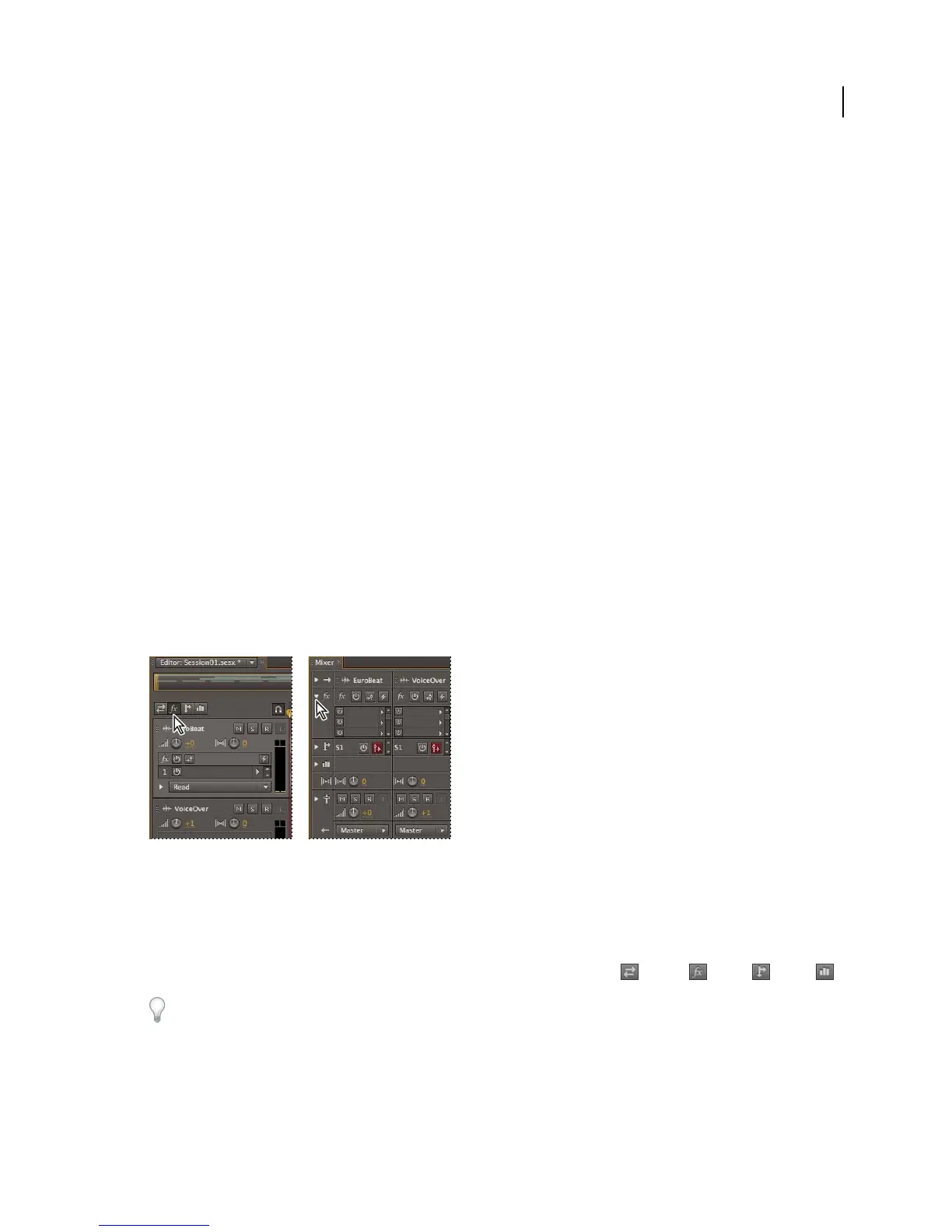
Showing and hiding sets of audio track controls
A. Editor panel B. Mixer
❖ Do either of the following:
• On the left side of the Mixer, click the Show/Hide triangle for one or more sets of controls.
• In the upper left corner of the Editor panel, click the button for Inputs/Outputs , Effects , Sends , or EQ .
In the Editor panel, drag the right or bottom border of the track controls to show more or less detail.
BA



 To Next Page