119
USING ADOBE AUDITION
Mixing multitrack sessions
Last updated 2/16/2012
Lock in Time Allows only up or down moves to other tracks, with a fixed timeline position. A lock icon appears on
the clip.
Loop Enables clip looping. For more information, see “Looping clips” on page 119.
Mute Silences the clip.
Looping clips
Note: Some features in the Windows version of Adobe Audition 3.0 are not available in CS5.5. Examples include loop
tempo and key adjustment, clip time stretching, MIDI, the metronome, CD burning, and some file formats and effects.
For a complete list, see
Adobe Audition 3.0 features replaced or not implemented in CS5.5.
In many musical styles, you’ll find loops used for everything from basic rhythm tracks to entire compositions. With
Adobe Audition, you can either create your own loops or choose from thousands supplied for free via the Resource
Central panel.
Loops let you create extremely flexible multitrack sessions. Though loops typically contain only one or two bars of
music (four to eight beats), you can extend and repeat them by simply dragging with the mouse.
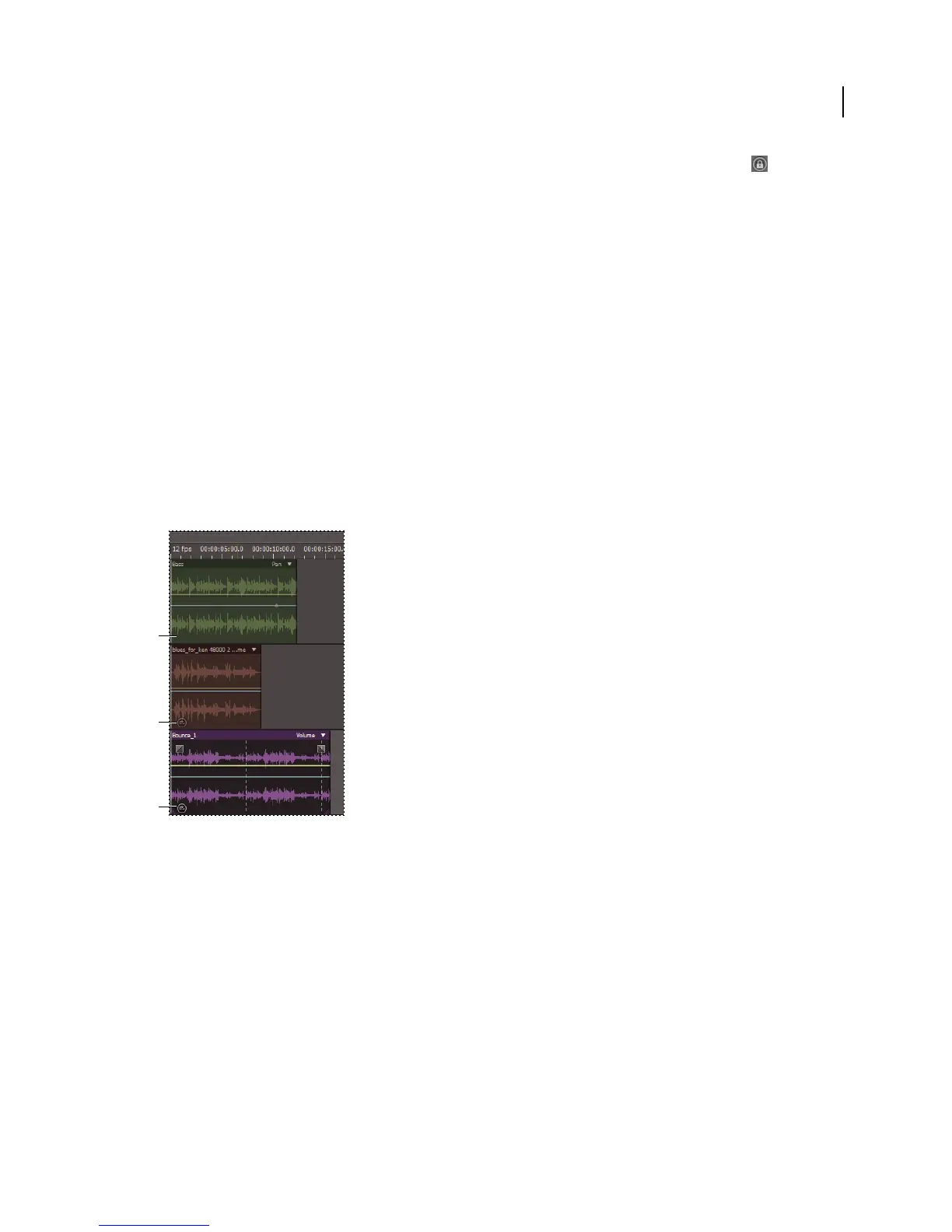
Identifying loops in the track display
A. No loop B. Single loop C. Extended (repeated) loop
Access free loops from Resource Central
Resource Central provides an extensive online library of loops, sound effects, and music beds, which you can access
directly in Adobe Audition.
1 Choose Window > Resource Central.
2 At the top of the Resource Central panel, click Loops, Sound Effects, or Music Beds.
3 From the menu below the search box, select a genre.
4 In the list of results, click the play button to hear a preview or the down-arrow to download the file into Audition.
(Checkmarks in the list indicate previously downloaded items.)
A
B
C



 To Next Page