130
USING ADOBE AUDITION
Video and surround sound
Last updated 2/16/2012
5 To overwrite the original file in the video application, do one of the following:
• In the Multitrack Editor, choose File > Export > Multitrack Mixdown, and specify the same name and location
as the original file.
• In the Waveform Editor, choose File > Save.
Importing video and working with video clips
Insert a video file into a multitrack session
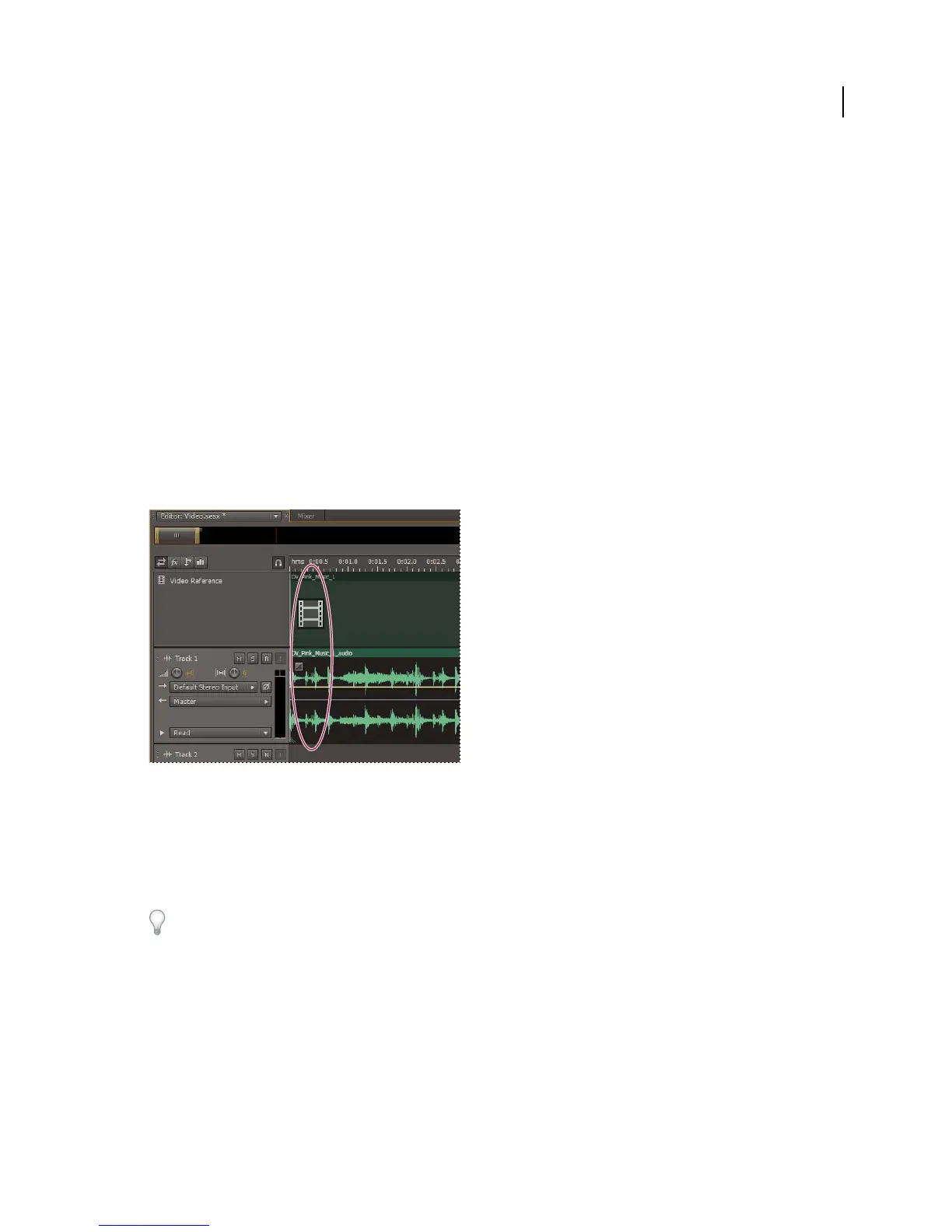
In the Multitrack Editor, you can insert video files to precisely synchronize a session with a video preview. When you
insert a video file, its video clip appears at the top of the track display, and its audio clip appears on the track below.
You can move a video clip independently from the audio clip containing the original soundtrack. To instead keep such
clips synchronized, before moving them, select both: Ctrl-click (Windows) or Command+click (Mac OS).
Note: A session can contain only one video clip at a time.
Related video and audio clips (select both to keep them synchronized)
1 In the Multitrack Editor, position the current-time indicator at the desired insertion point.
2 Choose Multitrack > Insert File, and select a video file in a supported format. (See “Video file formats” on page 25.)
3 When you finish mixing audio for the video, export a mixdown, and import it into your video application. (See
“Export multitrack mixdown files” on page 136.)
To quickly edit audio from a video file, choose File > Open. This technique is great for soundtrack editing that doesn’t
require a video preview, or for readapting soundtracks for audio-only mediums, such as radio or CD.
More Help topics
“Video file formats” on page 25
“Select and move clips” on page 116
“5.1 surround sound” on page 131



 To Next Page