121
USING ADOBE AUDITION
Mixing multitrack sessions
Last updated 2/16/2012
Match multitrack clip volume
If multitrack clips have very different volume, making mixing difficult, you can match their volumes. Because the
Multitrack Editor is nondestructive, this adjustment is completely reversible. To instead permanently change the
volume of source files, see
“Match volume across multiple files” on page 56.
1 Using the Move or Time Selection tool, Ctrl-click (Windows) or Command-click (Mac OS) to select
multiple clips.
2 Choose Clip > Match Clip Volume.
3 From the pop-up menu, choose one of the following options:
Loudness Matches an average amplitude you specify.
Perceived Loudness Matches a perceived amplitude you specify, accounting for middle frequencies that the ear is
most sensitive to. This option works well unless frequency emphasis varies greatly (for example, midrange
frequencies are pronounced in a short passage, but bass frequencies are elsewhere).
Peak Volume Matches a maximum amplitude you specify, normalizing the clips. Because this option retains
dynamic range, it’s a good choice for clips you plan to process further, or for highly dynamic audio like classical
music.
Total RMS Amplitude Matches an overall root-mean-square amplitude you specify. For example, if the majority of
two files is -50 dBFS, the total RMS values would reflect that, even if one file contains more loud passages.
4 Enter a Target Volume.
Fade or crossfade multitrack clips
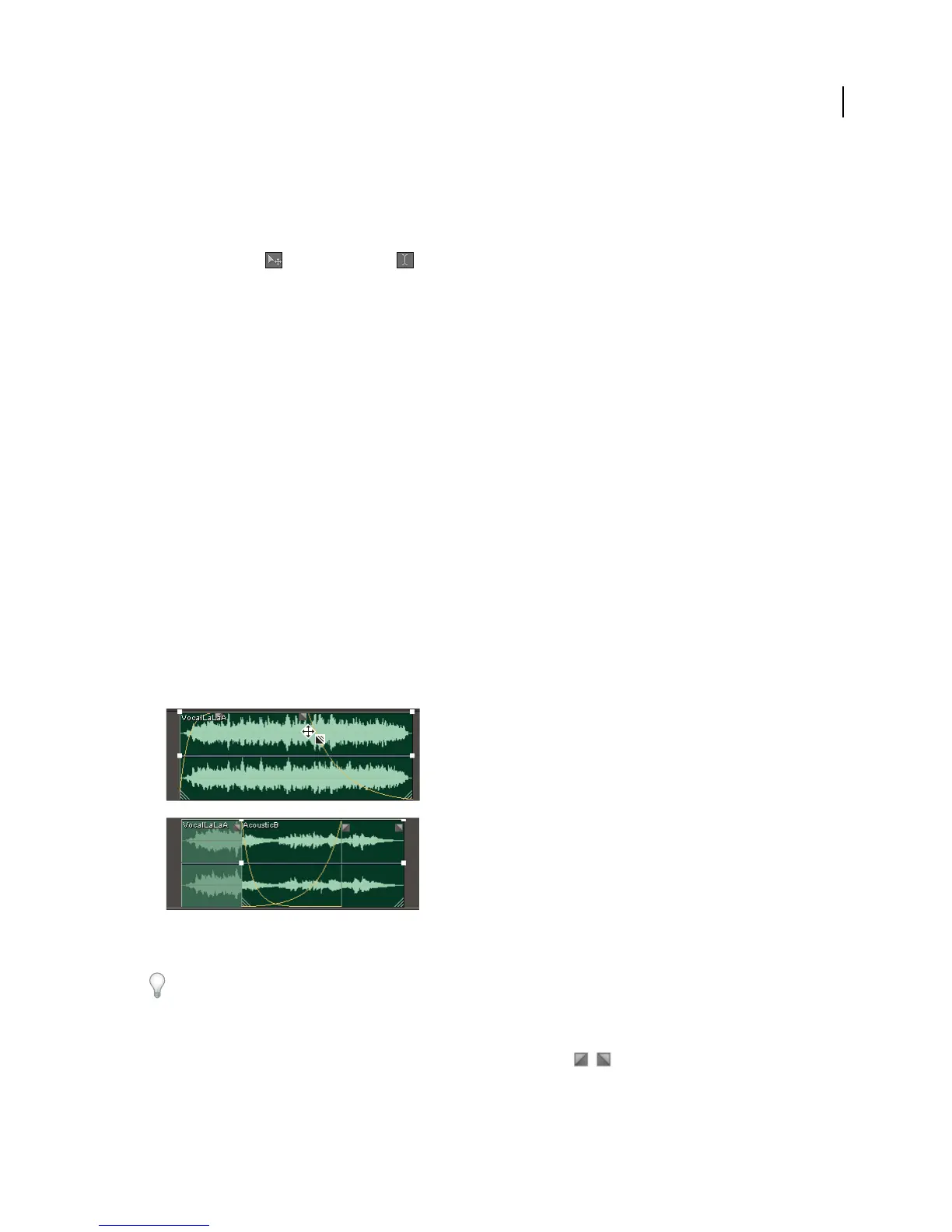
On-clip fade and crossfade controls let you visually adjust fade curves and duration. Controls for fade ins and fade outs
always appear in the upper-left and upper-right corners of clips. Controls for crossfades appear only when you overlap
clips.
On-clip controls
A. Drag controls in clip corners to fade in and out B. Overlap clips to crossfade
To
Fade a clip in or out
❖ In the upper-left or upper-right corner of the clip, drag the fade icon inward to determine fade length, and
drag up or down to adjust the fade curve.
A
B



 To Next Page