9
USING ADOBE AUDITION
Workspace and setup
Last updated 2/16/2012
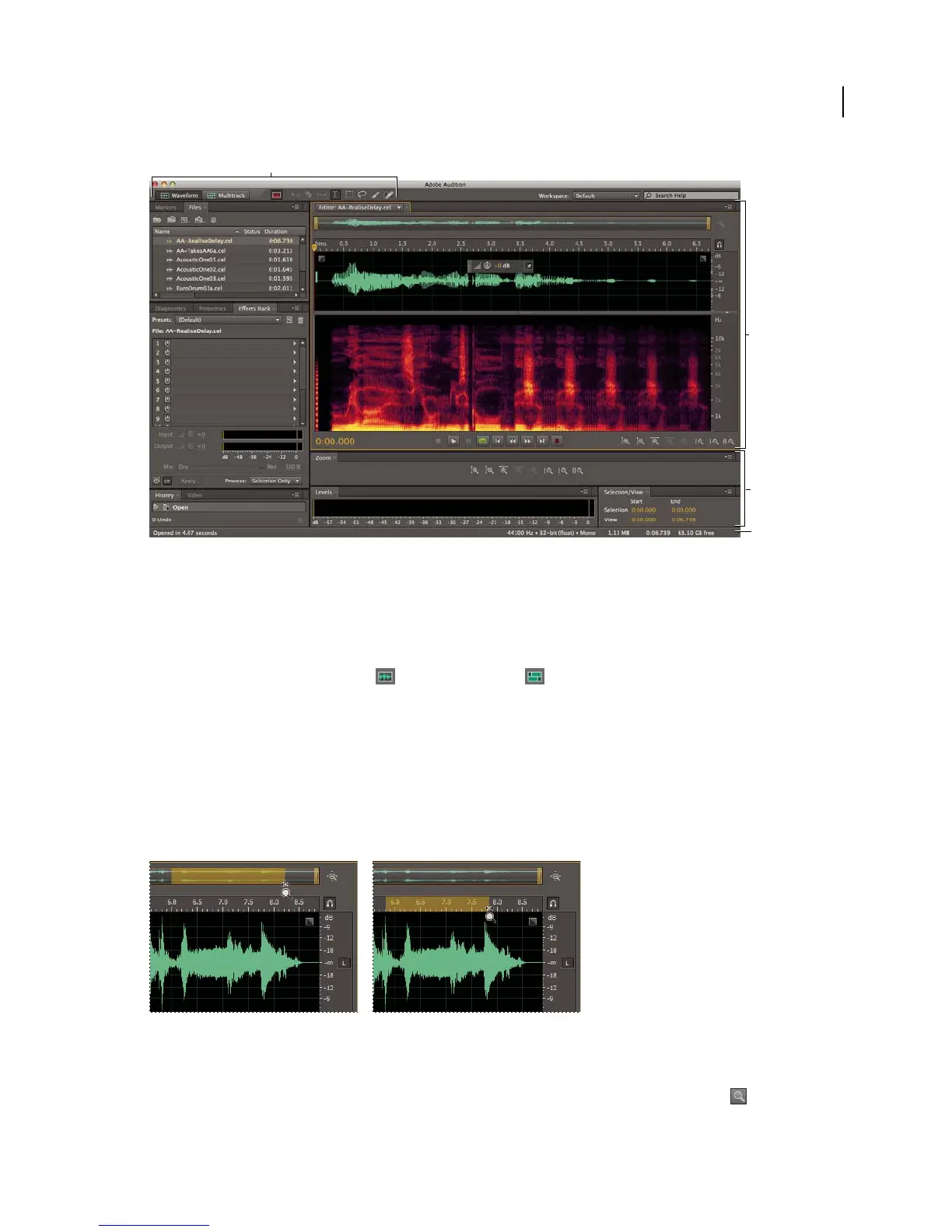
Basic components of Waveform and Multitrack editors (Waveform shown)
A. View buttons and toolbar B. Editor panel with zoom navigator at top C. Various other panels D. Status bar
Switch editors
❖ Do one of the following:
• From the View menu, choose Waveform or Multitrack Editor.
• In the toolbar, click the Waveform or Multitrack Editor button.
• In the Multitrack Editor, double-click an audio clip to open it in the Waveform Editor. Alternatively, double-click
a file in the Files panel.
• In the Waveform Editor, choose Edit > Edit Original to open the multitrack session that created a mixdown file.
(This command requires embedded metadata in the file. See
“Embed edit-original data in exported mixdown files”
on page 129.)
Zoom audio in the Editor panel
To zoom into a specific time range, right-click and drag.
A. Zoom navigator B. Timeline ruler
Zoom into a specific time range
In either the zoom navigator or the timeline ruler, right-click and drag. The magnifying glass icon creates a
selection showing the range that will fill the Editor panel.
D
B
C
A



 To Next Page