16
USING ADOBE AUDITION
Workspace and setup
Last updated 2/16/2012
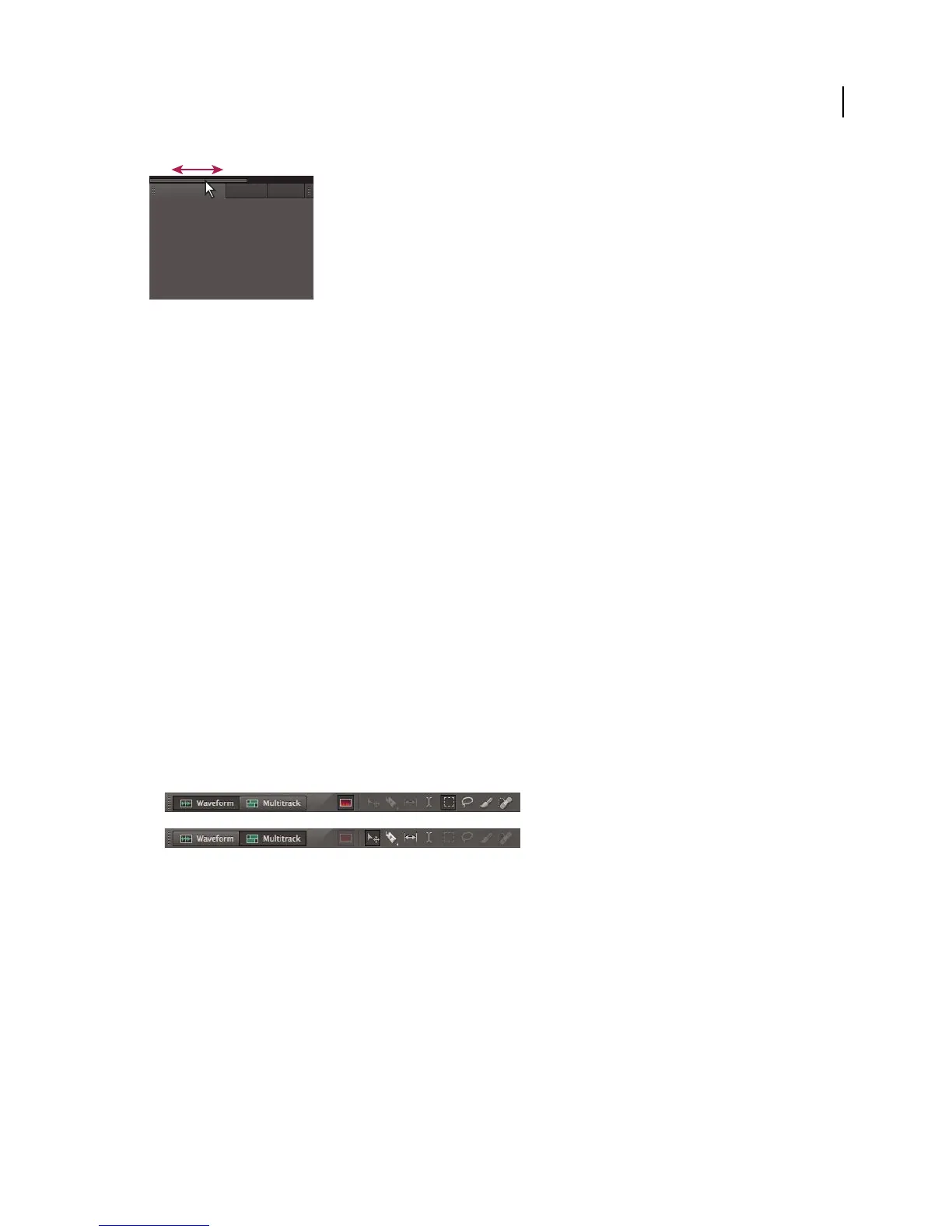
Drag horizontal scroll bar to see all panels in narrow group
Working with multiple monitors
To increase the available screen space, use multiple monitors. When you work with multiple monitors, the application
window appears on one monitor, and you place floating windows on the second monitor. Monitor configurations are
stored in the workspace.
More Help topics
“Dock, group, or float panels” on page 12
Display the toolbar
The toolbar provides quick access to tools, the Workspace menu, and buttons that toggle between the Waveform and
Multitrack editors. Some tools are unique to each view. Likewise, some Waveform Editor tools are available only in the
spectral display.
By default, the toolbar is docked immediately below the menu bar. However, you can undock the toolbar, converting
it to the Tools panel, which you can manipulate like any other panel.
• To show or hide the toolbar, choose Window > Tools. A check mark by the Tools command indicates that it is
shown.
• To undock the toolbar from its default location, drag the handle at the left edge to another location in the work area.
• To redock the Tools panel in its default location, drag the Tools panel tab to the drop zone that spans the entire
width of the Adobe Audition window, just under the menu bar.
Available tools differ in each view.
A. Waveform Editor tools for spectral display B. Multitrack Editor tools
More Help topics
“Dock, group, or float panels” on page 12
“Comparing the Waveform and Multitrack editors” on page 8
Display the status bar
The status bar runs across the bottom of the Adobe Audition work area. The far left of the status bar indicates the time
required to open, save, or process a file, as well as the current transport status (Playing, Recording, or Stopped). The
far right of the bar displays various information that you can customize.
A
B



 To Next Page