22
USING ADOBE AUDITION
Importing, recording, and playing audio
Last updated 2/16/2012
Bit Depth Determines the amplitude range of the session, including recordings and files created with the Multitrack >
Mixdown To New File command. (See
“Understanding bit depth” on page 6.)
Important: Choose a bit depth carefully, because it cannot be changed after you create a session. Ideally, you should work
at the 32-bit level with CoreAudio and ASIO sound cards, and the 16-bit level with MME cards. If your system performs
slowly, try a lower bit depth.
Master Determines whether tracks are mixed down to a mono, stereo, or 5.1 Master track. (See “Routing audio to
buses, sends, and the Master track” on page 112.)
More Help topics
“About multitrack sessions” on page 105
Open existing audio files and multitrack mixes
The following file types open in the Multitrack Editor: Audition Session, Adobe Premiere Pro Sequence XML, Final
Cut Pro XML Interchange, and OMF.
All other supported file types open in the Waveform Editor, including the audio portion of video files.
Important: SES session files from previous Audition versions are unsupported. If you have Audition 3.0, save sessions to
XML format to open them in CS5.5. Note, however, that effects and time-stretching are excluded.
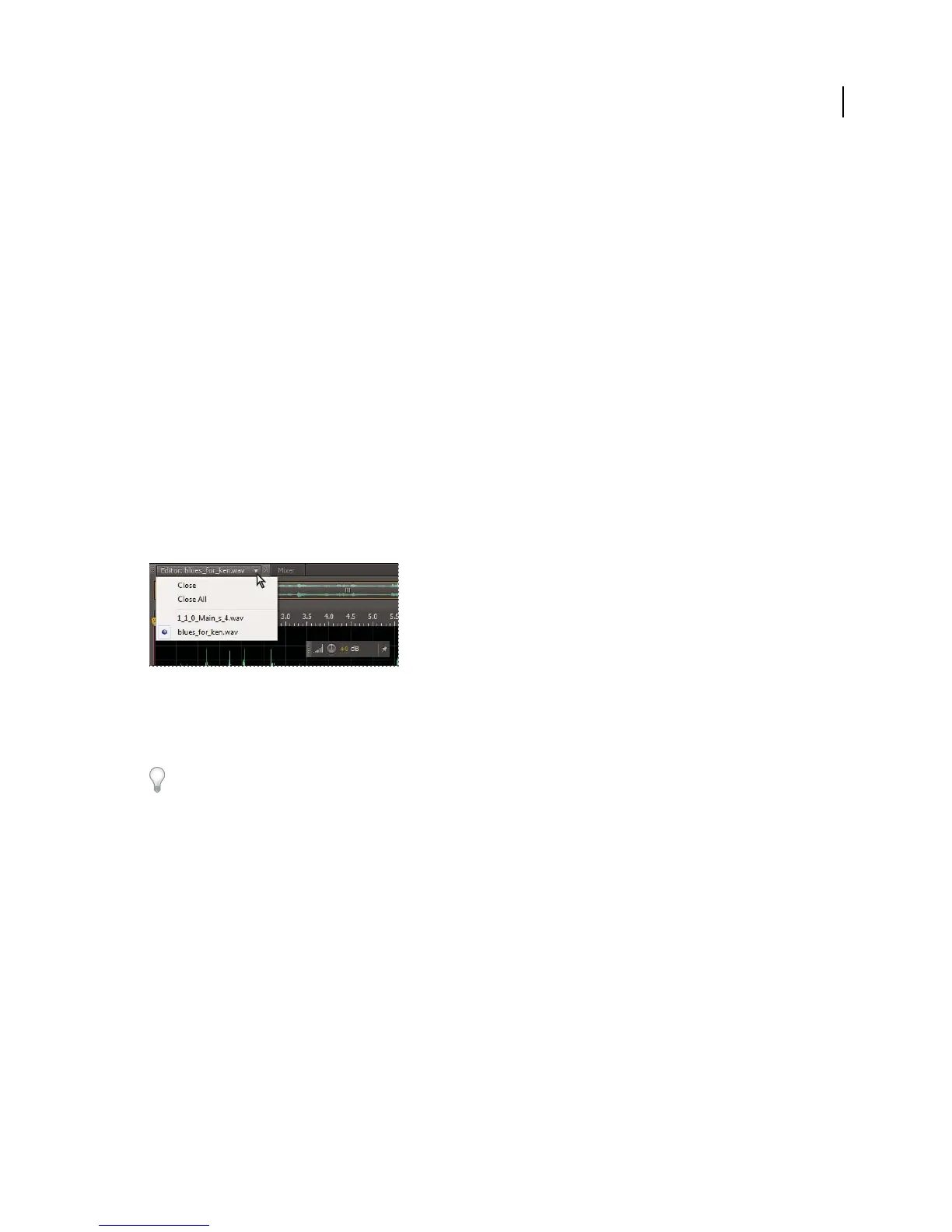
If you open multiple files, Editor panel menu lets you choose which file to display
1 Choose File > Open.
2 Select an audio or video file. (See “Supported import formats” on page 24.)
If you don’t see the file you want, choose All Supported Media from the menu at the bottom of the dialog box.
Import a file as raw data
If you can’t open a particular file, it may lack necessary header information that describes the sample type. To manually
specify this information, import the file as raw data.
1 Choose File > Import > Raw Data.
2 Select the file, and click Open.
3 Set the following options:
Sample Rate Should match the known rate of the file, if possible. For examples of common settings, see
“Understanding sample rate” on page 5. Adobe Audition can import raw data with rates ranging from 1 to 10,000,000
Hz, but playback and recording are supported only between 6000 Hz and 192,000 Hz.
Channels Enter a number from 1 to 32.



 To Next Page