44
USING ADOBE AUDITION
Editing audio files
Last updated 2/16/2012
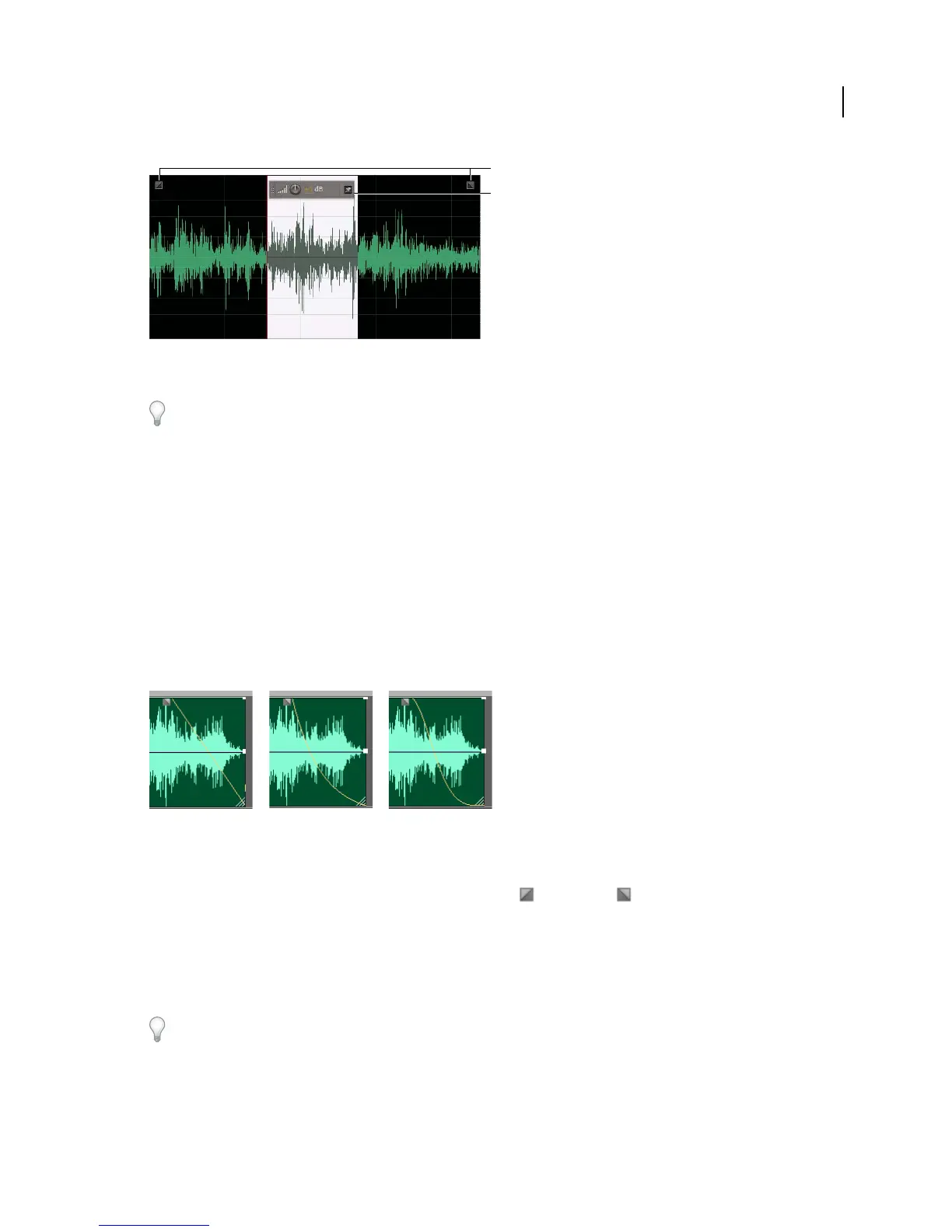
Visual controls in the Editor panel
A. Fade controls B. Gain control (heads-up display)
To quickly fade selected audio, choose Favorites > Fade In or Fade Out.
Visually fade in or out
Adobe Audition offers three types of visual fades:
• Linear fades produce an even volume change that works well for much material. If this fade sounds too abrupt,
however, try one of the other options.
• Logarithmic fades smoothly change volume slowly and then rapidly, or vice versa.
• Cosine fades are shaped like an S-curve, changing volume slowly at first, rapidly through the bulk of the fade, and
slowly at the finish.
Note: In the Waveform Editor, fades permanently change audio data. To apply fades you can readjust in the Multitrack
Editor, see
“Fade or crossfade multitrack clips” on page 121.
Fade types
A. Linear B. Logarithmic C. Cosine
❖ In the upper left or right of the waveform, drag the Fade In or Fade Out handle inward, and do any of the
following:
• For a linear fade, drag perfectly horizontally.
• For a logarithmic fade, drag up or down.
• For a cosine (S-curve) fade, hold down Ctrl (Windows) or Command (Mac OS).
To create cosine fades by default and hold the keys above to create linear or logarithmic fades, change the Default Fade
setting in the General preferences.
More Help topics
“Volume Envelope effect (Waveform Editor only)” on page 75
B
A
AC
B



 To Next Page