46
USING ADOBE AUDITION
Editing audio files
Last updated 2/16/2012
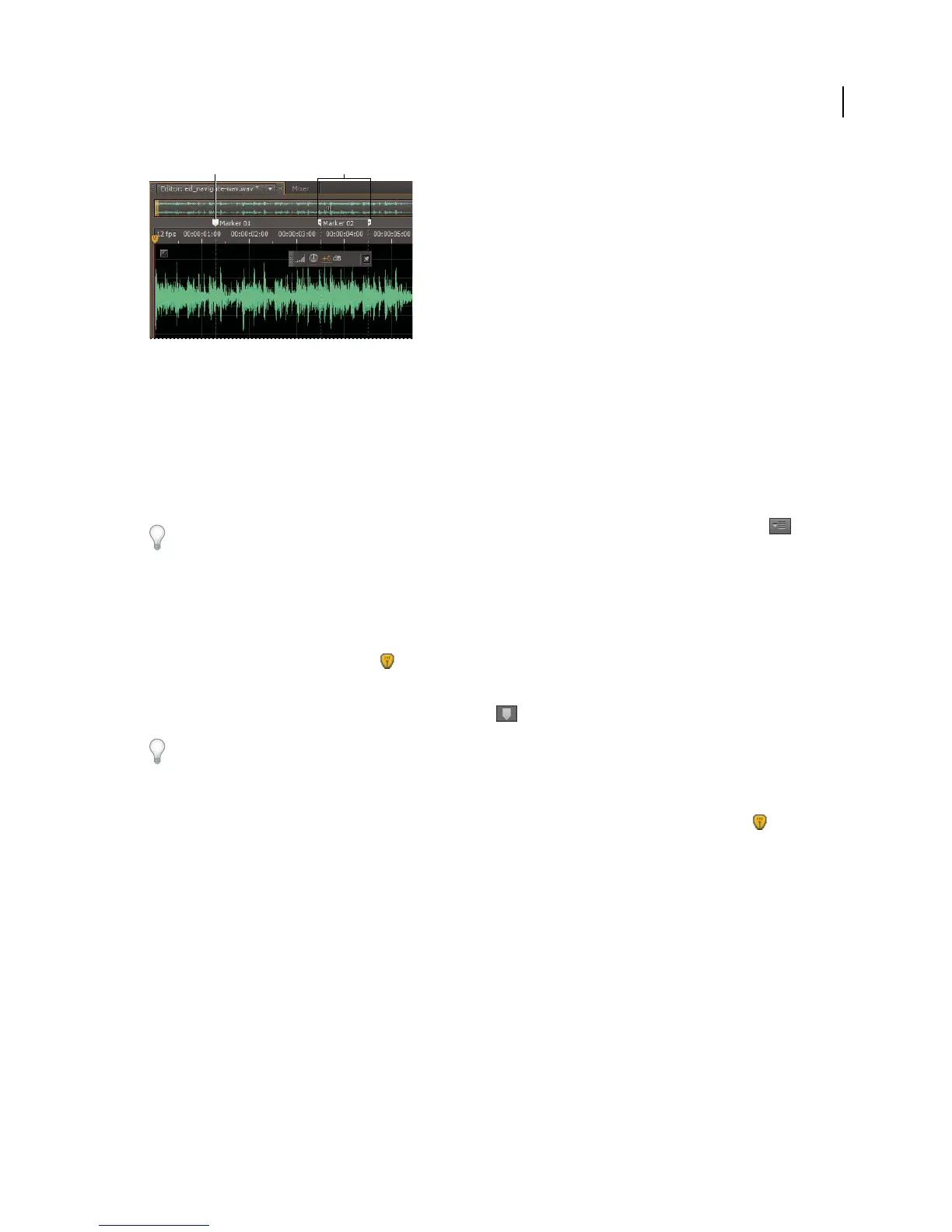
Examples of markers
A. Marker point B. Marker range
Note: To preserve markers when you save a file, select Include Markers and Other Metadata.
Add, select, and rename markers
Though you can add markers directly in the Editor panel, you use the Markers panel (Windows > Markers) to define
and select markers.
To hide or show information such as Duration and Type, choose Markers Display from the panel menu .
Add a marker
1 Do one of the following:
• Play audio.
• Place the current-time indicator where you want a marker point to be.
• Select the audio data you want to define as a marker range.
2 Either press the M key, or click the Add Marker button in the Markers panel.
To automatically create markers where silence occurs, see “Delete Silence and Mark Audio options” on page 80.
Select markers
• Click a marker in the Editor or Markers panel. Or double-click to move the current-time indicator to that
location and select the area for range markers.
• To select adjacent markers, click the first marker you want to select in the Markers panel, and then Shift-click the
last.
• To select nonadjacent markers, Ctrl-click (Windows) or Command-click (Mac OS) them in the Markers panel.
• To move the current-time indicator to the nearest marker, choose Edit > Marker > Move CTI to Next or Previous.
Rename a marker
1 In the Markers panel, select the marker.
2 Click the marker name, and enter a new name.
Adjust, merge, convert, or delete markers
After creating markers, you can fine-tune them to best address the needs of an audio project.
BA



 To Next Page