8
USING ADOBE CAPTIVATE 5
Workspace
Last updated 4/22/2010
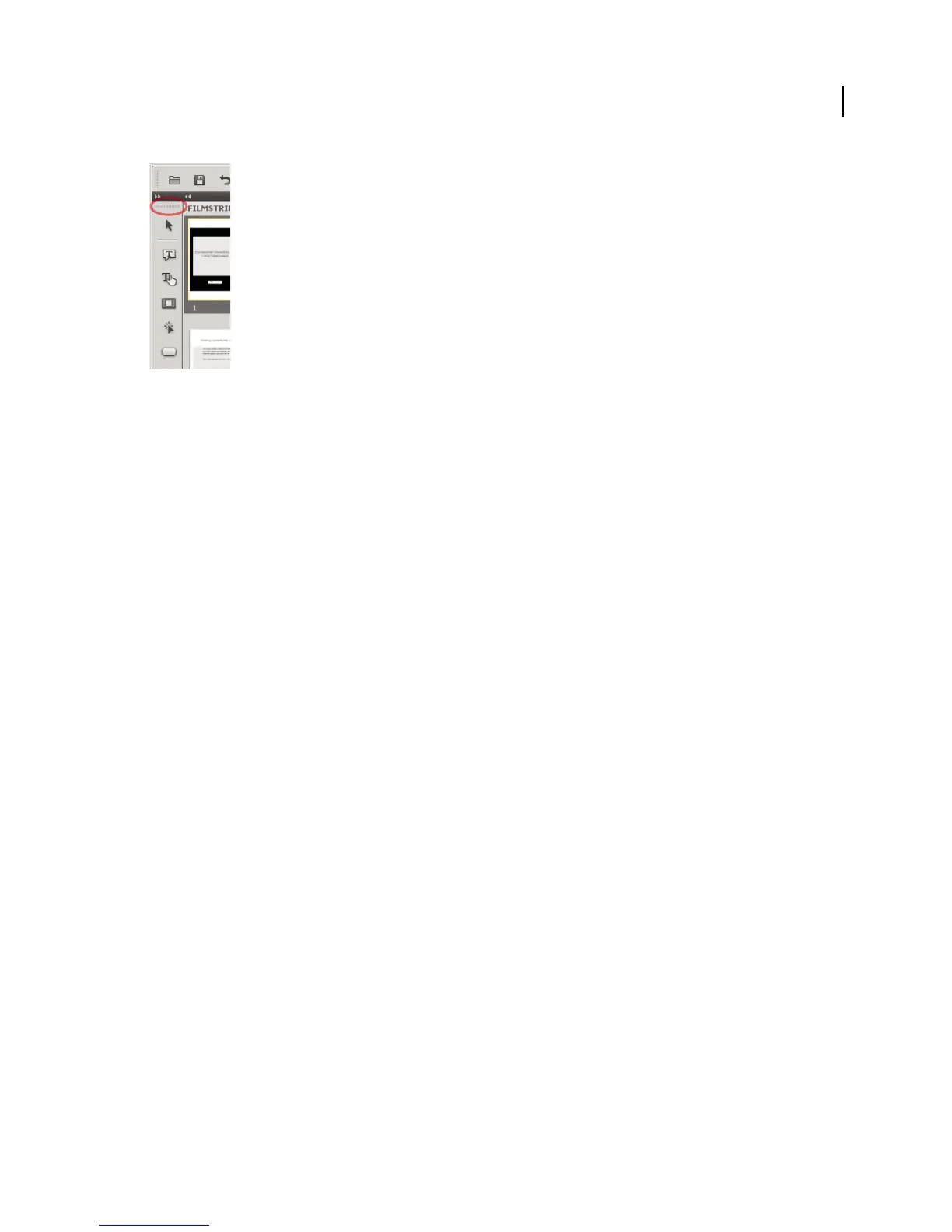
Horizontal dotted lines
Panels
To show or hide panels, select Window and then select the name of the panel.
Filmstrip Displays a thumbnail view of the slides in the project in the order of their appearance. For more information,
see “Filmstrip” on page 8.
Question Pool Displays a thumbnail view of the slides in question pools from where quiz questions are randomly
picked at run-time. For more information, see “Question pools and random questions” on page 165.
Master Slide Displays the slides that define background and common objects, such as logos, headers, and footers for
other slides. For more information, see “Master slides” on page 37.
Timeline Displays the timeline of a slide and its objects. For more information, see “Timeline” on page 9.
Library Displays all the resources, such as, images and audio files that are currently available for a project. For more
information, see “Adobe Captivate Library” on page 12.
Properties Displays the properties associated with the selected slide or object.
Quizzing Properties Displays the properties associated with quiz slides.
Slide Notes Displays notes that are added for a slide. For more information, see “Slide notes” on page 47.
Widget Displays widgets available in the widget gallery that you can add to a slide. For more information, see “About
widgets” on page 116.
Comments Displays review comments provided by reviewers. For more information, see “View or sort comments in
the Adobe Captivate project” on page 196.
Effects Displays the effects applied to the selected object on the slide. For more information, see “Object effects” on
page 53.
Filmstrip
The Filmstrip displays all the slides in the project in the order in which they appear when published.
You can change the order of a slide by dragging it to a new location within the Filmstrip. To select multiple slides, hold
down the Shift or Control key when clicking on slides; to select all slides, press Control+A.



 To Next Page