9
USING ADOBE CAPTIVATE 5
Workspace
Last updated 4/22/2010
To change the size of the thumbnails in the Filmstrip, right-click (Windows) or Control-click (Mac OS) on any slide,
select Filmstrip, and then select Small, Medium, or Large.
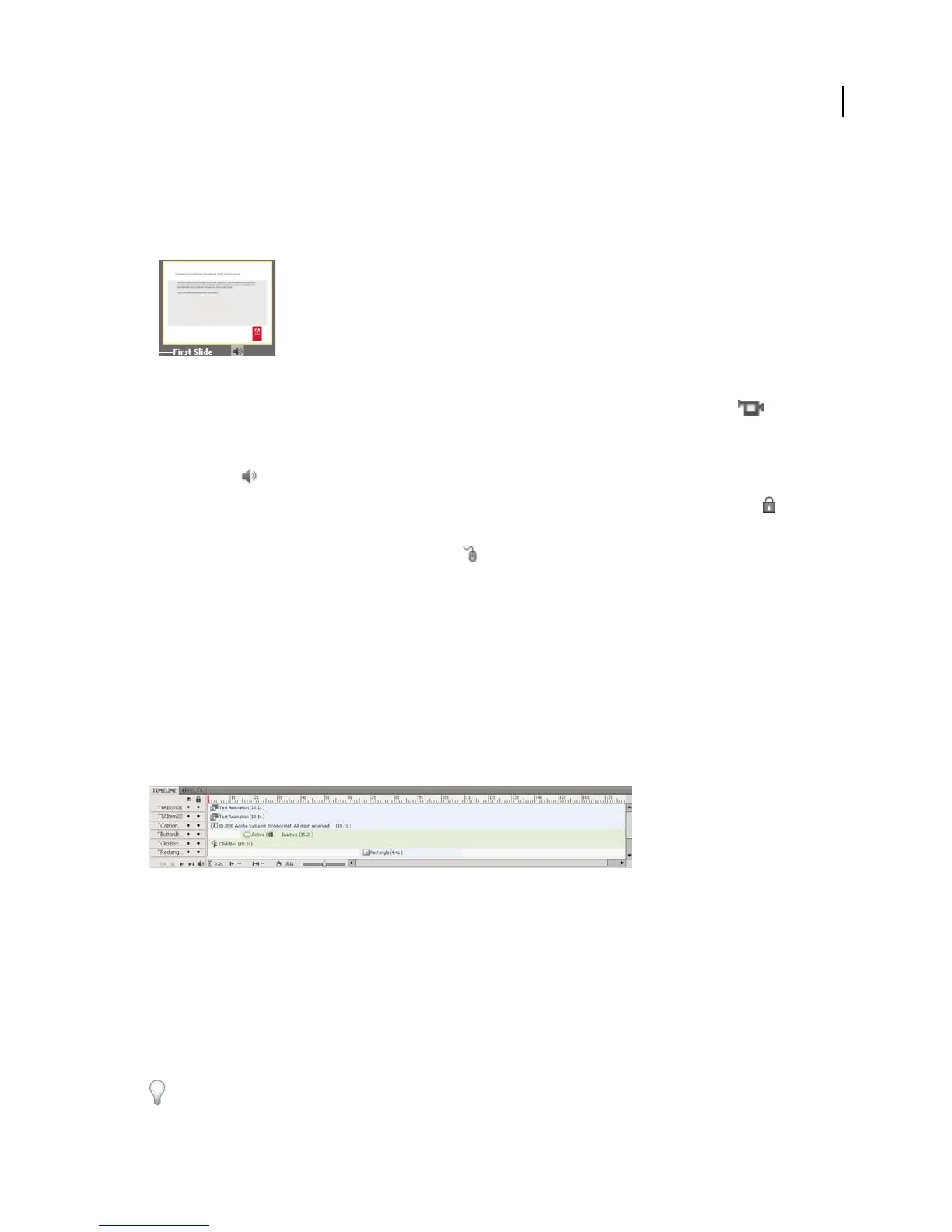
If a slide has a label (short title) assigned, the label appears under the slide. It might be easier to move slides and jump
to a specific slide if you have assigned labels instead of just using the slide number.
A: Slide Label
If the contents of a slide were recorded using Full Motion Recording (FMR), then a handycam icon appears in
the lower right corner of the slide.
If a slide has an audio file associated with it, the audio icon appears in the lower-right corner of the slide. You can click
the sound icon to show a menu with sound options such a Play, Import, and Edit.
If a slide is locked, the lock icon appears in the lower-right corner of the slide. You can click the lock icon to unlock
the slide.
If a slide contains mouse movement, the mouse icon appears in the lower-right corner of the slide.
Timeline
The Timeline is a visual representation of all objects on slides. The Timeline provides an easy way to view, at a high
level, all objects on a slide and their relationship to each other. With the Timeline, you can organize objects and
precisely control the timing of objects. For example, on a slide that contains a caption, an image, and a highlight box,
you can display the caption, then the image 4 seconds later, and then the highlight box 2 seconds after that. The
Timeline also shows any audio associated with the slide or with objects on the slide, letting you easily coordinate the
timing of audio with objects.
Timeline
The Timeline header shows time, in seconds (1s for 1 second, 2s for 2 seconds, and so on), so you see exactly when
objects appear.
The major components of the Timeline are objects, the header, and the playhead. The objects on a slide are displayed
as stacked bars in the right pane of the Timeline. The header at the top of the Timeline indicates time in seconds (and
parts of seconds). The playhead shows the point in time in which the slide is being viewed.
You can use the Timeline to hide or lock objects easily. This is useful when a slide contains many objects and you need
to edit the objects separately.
Rest the mouse pointer over any bar in the Timeline and use the hint message that appears to view details about the
timing of that object.
A



 To Next Page