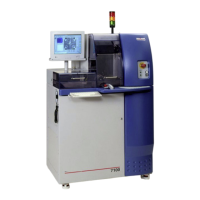
ADT 7100 User Manual Operating Procedure
7. Sample alignment and cutting map generation
a. Select the manual alignment option by clicking on the icon
b. Follow the directions given in the wizard to do the alignment and to generate the cutting
map.
Note: If you don’t have alignment marks, you can use an edge of your sample.
c. Move to the next angle and repeat the manual alignment process, and cut map
generation. Then, repeat for the rest of the angles.
Note: If you already align a previous angle, you can just click “Next” and “Finish” without
moving the camera. This will ensure that the alignment matches the previous angle.
8. Y-offset measurement
a. The camera and blade tend to have a Y-offset of a few tens of micrometers between
them. If you want to compensate for this (to precisely define the cutting lines on your
sample), you can use the Y-offset tool before cutting your first sample. If you don’t care,
skip to the next step (step 9).
b. Be sure you are at the first angle in your recipe (typically the angle zero).
c. Click on the icon for “Manual Y-offset.”
d. Follow the instructions on the wizard (a test cut will need to be made).
e. If this test was performed on a dummy sample, you could unload it by clicking the
unload icon (then follow the wizard) and going back to step 6 to load a new sample.
9. Cutting and finishing
a. Click the Run or Full Wafer Cut button on the toolbar. The entire
wafer will be cut as defined in the recipe.
b. After a blade change, you will be prompted to perform a Y-offset if it hasn’t been
performed already. Click Yes and follow the wizard to calibrate the cut position, or click
No if you don’t care about the exact position of your cutting lines (an offset of about
tens of microns is typical)
c. When the Full Wafer cut is done, the system will ask you to remove the sample. Click
Finish in the wizard to deactivate the vacuum on the chuck.
d. Open the Load/Unload Cover and remove the workpiece from the Cutting Chuck. Tip the
frame to the side so water will not drip on the chuck.
e. You may wash or dry the wafer using the air and water tool on the left side of the saw or
use DI water in the sink in the room with the saw.
f. Close the Load/Unload cover.
g. If you have more samples for cutting, go back to step 6.
h. If you have cut your last wafer, remove your blade using Change Blade. Click Cancel after
the blade has been removed. Close the Blade cover and large cutting chamber cover.
i. Do not log out and turn off the system following the shutdown procedure in this book.
10. Fill out the logbook with any missing information for your entry.
Lurie Nanofabrication Facility 2-3


 To Next Page
 Loading...