17
Transferring Files to a PC using USB
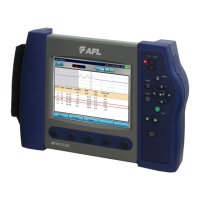
To transfer les from your FLX380 to a PC using a USB cable, perform the following:
1 Connect your FLX380 to a PC using the supplied type A to Mini USB cable. Make sure the mini-plug is fully
seated in your FLX380.
2 Press the [USB] soft key on the FLX380’s Main Menu.
3 From your PC desktop, open My Computer. A new removable drive named [OFL X:] will appear, where ‘X:’ is
the drive letter assigned to your FLX380 by the PC.
4 Under [OFL X:] you should see two folders: [RESULTS] and [SOFTWARE]. Copy the [RESULTS] folder to your PC.
5 Under [RESULTS] you will see: [TRACES]. Under [TRACES] you will see all of the folders containing OTDR traces
or OPM results.
Note: Before removing the USB cable connecting your FLX380 to your PC, or pressing the [Cancel] soft key on
the USB page, left click the Safely Remove Hardware icon in the Start bar of your PC, then left click the Safely
Remove USB mass storage device – Drive (X:) message, where ‘X’ is the drive letter assigned to your FLX380.
For detailed operating instructions, refer to the FLX380 User’s Guide (available on supplied CD and
www.AFLglobal.com).
FLX380-303 and -304 support AFL’s ServiceSafe
™
capability (US patent 8,411,259), enabling both in-service and
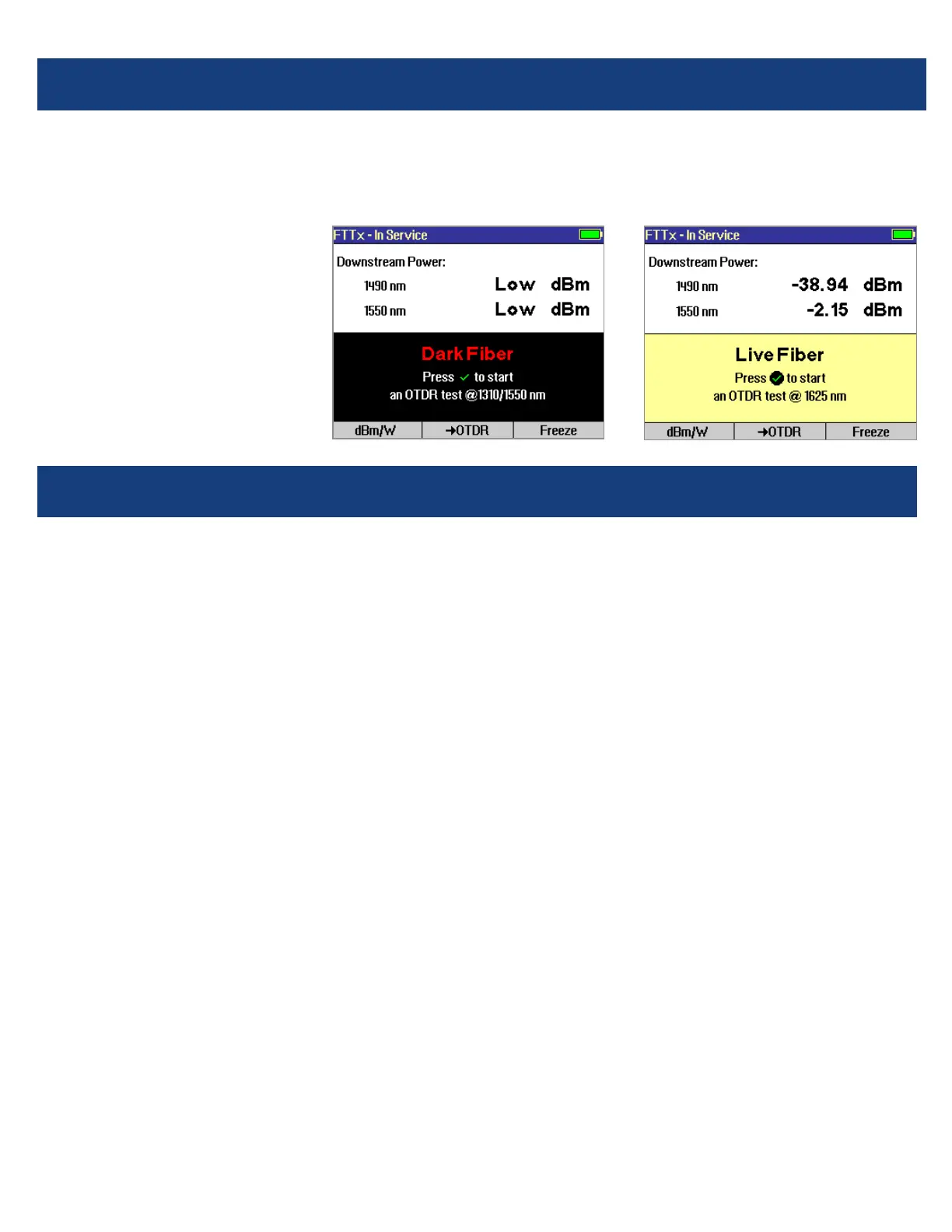
out-of-service OTDR testing and live PON power measurements to be made from a single port. In the FTTx PON
Power Meter mode, the rst screen displays received FTTx PON power at 1490 and 1550 nm. An OTDR test can
be initiated from the PON Power
Meter mode. On dark bers, users
can test at 1310/1550 nm. On live
bers, users can test at only 1625
or 1650 nm.
FTTx PON Power Meter (FLX380-303 and FLX380-304 models only!)



 To Next Page