55
AgfaPhoto OPTIMA 108 / OPTIMA 145 AgfaPhoto OPTIMA 108 / OPTIMA 145
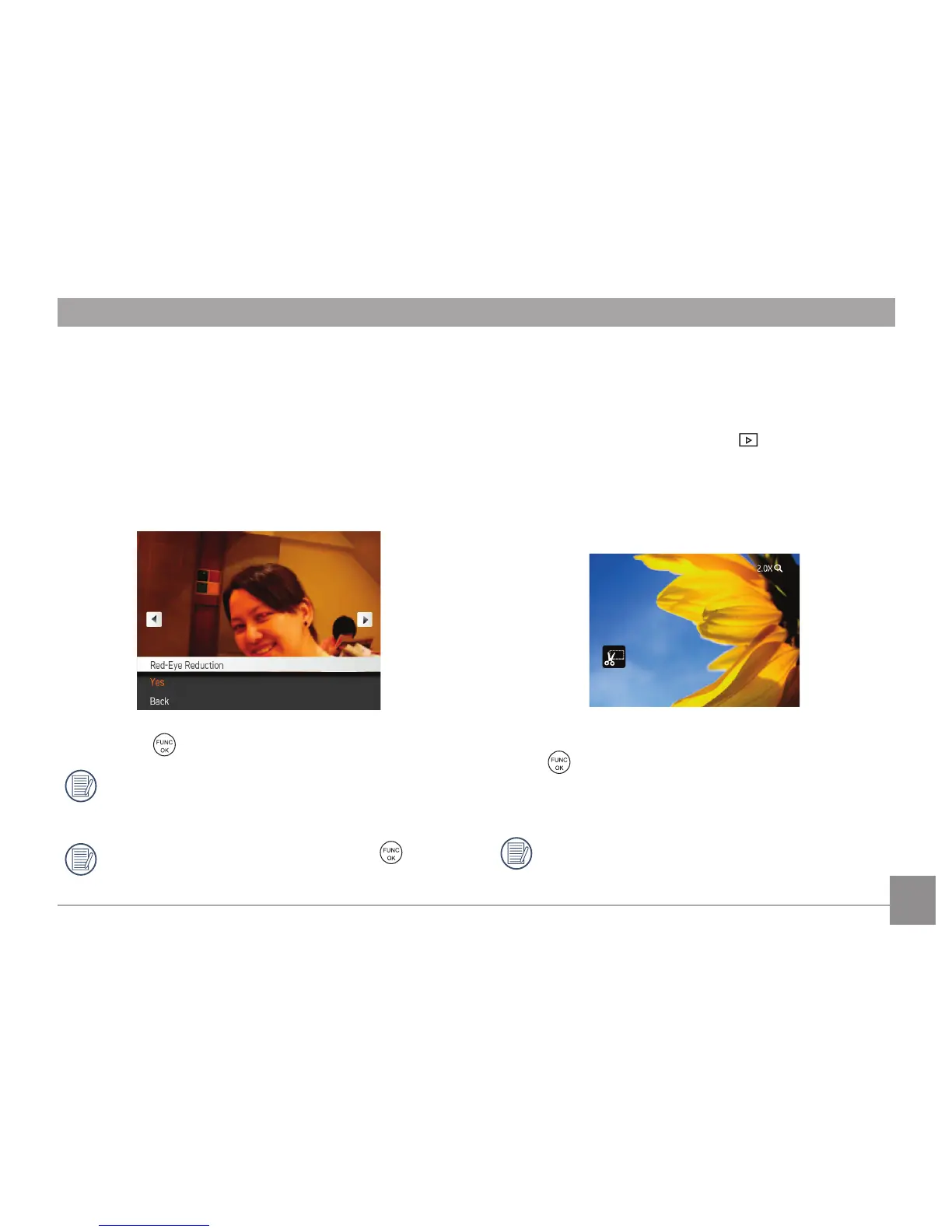
Red-eye Reduction
Use this setting to remove red eye effect in your photos.
1. Select
Red-eye Reduction in the Playback menu as
described previously.
2. Use the
Left/Right button to select the picture from
which red eye effect needs to be removed.
3. Use the Up/Down navigation buttons and select Yes to
fix the selected image or
Back to cancel and return to
the Playback menu.
4. Press the button to confirm the setting.
For best results, the face of the subject should be
relatively large in the LCD screen, the subject should
be facing the camera as directly as possible, and the
eyes should be as large as possible.
If there is no red eyes in the image, press
button
after selecting “Yes”, such prompt will appear on the
screen: red eye is not detected!
Trim
The Trim setting allows you select an area of the photo you
want to keep and then save it as a new photo.
To trim a picture:
1. Select the
Trim setting from the menu.
2. Using the Left/Right buttons, locate the photo that you
want to trim and have it displayed on the LCD.
3. Use the zoom buttons and navigation buttons to adjust
the trimming box to fit the location and size of the new
picture.
4. “Save Changes?” prompt will display after pressing
the button, select “O” to confirm the changes and
save the image, or select “X” to cancel the changes and
return to the previous page.
The image can not be trimmed again when it is
trimmed to 640X480.




 To Next Page