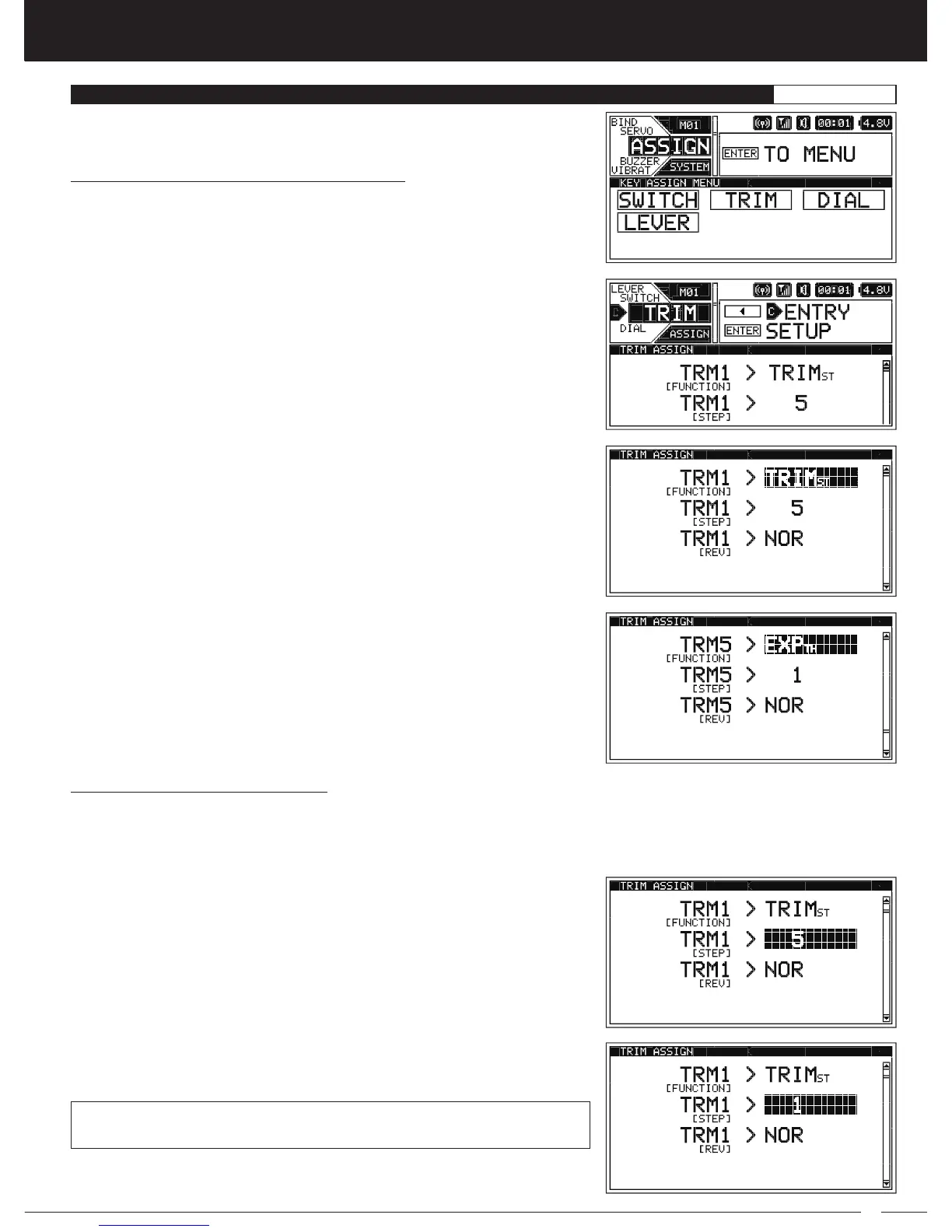
Changing the Trim Switch Function Assignments:
1) From within the SYSTEM menu, scroll UP or DOWN to highlight the ASSIGN
menu.
2) Press the ENTER key to open the ASSIGN menu, then scroll UP or DOWN to
highlight the TRIM menu.
3) Press the ENTER key to open the TRIM menu. TRM1 [FUNCTION] > TRIMST will
be highlighted.
4) Scroll UP or DOWN to highlight the Trim Switch Number you would like to
change. Choose from TRM1, TRM2, TRM3, TRM4 or TRM5.
5) Press the ENTER key, then scroll UP or DOWN to choose the desired function
for the Trim Switch Number you highlighted. A complete list of functions that
can be Assigned to the Trim Switches are shown in the tables on page 100.
6) Press the ENTER key, then repeat steps 4 and 5 to any other desired Trim Switch
Function Assignments.
Changing the Trim Switch Step Value:
The Step function allows you to adjust how far a servo travels or a function moves when a Trim Switch is pressed. You can
Increase the Trim Resolution by Decreasing the Step value, so that the amount of travel is less when you press the Trim Switches.
This makes it possible to fine-tune travel extremely accurately. Alternately, you could Decrease the Trim Resolution by Increasing
the Step value, so that the amount of travel is more when you press the Trim Switches. This may not be as accurate, but it allows
you to command large amounts of travel or function movement at a time.
1) From within the TRIM menu, scroll UP or DOWN to highlight the Trim Switch
Number [STEP] you would like to change. Choose from TRM1 [STEP],
TRM2 [STEP], TRM3 [STEP], TRM4 [STEP] or TRM5 [STEP].
2) Press the ENTER key, then scroll UP or DOWN to change the desired Trim
Switch Step value.
STEP setting range is 0 to 100. The default setting is 1 or 5 depending on the
Trim Switch Number. The Step value is a percentage of travel.
3) Repeat step 2 to change any other desired Trim Step values.


 To Next Page