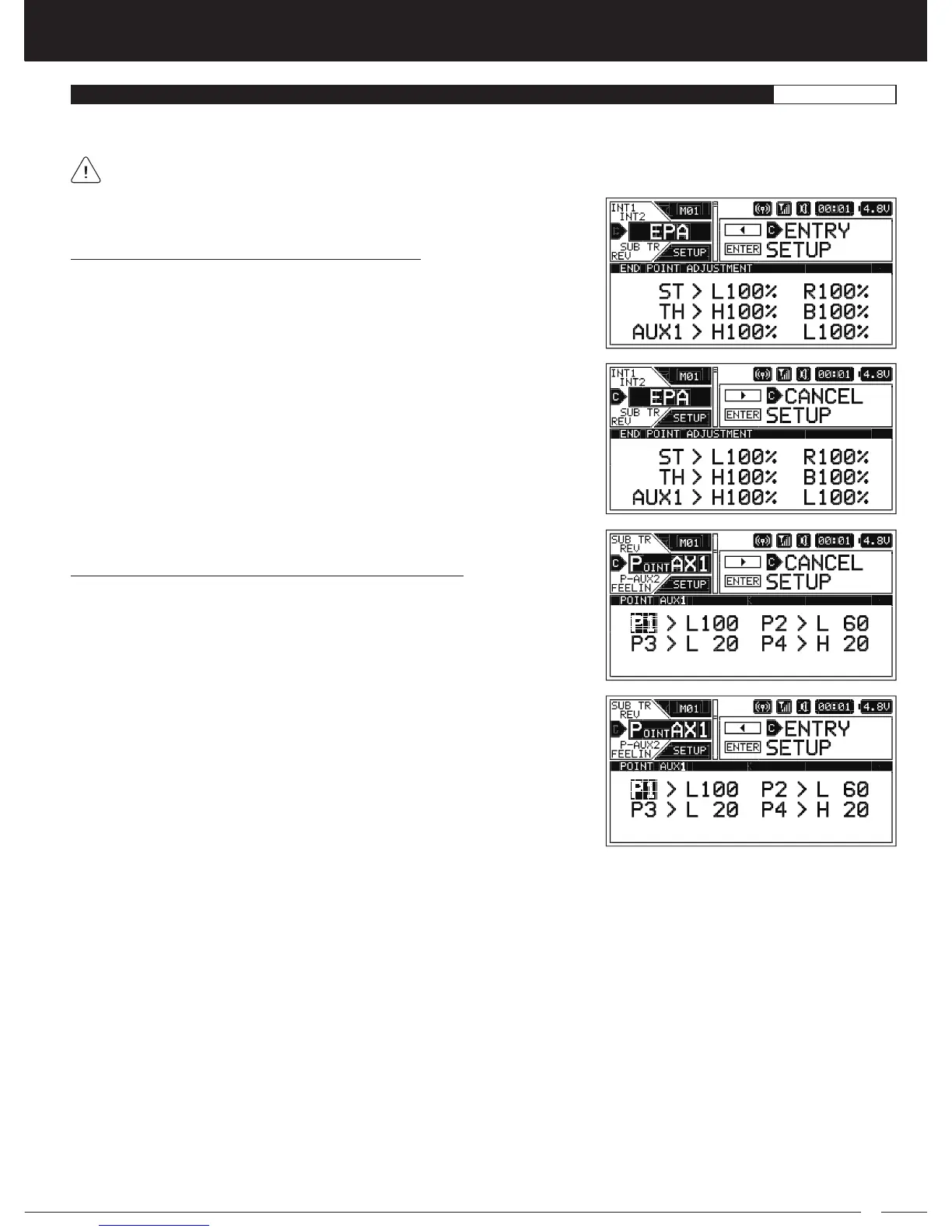
Adding Programming Menus to the CUSTOM Menu:
1) Highlight the Programming Menu you would like to add to the CUSTOM
menu. 'C' ENTRY will be displayed in the Message Display Window.
Removing Programming Menus From the CUSTOM Menu:
1) Highlight the Programming Menu you would like to remove from the CUSTOM
menu. 'C' CANCEL will be displayed in the Message Display Window and a
'C' will be displayed in the Pointer next to the Menu Name, indicating the
Programming Menu is part of the CUSTOM menu.
2) Press the SELECT switch in the direction of the arrow (LEFT). A 'C' will be
displayed in the Pointer next to the Menu Name, indicating the Programming
Menu is now added to the CUSTOM menu and CANCEL will now be displayed
in the Message Display Window.
2) Press the SELECT switch in the direction of the arrow (RIGHT). The 'C' will be
removed from the Pointer next to the Menu Name, indicating the Programming
Menu has now been removed from the CUSTOM menu and ENTRY will be
displayed in the Message Display Window.
Many Programming Menus can be Added to the CUSTOM menu quickly and easily. This allows you to store and then access your
most-used Programming Menus all in one place within the CUSTOM menu.
Not all Programming Menus can be added to the CUSTOM menu. If a Programming Menu can be added to the CUSTOM
menu, 'C' ENTRY will be displayed in the Message Display Window when you highlight the Programming Menu.
THIS SPACE INTENTIONALLY LEFT BLANK


 To Next Page