EasyManua.ls Logo

Akaso B60 - User Manual

Akaso B60
68 pages
Print Icon
To Next Page IconTo Next Page
Loading...
USER MANUAL
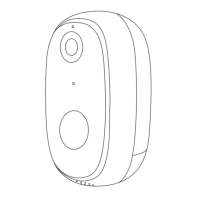
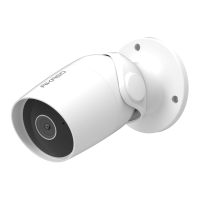
AKASO B60 Wi-Fi Camera
V1.10

Questions and Answers

  • J
    jimmygallagherSep 3, 2025
    Why is there a circle in the middle of my Akaso B60 Security Camera video, and is it delayed?
    • Z
      Zachary HarveySep 3, 2025
      The circle that you see in the middle of the video screen indicates that the video is loading. The delay suggests that your network connection may not be stable. Check the network connection of both your Akaso Security Camera and your mobile phone to ensure they are smooth. If needed, try moving the camera closer to your Wi-Fi router.
  • M
    mario23Sep 1, 2025
    Why is there a blank in the middle of the video intermittently on my Akaso B60 Security Camera?
    • M
      Mariah PruittSep 1, 2025
      If you notice intermittent blanks in the middle of the video, check whether the device is powered off during the blank time.
  • B
    barnoldAug 31, 2025
    Why is the shared account operation function not completing on my Akaso B60?
    • F
      flemingzacharyAug 31, 2025
      The shared account permissions are restricted for security reasons. If other accounts need to reconfigure the camera, remove the device under the first account.
  • B
    Barbara ReyesAug 29, 2025
    Why is my Akaso Security Camera video delayed and loading slowly?
    • A
      Alexandra JohnsonAug 29, 2025
      If you see a loading circle and experience video delay, it indicates that the network connection between the camera and your mobile phone is not smooth. Please check whether the network connected to the camera and the mobile phone is smooth.
  • J
    James FernandezAug 27, 2025
    Why can't my phone receive alarm messages from the Akaso Security Camera?
    • W
      William MartinezAug 28, 2025
      If you're not receiving alarm messages, the notification permission for the Smart Life App may not be enabled. Confirm that the notification permission for the Smart Life App is turned on in your phone's settings.
  • R
    Robert ConradAug 27, 2025
    Why is the indicator light red on my Akaso B60?
    • R
      Richard Barnes DVMAug 27, 2025
      A red indicator light means that the camera's network has been disconnected. This is often due to poor Wi-Fi network stability. Please check the stability of your Wi-Fi network and try restarting your router.
  • Z
    zacharycomptonAug 25, 2025
    What to do if Akaso Security Camera is disconnected and the app can't load the video?
    • A
      Anna HernandezAug 26, 2025
      If the app can't load the video and the Akaso security camera is disconnected, it means that the camera is offline. Remove the camera from the app, reset it to factory settings, and then re-add the device.
  • K
    Kevin AllenAug 23, 2025
    Why can't I add a device to my Akaso B60?
    • B
      Bridget RobinsonAug 23, 2025
      There are several reasons why you might be failing to add a device or configure the network. Here's what to check: * If the indicator status is abnormal, reset the device to factory settings by pressing and holding the RESET button until you hear a beep. * If the device indicator doesn't turn blue or you don't hear a beep, ensure the phone screen is aligned with the camera lens in parallel, about 15cm away. * If the indicator flashes blue quickly but doesn't turn constant blue, make sure your phone is connected to a 2.4GHz Wi-Fi network when adding the device. * If the indicator light turns blue, but the app can't find the device, try adding the device using alternative methods.

Summary

Whats in the Box

Camera Introduction

Installation

Set-up

Install Smart Life App

Guide to download and install the required mobile application.

Get a New Account

Steps to create a new user account for the Smart Life app.

Plug In Your Camera

Instructions for connecting the camera to the power source.

Add Your Camera

Use Third-Party Devices to Control

Amazon Echo Integration

Guide to connect the camera with Amazon Echo for voice control.

Link Smart Life Skill to Alexa

Steps to enable and link the Smart Life skill in the Alexa app.

Use Google Assistant to Control

Configure Google Home Device

Steps to set up your Google Home device for integration.

Link Smart Life Action to Google

Steps to link the Smart Life account with Google Assistant.

Format MicroSD Card

Camera Formatting Steps

Detailed steps within the app to format the SD card.

Motion Detection

Motion Detection Alarm Setting

How to enable and adjust the sensitivity for motion alerts.

Playback

Accessing Playback Interface

Navigating to and using the video playback feature.

Selecting Date and Time for Playback

How to choose specific dates and times for reviewing recordings.

Home Management

Add Family Members

Process of adding users to your home group for shared access.

Share Devices

Share Device Functionality

Steps to share the camera with friends or family.

More Setting Interface

Device Name

Option to rename the camera for easier identification.

Device Information

View details like owner ID, IP address, and Wi-Fi signal strength.

Basic Feature Settings

Adjust indicator light, video flip, and time watermark.

Decibel Detection Settings

Enable or disable sound detection alarms.

Storage Settings

Check SD card status and format the storage.

Purchase VAS

Option to save video clips on the cloud.

FAQ & Feedback

Access frequently asked questions and provide product feedback.

Firmware Information

Check for and update the camera's firmware.

Remove Device

Delete the camera from the application.

Alarm Settings

Motion Detection Alarm

Configure motion detection alarm and sensitivity levels.

Playback Interface

Playback Date and Time

View recorded video by selecting the date and time.

Sound On;Off Option

Control the audio playback for recorded videos.

Full Screen Button

Enter the full-screen mode for video playback.

Play;Pause Button

Start or pause the video playback.

Time Table for Playback

Use the timeline to navigate to a specific point in the recording.

Record Manual Playback

Manually record playback footage to your mobile phone.

Screenshot Playback

Capture snapshots from recorded playback.

Troubleshooting

Network Configuration Issues

Resolving problems when adding a device or configuring network.

Device Already Added Prompt

What to do if the APP prompts the device is already added.

Factory Reset Procedure

Instructions on how to reset the camera to factory settings.

Camera Indicator Status

Description of camera indicator light states and meanings.

Video Intermittent Blank Space

Troubleshooting blank spaces in the video recording timeline.

No Alarm Message Received

Steps to ensure phone receives alarm messages from the app.

Camera Disconnected; APP Cannot Load Video

Solutions for camera disconnection or APP failing to load video.

Device Access Failed Prompt

Troubleshooting when the app prompts access to the device failed.

Contact Us

Akaso B60 Specifications

General IconGeneral
BrandAkaso
ModelB60
CategorySecurity Camera
LanguageEnglish

Related product manuals