6 7
7 Log in to the Customer Website and navigate to
Video > Settings > Add Video Device
8 Select the camera from the video device list or type in its MAC
address to begin adding the camera. The camera’s MAC address
is located on the back of the camera near the power cable and
on the box decal.
9 Name your Wellcam and click Install.
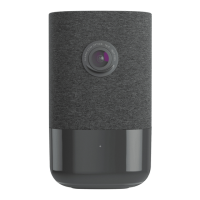
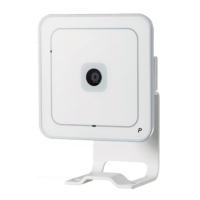
10 Once Wellcam is added to your account, Wellcam will configure
itself to your network. This may take a few minutes, please wait.
11 Click the Configuration button to set up video notifications and
learn more about Wellcam.
12 If you want to add more recipients, go to the Notifications
tab on the Customer Website and look for Video
Callout Notification.
You are now ready to set up Video Analytics. Turn to page 8.
• Press the Menu
button.
• Using the Volume
buttons, select Access Point.
• Wait for Wellcam’s front LED light to turn white.
3 Using a Wi-Fi enabled laptop or desktop computer, connect to
Wellcam’s Wi-Fi network (ADC:XX:XX:XX). XX:XX:XX is the last
six characters of Wellcam’s MAC address. The camera’s MAC
address is located on the back of the camera near the power
cable and on the box decal.
4 Using the same computer, go to the following website:
http://wellcam
5 Click the Scan button, select your network, and enter your
password. You can also manually enter your SSID
(network name).
6 After you click the Submit button, Wellcam’s LED will turn red.
Wait a few minutes for the LED light to turn solid green.
6 7


 To Next Page
 Loading...