54
5.3.3. Setting configuration parameters
Altering certain parameters can diminish the overall energy performance of your system.
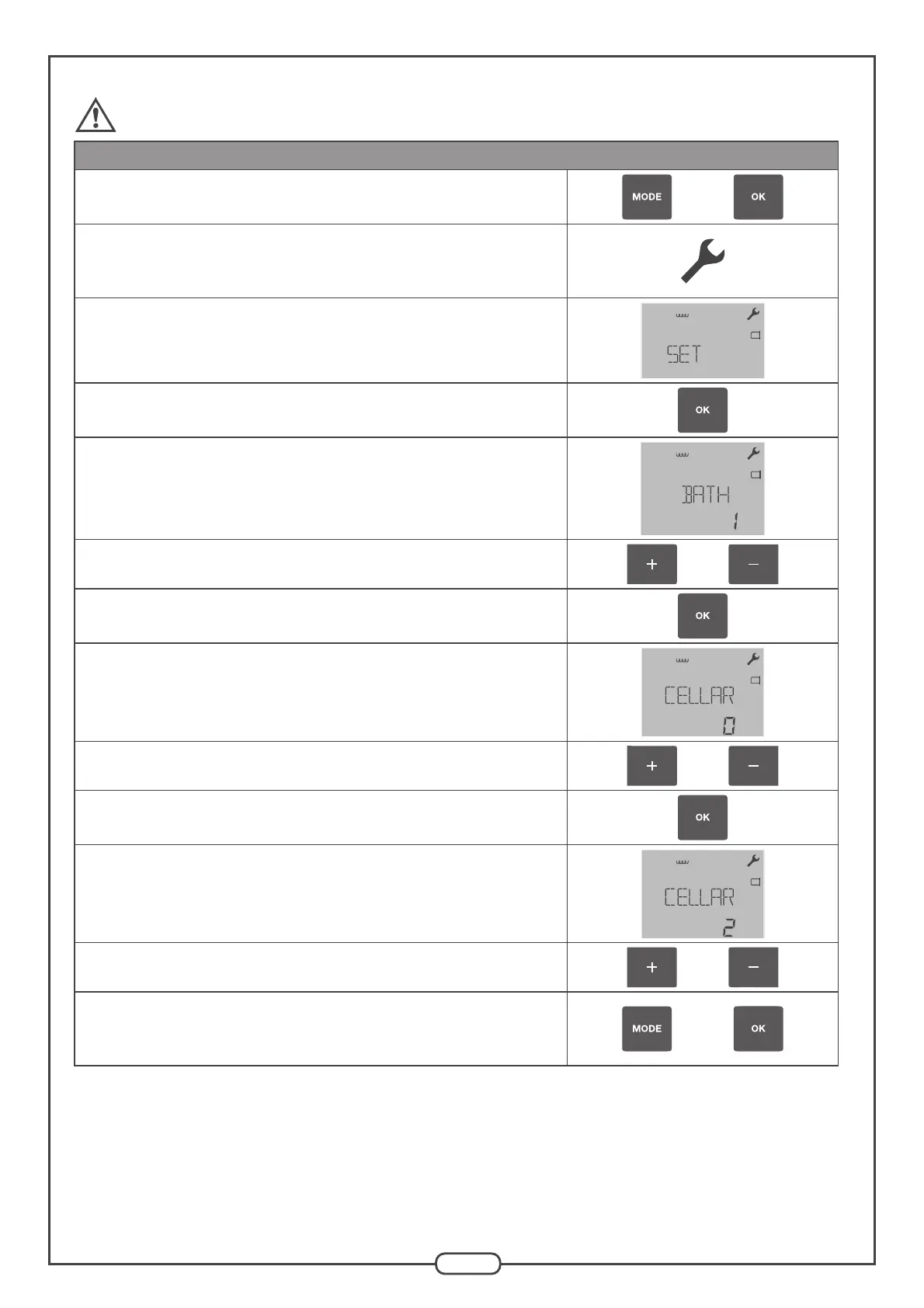
CONFIG. Setting menu
Hold the “MODE” and “OK” buttons down simultaneously for a very short
instant to enter the advanced menu
and
A key (“configuration” menu symbol) appears in the top right of the LCD
screen. It remains displayed as long as you remain in the advanced menu and
flashes if there is an error.
Press “+” to display the “CONFIG SETTING” menu
(it appears second on the advanced menu, after the “LANGUAGE” menu).
Filter
Press “OK” to confirm the selection of “CONFIG SETTING”
One of the parameters to be set is displayed on the screen and is flashing
(BATH in the example opposite)
The current setting value appears below (1 in the example opposite)
Filter
Choose the parameter to be set using the “+” or “-” keys
or
Press “OK” to confirm the selection of the parameter
The current parameter value is flashing
Filter
Alter the parameter value with the “+” or “-” keys
or
Press “OK” to confirm the value of the parameter
The set parameter flashes again
Filter
Choose another parameter to be set using the “+” or “-” keys
or
Hold the “MODE” and “OK” buttons down simultaneously for a very short
instant to leave the configuration menu and return to the home screen
and
Pressing the “MODE” button in the “CONFIG SETTING” menu takes you back to the advanced menu selection screen.
You can go back to the home screen at any time when setting parameters by holding the “MODE” and “OK” buttons down
simultaneously for a very short instant.


 To Next Page