Solid-state drive
Removing the solid-state drive
Prerequisites
1. Follow the procedure in
Before working inside your computer.
CAUTION: Solid-state drives are fragile. Exercise care when handling the solid-state drive.
NOTE: To avoid data loss, do not remove the drive while the computer is in sleep or on state.
2. Remove the left-side cover.
3. Remove the single-graphics card.
About this task
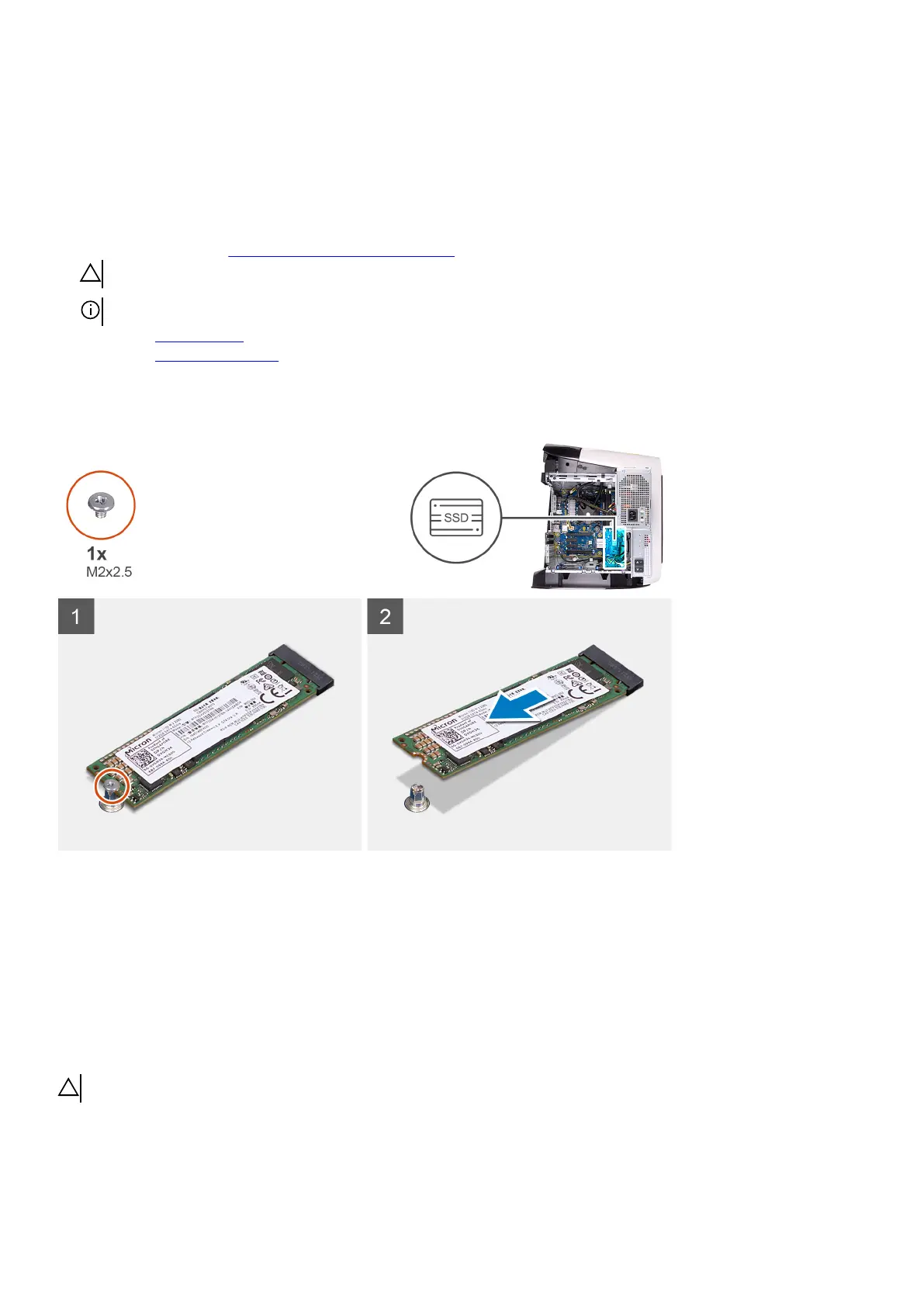
The following images indicate the location of the solid-state drive and provides a visual representation of the removal procedure.
Steps
1. Remove the screw (M2x2.5) that secures the solid-state drive to the system board.
2. Slide and lift the solid-state drive off the system board.
Installing the solid-state drive
Prerequisites
If you are replacing a component, remove the existing component before performing the installation procedure.
CAUTION: Solid-state drives are fragile. Exercise care when handling the solid-state drive.
About this task
The following images indicate the location of the solid-state drive and provides a visual representation of the installation procedure.
49










 To Next Page