Operating the monitor | 33
Front-panel button
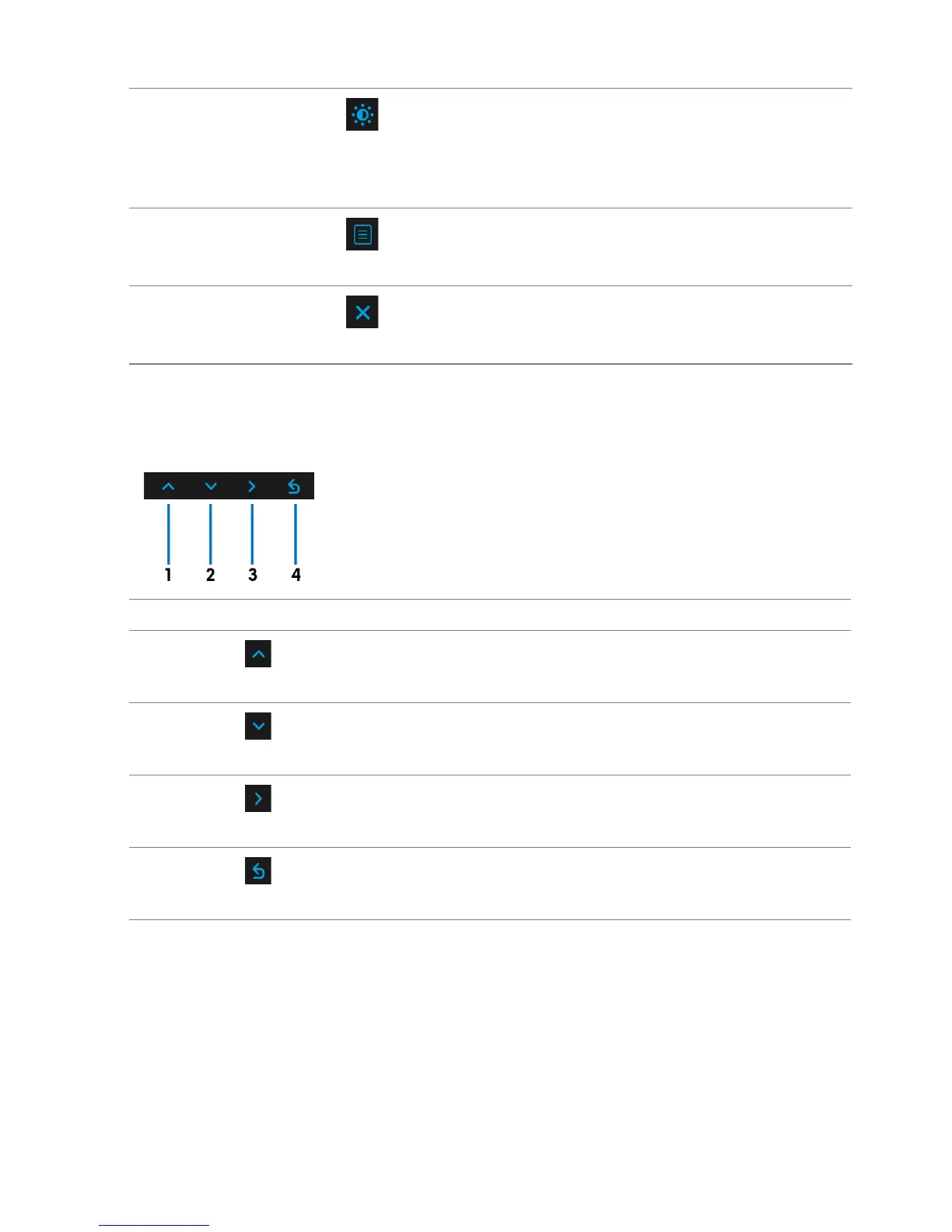
Use the buttons on the front of the monitor
to adjust the image settings.
Front-panel button Description
1
Use the Up button to adjust (increase ranges) items in the
OSD menu.
2 Use the Down button to adjust (decrease ranges) items in the
OSD menu.
3 Use the Select button to confirm your selection.
4 Use the Back button to go back to the previous menu.
4
Shortcut key/
Brightness/
Contrast
Use this button to directly access the
Brightness/Contrast menu.
5
Menu
Use the ME
NU button to launch the On-Screen
Display (OSD). See Accessing the menu
system.
6
Exit
Use this button to exit the OSD main menu.
Up
Down
Select
Back








 To Next Page