Operating the monitor | 47
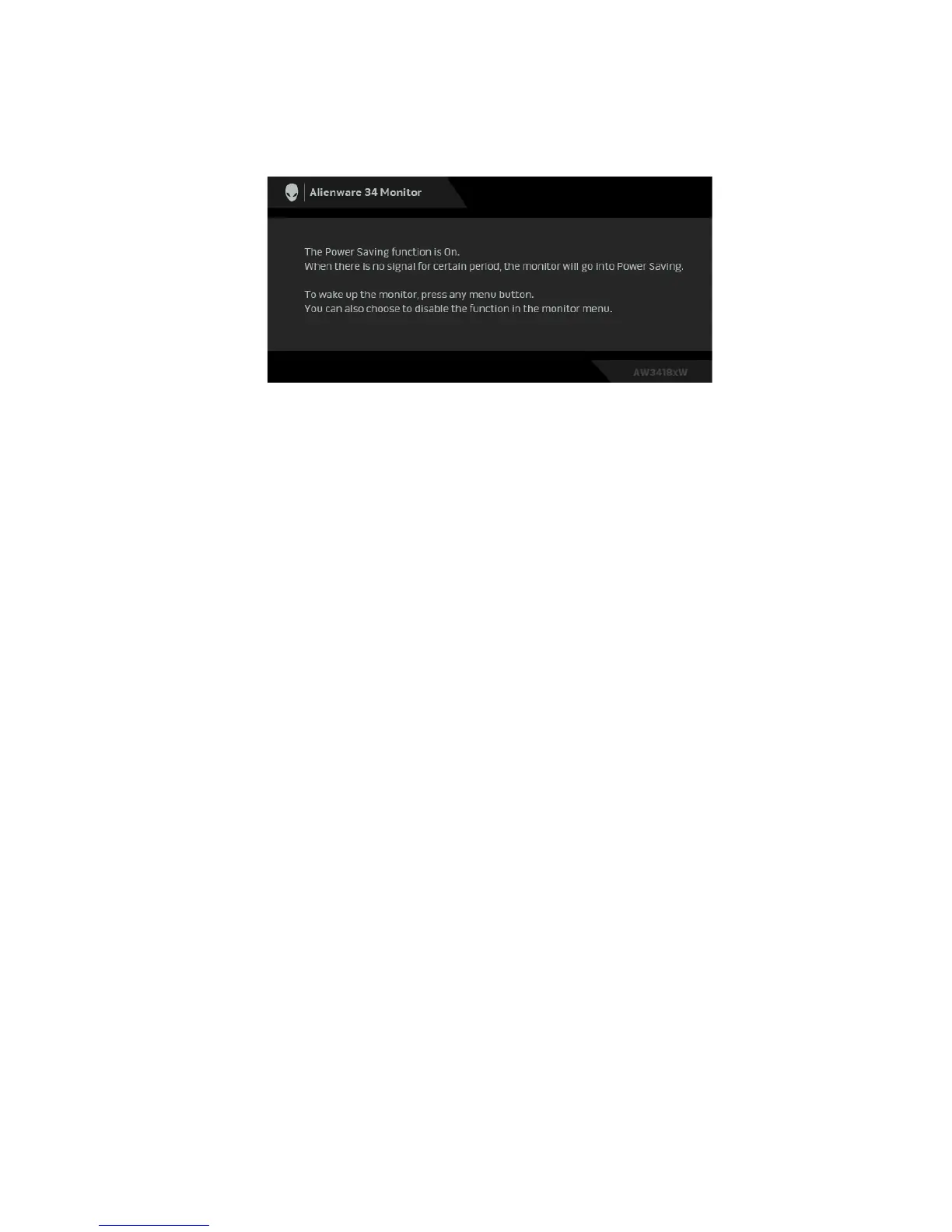
OSD warning message
When the monitor enters the Pow
er Saving mode, the following message
appears:
See Troubleshooting for more information.
Setting the maximum resolution
To set the maximum resolution for the monitor:
In Windows 7, Windows 8, and Windows 8.1:
1. For Wi
ndows 8 and Windows 8.1 only, select the Desktop tile to switch to
classic desktop.
2. Right-clic
k on the desktop and click Screen Resolution.
3. C
lick the Dropdown list of the Screen Resolution and select 3440 x 1440
(for AW3418DW) or 2560 x 1080 (for AW3418HW).
4. Cl
ick OK.
In Windows 10:
1. Right-clic
k on the desktop and click Display settings.
2. Cl
ick Advanced display settings.
3. Click the dropdown
list of Resolution and select 3440 x 1440 (for
AW3418DW) or 2560 x 1080 (for AW3418HW).
4. Cl
ick Apply.
If you do not see 3440 x 1440 or 2560 x
1080 as an option, you may need to
update your graphics driver. Depending on your computer, complete one of the
following procedures:
If you have a Dell desktop or a laptop:
•Go to www.dell.com/support, enter your service tag, and download the
latest driver for your graphics card.








 To Next Page