30-EN
Clear Locked All
Setting item:
Clear Locked All
Setting contents:
O (Initial setting) / On
•
Touch the switch,enter the current passcode then touch [OK].
•
All stations will be cleared when O. Locking again will change to ON
automatically
Changing the Lock Passcode
1
Touch [Change Passcode].
The numeric keypad screen is displayed.
2
Use the keypad to enter the current (old) 4-digit
passcode, and then touch [OK].
The initial passcode is set to “0000.”
After entering the digit, it is displayed as
.
Touch [Clear] to delete all entered numbers.
3
Use the keypad to enter the new 4-digit passcode, and
then touch [OK].
4
Use the keypad to enter the new 4-digit passcode a
second time to verify it, and then touch [OK].
Remember to keep a note of the passcode in a safe place in case
you forget the code.
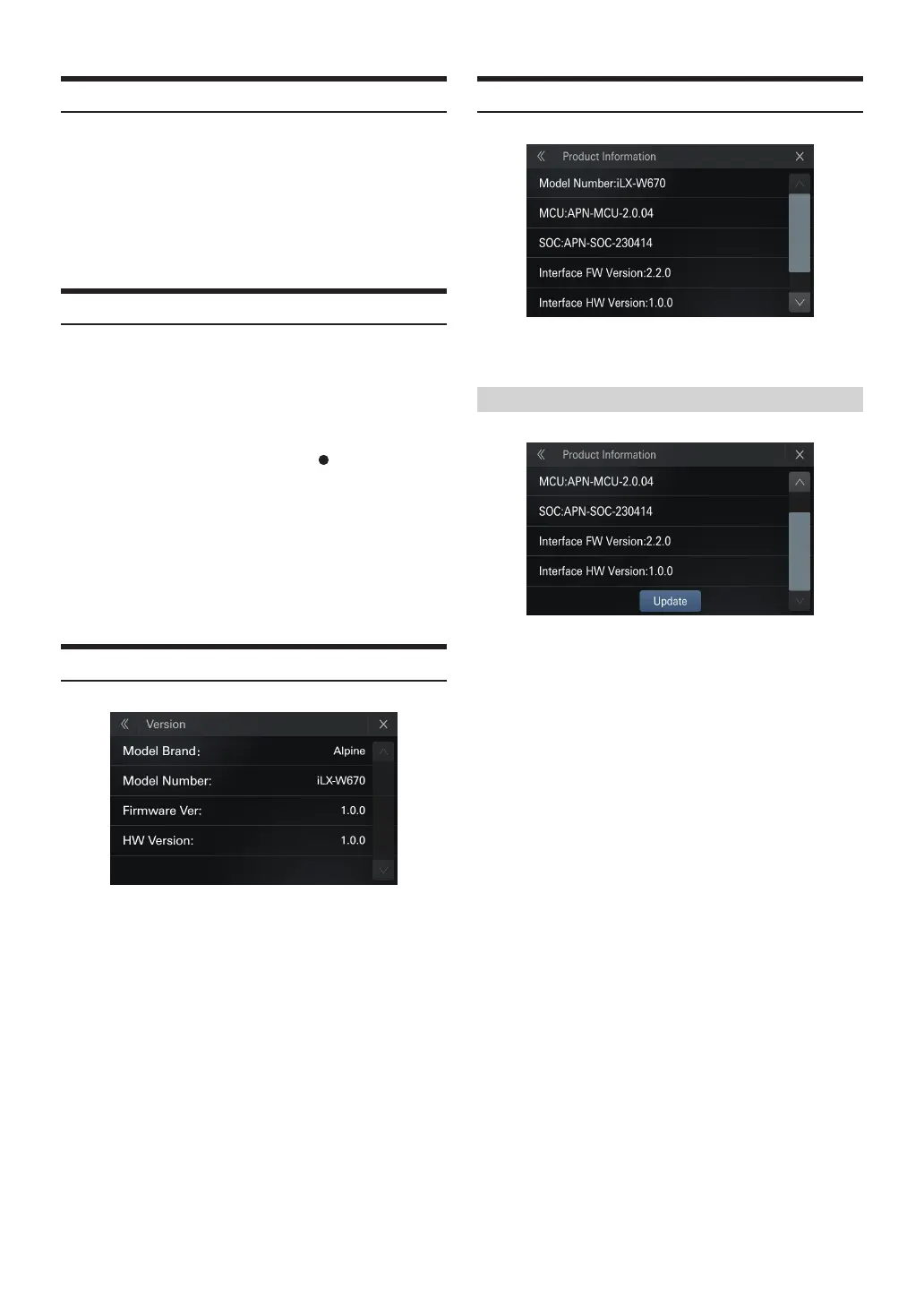
Version
Setting item:
Version
Setting contents:
Model Brand,Model Number,Firmware Ver,HW Version.
Product Information
Setting item:
Model Number, MCU, SOC, Interface FW Version, Interface HW Version
Updating the rmware version
1
Download the rmware update le into your computer.
2
Inset a USB with FAT32 format into your computer,copy
the correct upgrade le to the root directory
3
Connect the USB storage device to this product.
4
Touch [setup]>[System setup]>
[Product Information]>[Update] .
The rmware update le information will be read
5
After readingTouch[Update]
Follow the on-screen prompts to update the rmware.
•
is product will reset automatically aer the rmware update is
completed if the update is successful.
•
If an error message on the screen,Repeat the preceding steps



 To Next Page