Creates a new route with the Cursor as the destination.
The previous route (if exists) is deleted.
Opens the full-screen Cursor menu with all the possible
options.
The location of the Cursor is saved as the Home address.
The Cursor is saved as a user POI. Select the POI group
and give a name for the POI, then select a suitable icon,
enter a phone number and additional information if you like.
The Cursor becomes the start point of the route. This means
that the route is not started from the current GPS position,
and Automatic Off-route Recalculation needs to be turned
off to keep the selected point as the start point.
If the Cursor is at or near the selected start point, this button
replaces the previous one and deletes the start point from
the route. The current GPS position is used again as the start
point, and Automatic Off-route Recalculation is re-enabled.
This button is similar to the button, but a
new screen opens, and the route is calculated with all the
possible route calculation methods (Fast, Short, Economical
and Easy). Observe the results, and choose one of the
routes to navigate.
The Cursor is added to the active route as an intermediate
route point, a point to be reached before the destination.
If there is already a waypoint in the route, the Edit Route
screen opens to let you decide where the new waypoint is
to appear in the route.
If the Cursor is at or near one of the waypoints, this button
replaces the previous one, and deletes the selected
waypoint from the route. The route is recalculated without
the deleted point.
The location of the Cursor is added to the list of frequently
visited destinations, the so called Favourites. You can give
a name for the Favourite.
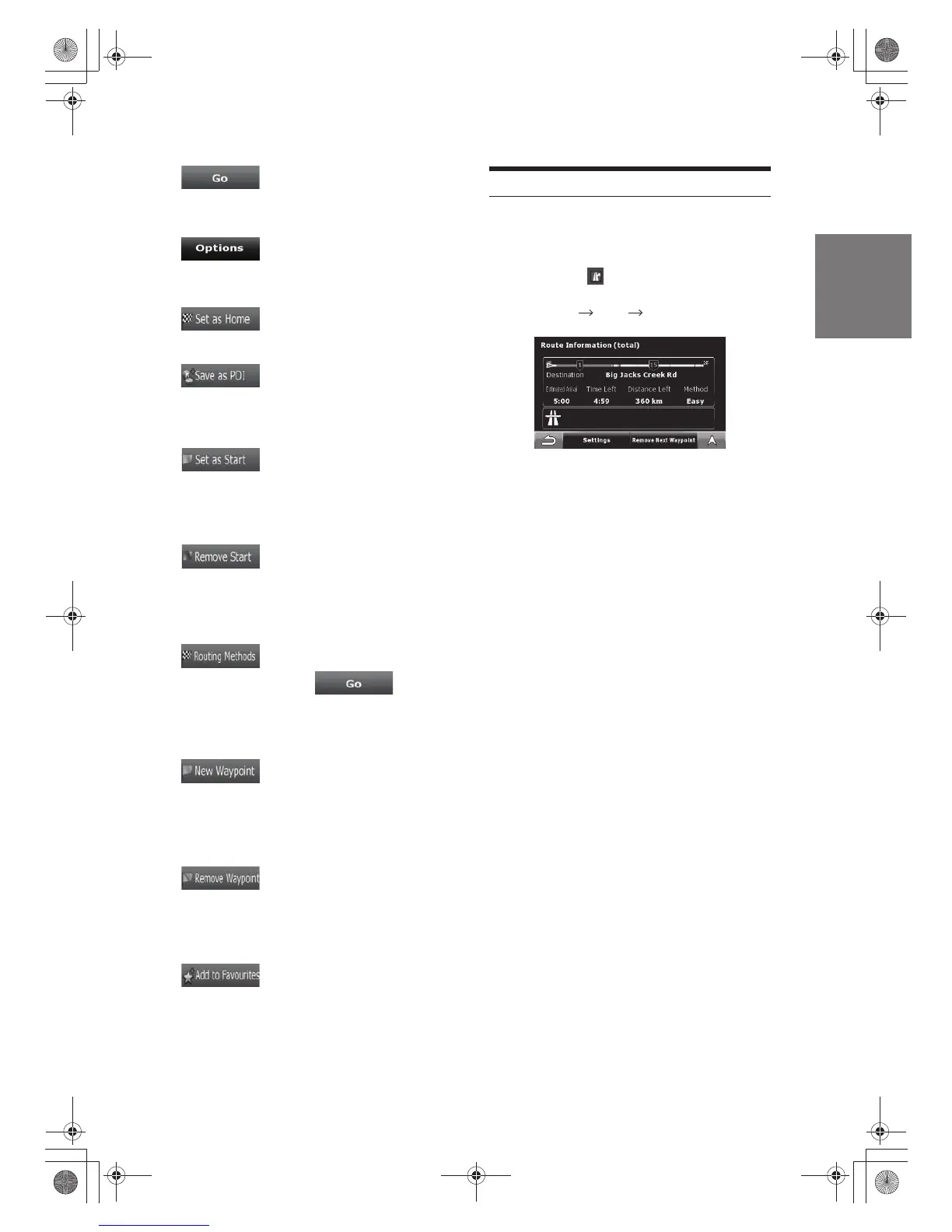
The Route Information screen has all the data and some
of the functions you need while younavigate.
There are two ways to open this screen:
· It can be opened directly from the Map screen by tapping the
Turn Preview field ( ).
· From any of the menu screens, tap the following buttons:
In the top section of the screen you see information about
the current route. The fields on this screen are continuously
updated while you keep the screen open.
When you open the screen, all fields contain information
about reaching your final destination. Tap any of the fields
to see data on the waypoints starting from the first one
through the final destination again.
You have the following data and functions on this screen:
Go to Main Menu Route Route Info
Route Information screen
Route line
The upper part of this screen shows your planned route
as a horizontal line. Its leftmost point is the start of the
route, the rightmost one is the final destination, and you
can see your waypoint flags along the line, spaced in
proportion to their distance.
· Tap this field to change the content of all data fields to
waypoint information.
Estimated Arrival Time
Shows the estimated arrival time at the final destination of
the route based on information available for the remaining
segments of the route. The calculation cannot take into
account traffic jams and other possible delays.
Time Left
Shows the time needed to reach the final destination of
the route based on information available for the remaining
segments of the route. The calculation cannot take into
account traffic jams and other possible delays.
Distance Left
Shows the distance you need to travel on the route before
reaching your final destination.
33-EN



 To Next Page