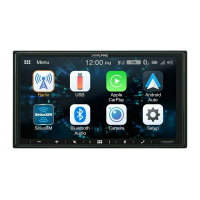
The Trip Computer screen provides collected trip data.
It can be opened from the Trip Information screen by tapping
The fields on this screen are continuously updated while you
keep the screen open.
You can switch between the trips, pause then resume them,
or reset their data.
You have the following functions on this screen:
This button replaces the previous one if it has been
activated. collecting trip data.
Resets all counters of the currently shown trip.
Collecting trip data is restarted only when Alpine
Navigation Software receives a position from the GPS.
,
Cycles through all trips.
[Trip Computer]
Trip Computer screen
Resume
Pause
Reset
You can access the list of TMC events and select or
ignore specific radio stations in the list of Traffic events.
Tap the Traffic button on the Map screen .
The colour of the Traffic button show the Traffic status:
There are new Traffic events but they are not concerning
your recommended route.
There are Traffic events on your route. They were handled,
but it is better to take the concerned road segments rather
then to avoid them.
Manual Traffic handling is selected in Settings, and there
are Traffic events on your route to be handled.
On Route
Only TMC events concerning a part of your active route
appear in the list.
All
All TMC events received by Alpine Navigation Software
appear in the list.
Use Auto-tuner If Auto-tuner
If Auto-tuner is enabled, the tuner of Alpine Navigation
Software sweeps through the FM CCIR radio band
searching for a TMC signal. The first station with TMC
data will be used automatically. When no TMC signal is
available, the tuner keeps on searching.
Turn off Autotuner to select a radio station manually.
,
When Auto-tuner is turned off, search for the desired radio
station manually with these buttons.
Exclude This Station
Push this button to put the currently received FM radio
station on an exception list and make Alpine Navigation
Software search for another station instead.
Show how Excluded Stations
This button opens the list of radio stations previously
excluded.
You can re-enable any or all of the excluded stations.
When you tap the button, the list of current TMC events is
displayed first, ordered by their distance from your current
position.
You can change the content of the list:
To check the currently received FM radio station, to exclude
radio stations or to manually tune to a radio station,
tap [Stations]
TMC Events screen
Black
Blue
Yellow
Red
35-EN
Pauses the trip currently shown on the screen.
There are no new (unread) Traffic events in the list.



 To Next Page