8
Altai C2s Dual-Band 2x2 802.11ac WiFi AP/Bridge
Installation Guide
Altai Technologies Ltd. All rights reserved
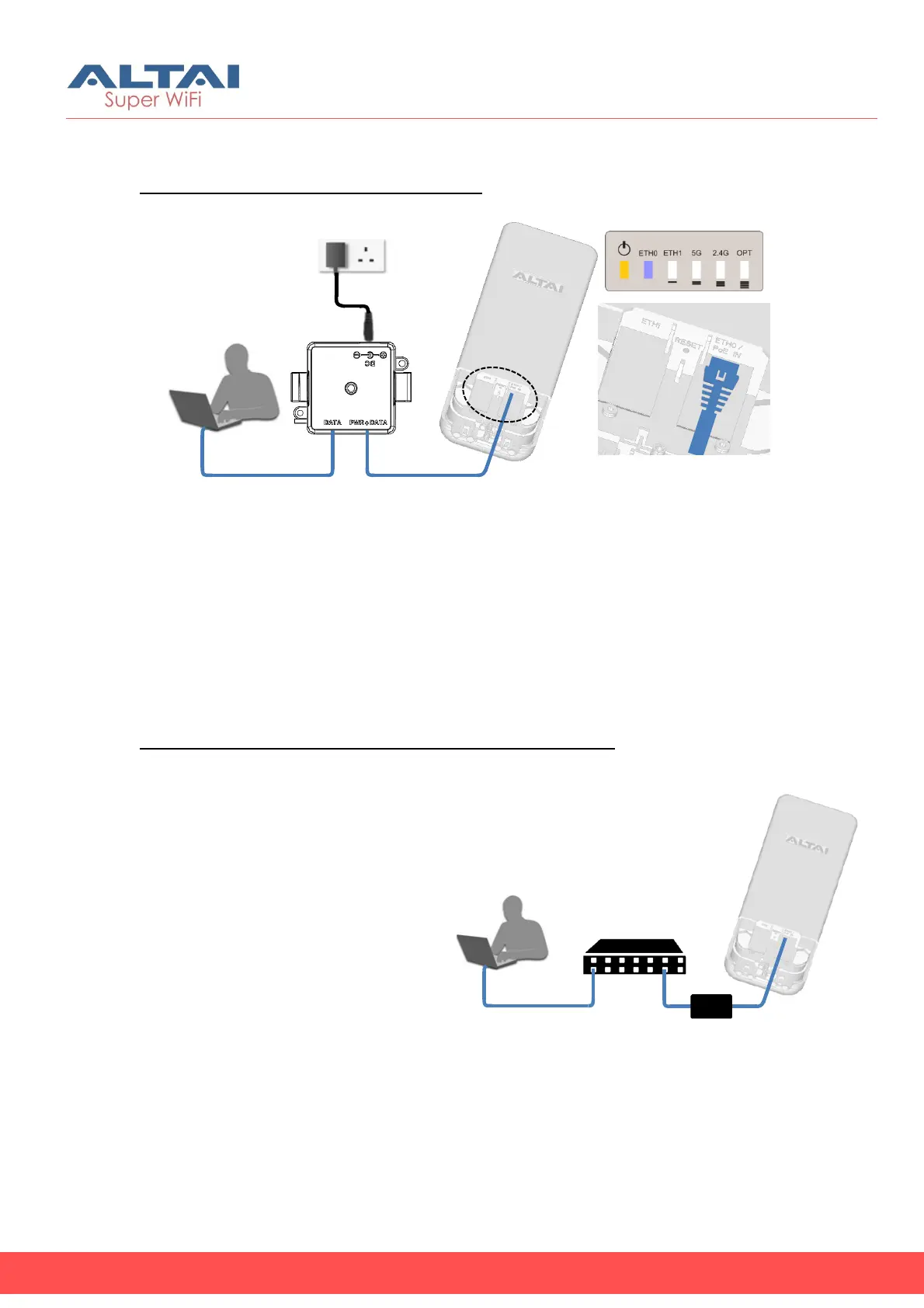
2.6. Power Options and Cable Connection Instructions
Option 1: AC Adapter and DC Injector
1.
Connect C2s ETH0 port to a DC injector’s “PWR+DATA” port with an
Ethernet Cable.
2.
Connect a computer to the DC injector’s “DATA” port with another
Ethernet Cable.
3.
Connect the AC power adapter to the DC injector and plug it into a
power socket.
4.
Make sure the Power LED light is yellow and ETH 0 LED light is
blue/green.
Option 2: 802.3at-compliant PoE switch / PoE Injector
1.
Connect C2s ETH0 port to an
802.3at to Passive PoE
Adapter’s “PWR+DATA” port
with an Ethernet Cable.
2.
Connect a port of an 802.3at
PoE Switch to the PoE
Adapter “802.3at” port with
another Ethernet Cable.
3.
Make sure the Power LED light
is yellow and the ETH0 LED
light is blue/green.
4.
Connect a computer to the
switch.
802.3at-
Compliant PoE
Switch
802.3at to Passive PoE
Adapter (Separately
ordered)


 To Next Page