17
malletKAT Quick Start Guide
BASIC INTERFACE
How do I Edit the malletKAT
You may have noticed that there aren’t any buttons for editing with the exception of the
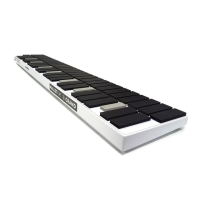
volume buttons. Take a look at the “white” keys. Notice that there is a function listed di-
rectly underneath each pad. Getting at these functions require that you to step and hold
down the EDIT footswitch. When you hold down the switch and then hit one of these pads,
the screen changes and confirms that you want to change a value for that function.
Changing the value is performed by using the INCrement and DECrement keys. These are
the highest C# and D# pads on the instrument.
So let’s say that you want to change the octave range on a sound. You want to make the
sound an octave higher. These are the steps:
Step on and hold down the EDIT Footswitch.
Tap on the “e natural” pad where the octave function is listed (the highest e on the mallet-
KAT)
While the Footswitch is still held down, tap on the INC C# pad. Let go of the Footswitch.
This is how all of the editing is done on the malletKAT.
There is another very effective shortcut for entering values. Take a look at the “white” keys
on the malletKAT. Notice there are numbers 1 - 10 starting on C# (not the Express)
This is the quickest way to enter a large number. Here’s an example:
Let say you want to go to Program number 100:
Step on the Edit Footswitch and while it is held down, tap on the highest C on the mal-
letKAT. This is the program function key. Now type in 100 ( C#- A# A#). Let go of the Foot-
switch. Isn’t that easier than hitting the increment key over and over!


 To Next Page