4
malletKAT Quick Start Guide
CONNECTIONS ON THE malletKAT
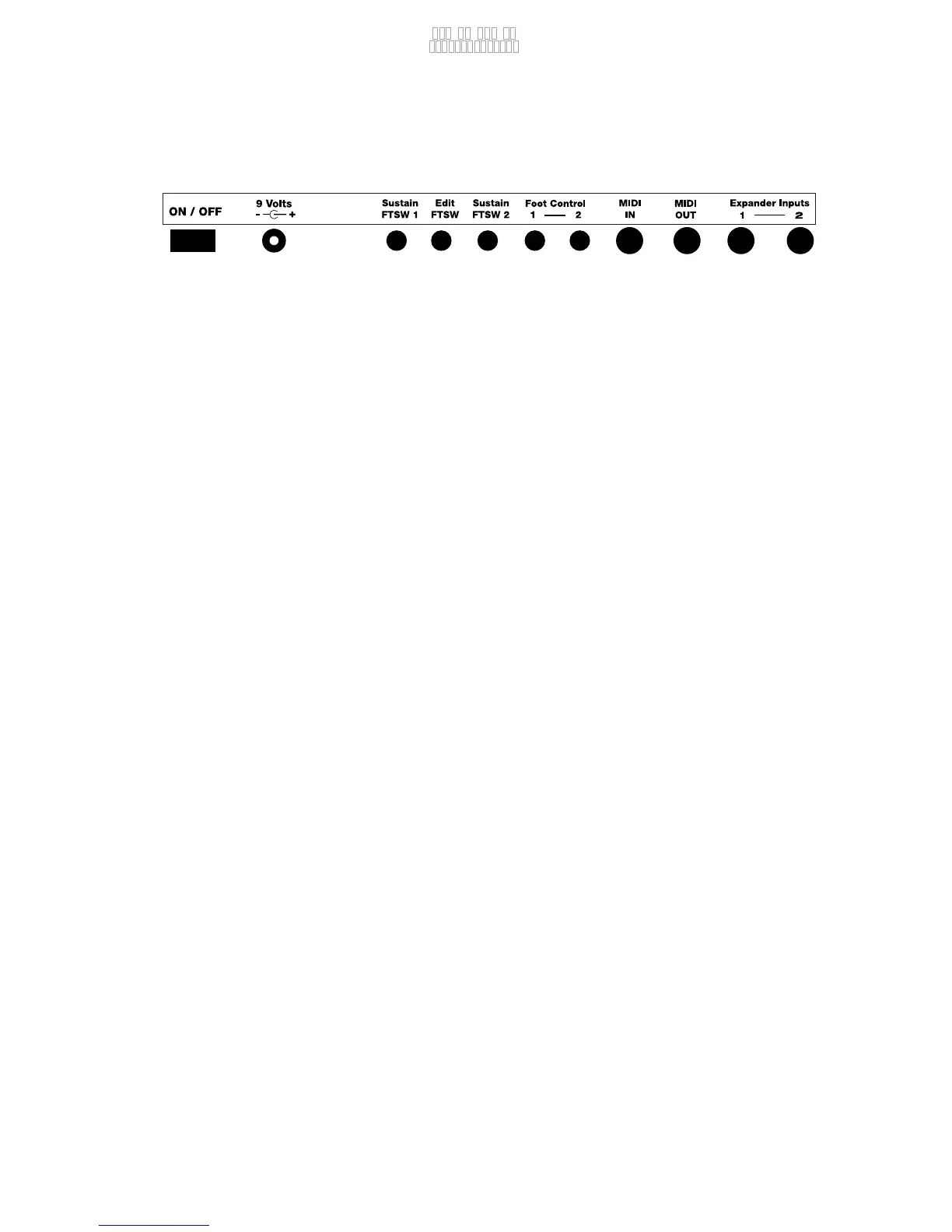
Let’s take a look at all of the connections and buttons on the malletKAT. Take a look at the
diagram. The malletKAT should now be placed on a keyboard style stand. Walk around the
stand and look at the back connections going from left to right. Here’s what you should see.
ON/OFF Switch
Turns the malletKAT on and off.
DC INPUT
Make sure that you are using a KAT transformer or an adapter that matches our power
specifications (15 Volt 1.6 Amps, Positive Tip). Our power supplies have a special screw in
connector so that it stays attached during performances.
SUSTAIN FTSW 1
Use this foot switch when you want to sustain the sound that you are playing. It is very
similar to the sustain pedal on a piano. The malletKAT comes with a sustain pedal (a square
black foot switch - KF1). You can use this foot switch on any of the FTSW inputs. They can
also be used on Foot Control inputs under certain circumstances. You might want to get
some extra foot switches if you plan on doing editing and if you want to use all of the FTSW
functions at the same time.
EDIT FOOTSWITCH
Insert a foot switch here when you want to edit the malletKAT. With the exception of
changing kits (sounds), all of the editing functions require that you first step down on this
pedal to begin an editing function.
SUSTAIN FTSW 2
This is the coolest foot switch input. Depending on the kit, when you step on this foot
switch, a pre-defined function will happen. This includes things like pitch bending, octave
shifting on the pads or even a different sound playing. You will have plenty of time to check
these functions later.
FOOT CONTROL 1 and FOOT CONTROL 2
Unlike the foot switch inputs that “see” an on/off connection, these programmable input
jacks require a special controller pedal. These pedals move from up to down in increments.
Depending on the function, they can control the volume of a sound, or affect the pitch of a
KEYBOARD MODE
Poly, Mono, MOverlap, MHSmoothing
PolyCount, RTC, PTW, CTLA
CANCEL
COPY
SETUP
DEFAULT
DEC
INC
1
FORWARD
(edit FS) Groove ON/OFF
BKWARD
/Tap Tempo
V WHEEL 2
V WHEEL 1
PRESSURE
Normal Sustain, Dampen, DeadStroke
NOTE ARRANGE
Pitch Conf, Octave, Transpose
2
3
4
5
VELOCITY
Min/Max Velocity, Curve
6
7
8
9
10
11
12
13
14
15
16
17
18
19
20
21
22
23
24
25
26
27
28
30
29
PROGRAM CNTL
Bank Change, Program Change
GATE CONTROL
Gate Time, Velocity Gate, Roll Mode,
Latch Mode, Auto Gate, Gate Overlap,
Foot Control Gate 1&2
VOLUME
ALL NOTE OFF
All Note Off, Indiv All Note Off
KIT BANK
Factory, User, Chains
KIT NAME
LAYER MODE
Hang, Double, Melody Chord123
Alternate Mode, Velocity Shift,
Velocity S. Point
FOOT CONTROL
FC1&2 Assign, Ch, Min/Max,
Curve, Trigger Note, Gate,
HiHat Assign, Open/Closed
FOOT SUSTAIN
Sustain FTSW1 & 2
WARP MODE
Warp Mode, Mode P,
Rep, Pattern
EFFECTS
Type, Amt, PitchBend Chan,
Pitch Bend Sensitivity
REASSIGNMENTS
Mode, Number, Poly, Oct. Offset
Transp, Gate, Chan, Bank
Prog. Change Vol,
Poly, Interface
CNTRL PRESET
Preset CC#, Channel, Value
Kit Auxiliary
Preset CC#, Channel, Value
GLOBAL AUXILLARY
CHANNEL
Groove Control
Start/Stop, Groove Enable, Pattern
Tempo, Vol, Interface, Note, CH
CHAINS
Chain#, Enable,Setup, Step
PAD TRAINING
All, Rings, IndivA-P, Results
DATA DUMP
All,Kits, Chains,
Global, 1-128
Label Positions
Back Panel:
Headphones/Volume:
Audio Ins/Outs:
15


 To Next Page